If the IAM domain you use to access the Trellix UI ends in fireeye.com, follow these steps to configure API keys:
Log in to the Email Security — Cloud Web Portal or IAM console.
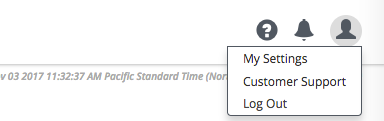
Click on My Settings in the top navigation bar.
Click the API Keys tab in the IAM console.
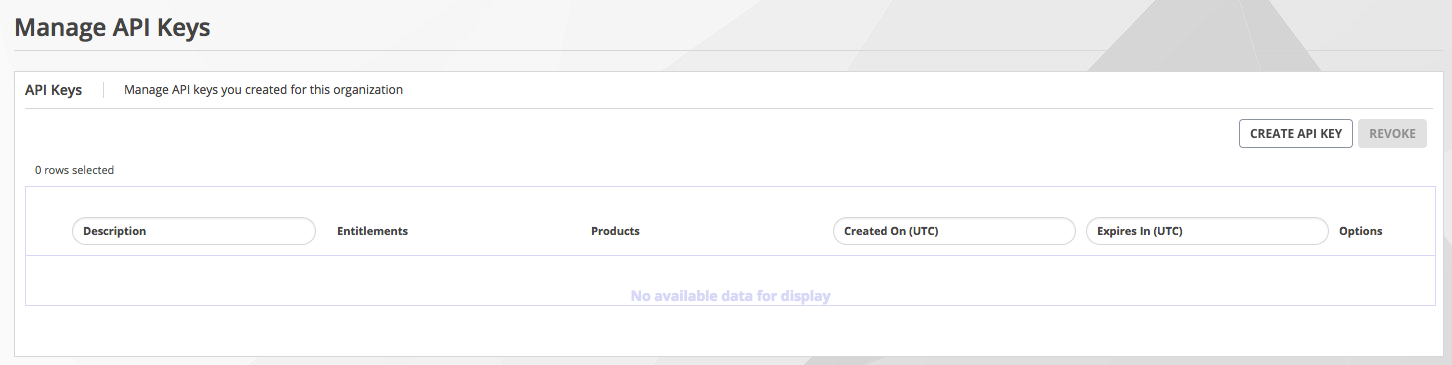
Click Create API Key.
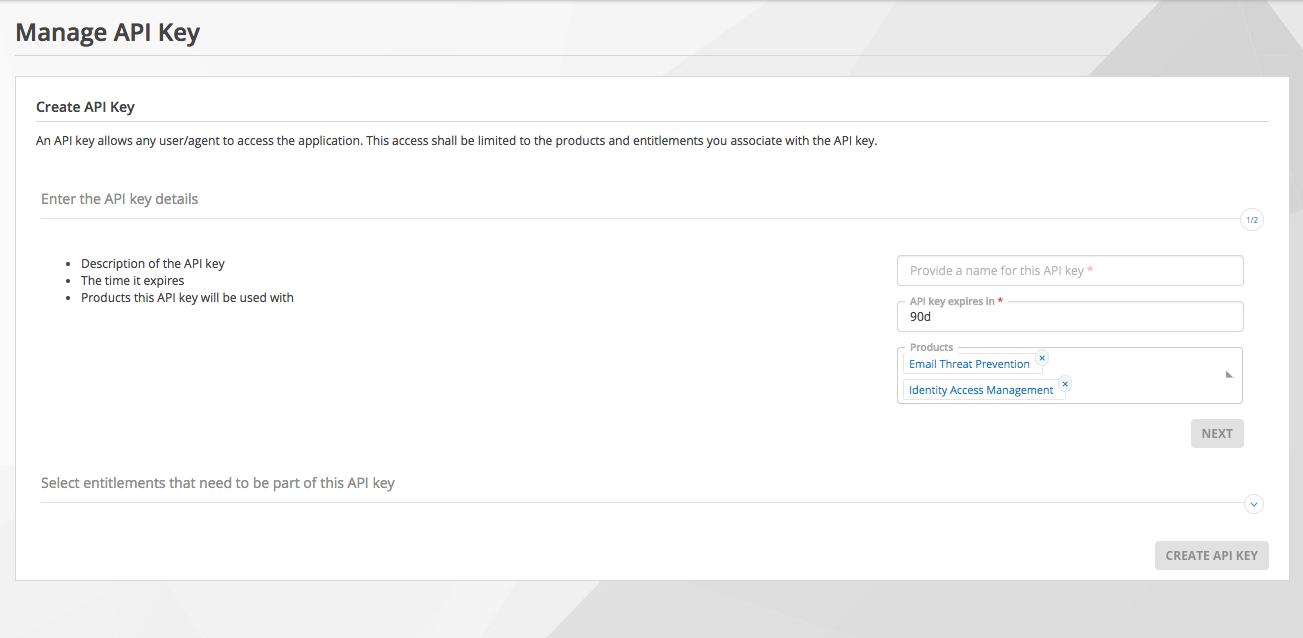
On the Manage API Key page, specify the following:
API key name.
Expiration time for the API key. The expiration time of API keys should be set as “100d” for 100 days, or “1y” for 1 year, for example.
Products. Select both “Email Threat Prevention” and “Identity Access Management”.
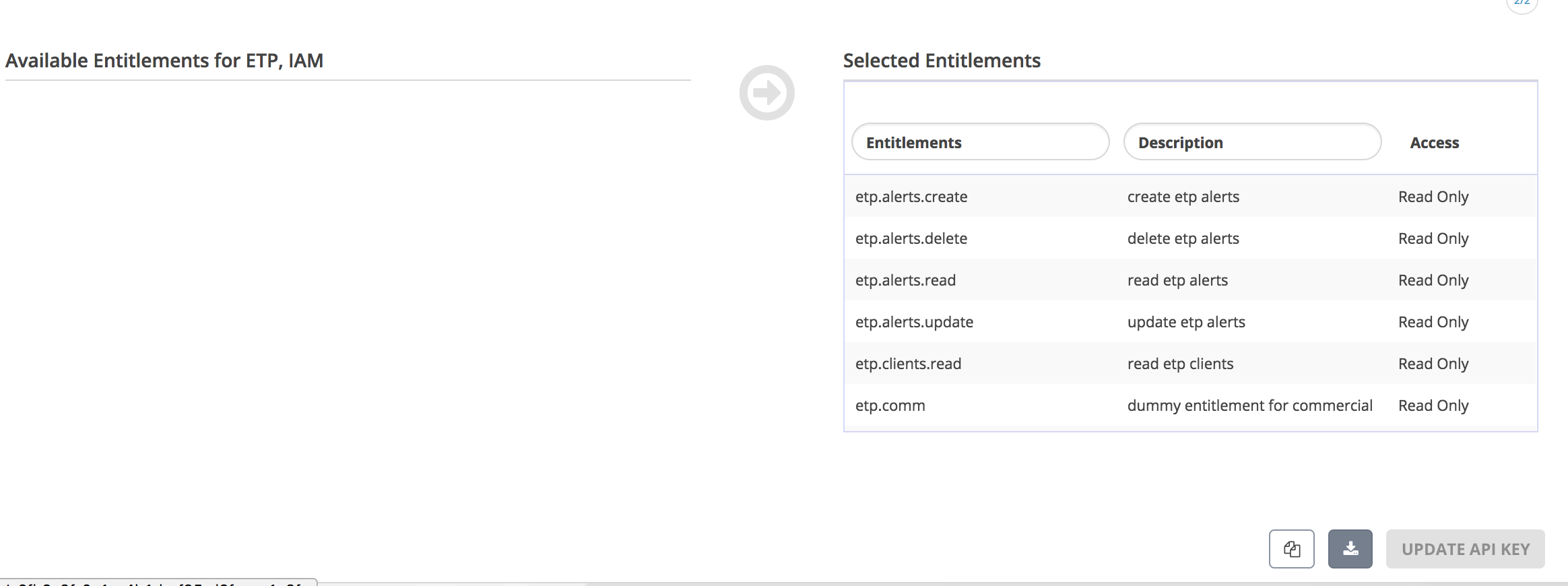
Select all entitlements as shown below.
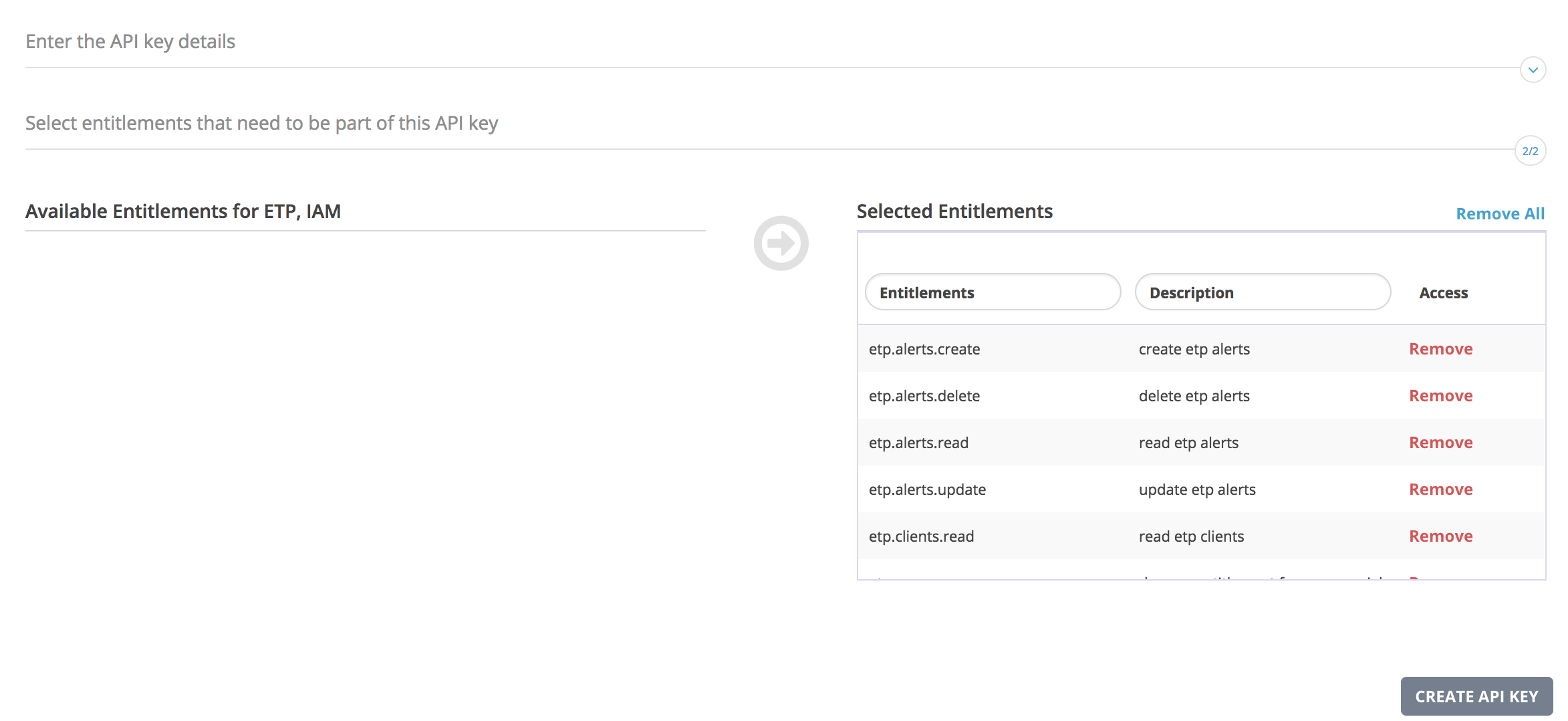
For any API access, the following entitlements are required:
iam.users.browse
iam.orgs.self.read
For accessing alerts APIs, the following additional entitlements are required:
etp.alerts.read
For accessing trace APIs, the following additional entitlements are required:
etp.email_trace.read
For accessing quarantine APIs, the following additional entitlements are required:
etp.quarantine.update
etp.quarantine.read
etp.quarantine.delete
To download or copy an API key, click the download or copy icon in the bottom right corner.
Click Create API Key.