Use the Define protocols section on the SMTP tab of the Notification Settings page to configure SMTP settings.
Note
For Trellix Cloud products, the server should be external to your organization.
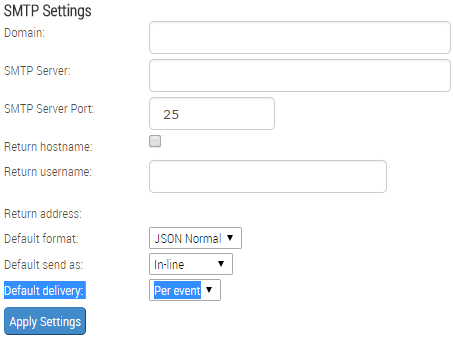
Select Appliance settings from the Admin menu.
Click Notifications on the side bar.
Click the email link in the table header.
Locate the section.
Enter the domain that is used for email in the Domain field.
Enter the SMTP server that is used for mail delivery in the SMTP server field.
Enter the SMTP server port that is used for mail delivery in the SMTP server port field.
(Optional) Select the Return hostname checkbox to use the local domain name. Clear this checkbox to use the value in the Return username box and the value in the Domain box.
Enter the user who is specified as the “from” user in the Return username box.
Verify that the value in the Return address box is correct. If it is not, change the values in the Domain box and Return username boxes.
JSON Normal is automatically selected in the Default format drop-down list box. This selection indicates that JSON will be used and will contain detailed information and abstracts, such as alert type, ID, source IP, malware name, hostname, and alert URL without redundant information.
Select whether to send the notification as an inline message or an attachment in the Default send as drop-down list box.
Per event is automatically selected in the Default delivery drop-down list box. This selection sends a notification each time an event of this type occurs.
Click Apply Settings.
Note
If you do not click Apply Settings, your changes are lost.