After upgrading your Endpoint Security (HX)) policies, you must deploy the EDRF Client. This process automatically uninstalls xAgent.
Deploy EDRF Client
Log in to ePO - On-prem as an administrator.
Go to Menu → Softwares → Product Deployment and click New Deployment.
Enter a name and description for the deployment task.
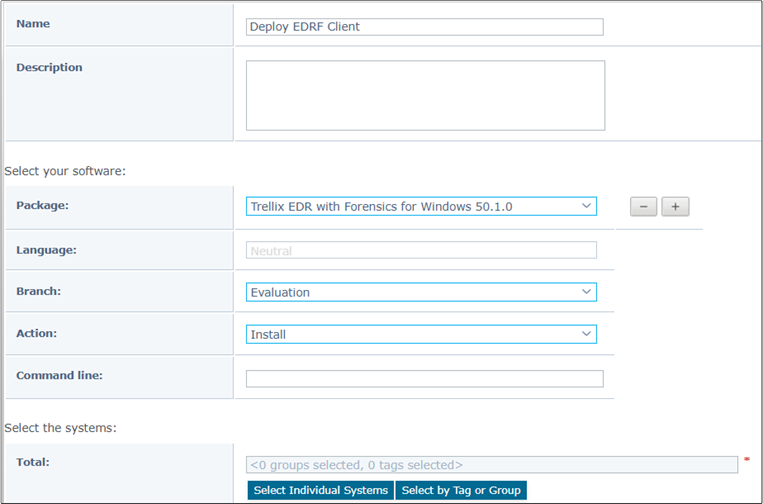
In the Package field, select the applicable version of EDRF Client.
Select the Current Branch and Install Action.
Select the endpoints to deploy the package using the Select Individual Systems or Select by Tag or Group option.
To start the deployment task immediately, select Run Immediately as the Start Time.
Click Save.
View the deployment status on the Product Deployment home page.
Click the 'Start' or 'Windows' button, search for Task Manager, and verify that XClient processes are running on the Windows endpoints.
To view the current status of XClient processes on Mac and Linux, use Activity Monitor and Status Monitor respectively.

Note
By default, the Malware Protection and ProRem services are disabled after deployment. To enable, go to Menu → Policy → Policy Catalog → Trellix EDR with Forensics → Protection.