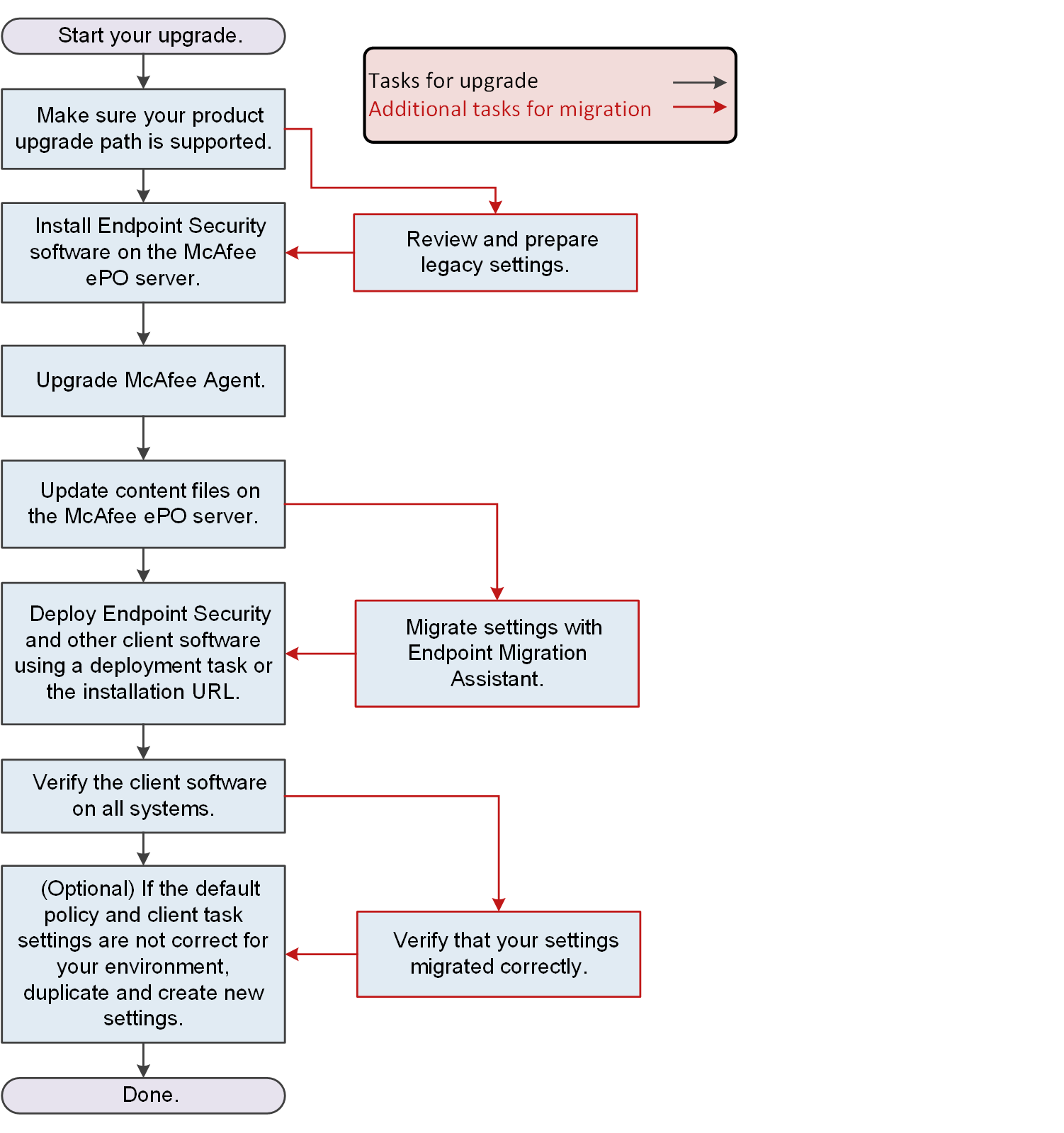
When upgrading legacy products to Trellix ENS, you can optionally save (or migrate) your custom settings using Endpoint Migration Assistant.
Migration tasks integrate into the basic workflow for upgrading to a new version of the software. See the Trellix Endpoint Security (ENS) Installation Guide for more information about the upgrade workflow tasks.
- Confirm that your upgrade path is supported.
- Review your legacy settings and prepare them for migration.
- Check in the product package files and the Trellix Agent package files to the Trellix ePO - On-prem server.
- Upgrade Trellix Agent.
- Manually update your Trellix ePO - On-prem server with the latest content files required for Trellix ENS: AMCore, Exploit Prevention, and Adaptive Threat Protection content files.
- Migrate policies, client tasks, and other settings from supported legacy products.
- Deploy the client software with default or custom settings to managed systems in one of these ways:
- Remotely to multiple managed systems with deployment tasks.
- Locally on managed systems with an installation URL.
- Verify that the client software is installed and up to date on all managed systems.
- Verify that the settings migrated successfully.
- (Optional) Configure settings as needed.