---
title: "About Sensor port configuration"
slug: "about-sensor-port-configuration"
tags: ["Product Usage", "IPS 10.1.10"]
updated: 2026-10-05T15:41:11Z
published: 2026-10-05T15:41:11Z
canonical: "docs.trellix.com/about-sensor-port-configuration"
---
> ## Documentation Index
> Fetch the complete documentation index at: https://docs.trellix.com/llms.txt
> Use this file to discover all available pages before exploring further.
# About Sensor port configuration
Before you configure the Sensor ports, you must have installed the Sensor and added to the Manager interface.
**Configure inline mode for a single Sensor**
This section contains recommendations for deploying a single Sensor in inline mode.
> [!NOTE]
> Note
>
> Configuration for a fail-open kit is described in the fail-open kit documentation. For example, to configure the Sensor to work with the copper fail-open kit, see the Trellix Intrusion Prevention System Fail-Open Kit Product Guide.
## Task
1. In the Manager interface, select
**Devices** → **** → **Devices** → **** → **Setup** → **Physical Ports**.
2. Double-click on a numbered port (for example, 3/1) from
**Monitoring Ports**.
**Monitoring Port Details** panel displays current port settings.
Verifying ports for inline fail-open mode
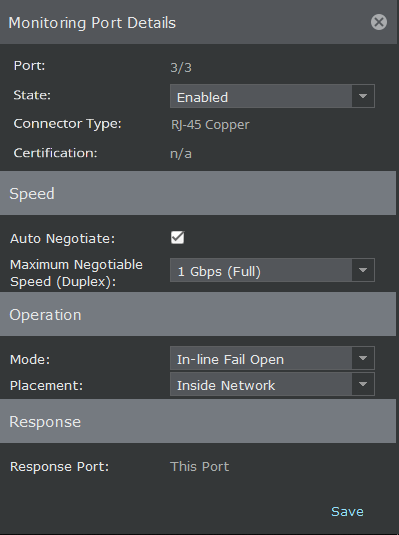
3. Set the Administrative
**State** to
**Disable** (off).
4. Select the other port (for example, 3/2) and set the Administrative
**State** to
**Disable** (off).
5. Now select the aforesaid port (port 3/1) and select the
**Auto Negotiate** checkbox.
6. Select the port
**Speed**.
7. Do one of the following:
- For inline fail-closed operation, select
**Inline Fail Closed** as the operating Mode.
- For inline fail-open operation, select
**Inline Fail Open** or
**Inline Fail Open - Active** as the operating Mode. Confirm (**Yes**) that you have already connected a fail-open kit. However, if your Sensor supports in-built fail-open on that port, you might not require a fail-open kit.
> [!NOTE]
> Note
>
> **Inline Fail Open** indicates in-built passive fail-open which is supported on different Sensors differently.
8. Select the area of your network to which the current port is connected:
**Inside** (traffic generated internally, destined for the external network) or
**Outside** (traffic generated externally, destined for the internal network).
9. Set the Administrative
**State** to
**Enable** (on).
10. Click
**Save**.
11. Repeat for any other ports you need to configure.
12. Download the changes to your Sensor by clicking the
**Deploy Pending Changes** option.