To add outbound SSL decryption exclusions in the Manager, complete these tasks:
Task
- Go to Policy → <Admin Domain Name> → Intrusion Prevention → Exceptions → Outbound SSL Decryption Exclusions.
-
Add an outbound SSL decryption exclusion.
-
In the
Outbound SSL Decryption Exclusions page, click
.png) .
The Rule Details panel appears.
.
The Rule Details panel appears.Rule Details panel for Outbound SSL Decryption Exclusion 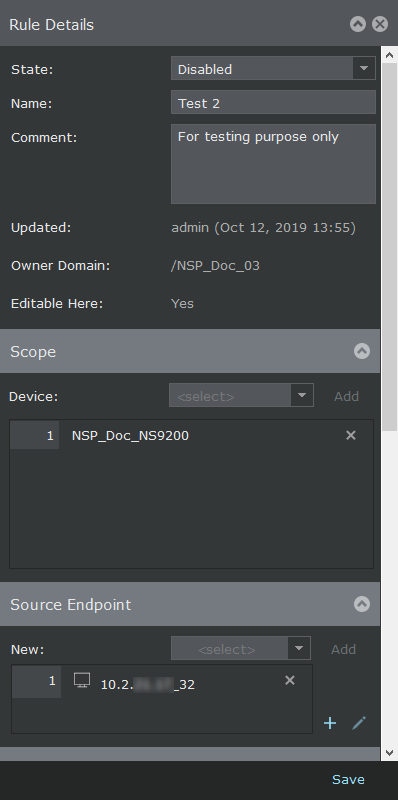
Option Definition State State of the exclusion. The state can either be Enabled or Disabled. Name Name for the exclusion. Comment Additional comments for the exclusion. Updated Displays the user who last modified the exclusion. Owner Domain Displays the name of the admin domain under which the outbound SSL decryption exclusion is added. Editable here Displays Yes if the exclusion is owned by the current admin domain. Displays No if the exclusion is not owned by the current admin domain. Scope Device Device or interface to which you want to assign the exclusion. The actions supported are add and delete.
Note
If the Scope is not specified for the exclusion, the exclusion will be applied to all the Sensors connected to the Manager that has Outbound SSL Decryption enabled.
Source Endpoint New Source endpoint IP address or CIDR to which you want to assign the exclusion. The actions supported are add, create, edit, and delete.
Click Add to add a rule object.
Note
The Manager filters the rule objects containing more than 10 entries and lists only those which contain up to 10 entries, since the maximum supported rule object members per rule object in Outbound SSL Decryption Exclusions is 10.
Click
to create a new rule object.
Click
.png) to edit or view a rule object.
to edit or view a rule object.
Click
.png) to remove the rule object from the list.
to remove the rule object from the list.
Destination Endpoint New Destination endpoint IP address or CIDR to which you want to assign the exclusion. The actions supported are add, create, edit, and delete.
Click Add to add a rule object.
Note
The Manager filters the rule objects containing more than 10 entries and lists only those which contain up to 10 entries, since the maximum supported rule object members per rule object in Outbound SSL Decryption Exclusions is 10.
Click
to create a new rule object.
Click
to edit or view a rule object.
Click
to remove the rule object from the list.
Destination URL Hostname URL hostname of the destination to which the outbound SSL decryption exclusion is assigned to. The actions supported are add, create, edit, and delete.
Click Add to add a rule object.
Note
The Manager filters the rule objects containing more than 10 entries and lists only those which contain up to 10 entries, since the maximum supported rule object members per rule object in Outbound SSL Decryption Exclusions is 10.
Click
to create a new rule object.
Click
to edit or view a rule object.
Click
to remove the rule object from the list.
Note
The Sensor uses SSL extension "Server Name Indication" (SNI) in the "CLIENT HELLO" message to get the host name and category. If SNI is absent, the Sensor cannot match against these exclusions.
Destination URL Category URL category for which you want to assign the exclusion. The Manager retrieves the list of URL categories from the GTI server. It can retrieve the list from the Public GTI cloud or the Private GTI cloud based on the configuration. Note
If Alert Data Details is not enabled in the Manager → <Admin Domain Name> → Integration → GTI page, URL category is disabled. Also, DNS resolution must be enabled in the Sensor for functioning of GTI.
The actions supported are add and delete.
-
Click
Save.
The outbound SSL decryption exclusion is displayed in the Outbound SSL Decryption Exclusions pane.
-
In the
Outbound SSL Decryption Exclusions page, click
-
Select the exclusion and click
.png) to clone an outbound SSL decryption exclusion.
to clone an outbound SSL decryption exclusion.
Note
You can use the Search function to find the outbound SSL decryption exclusion.
- Double-click the row of the exclusion to modify. The Rule Details panel is displayed. You can edit the values for the fields.
-
Select the exclusion, click
.png) to delete the exclusion.
to delete the exclusion.
- Click Save as CSV to export the outbound SSL decryption exclusions list as a .csv file.