After a Sensor is configured with a name and shared key value, you can add the Sensor in the Device Manager page.
Adding a physically installed and network-connected Sensor to the Manager activates communication between them.
Note
The process of installing and connecting a Sensor is described in the Trellix Intrusion Prevention System Product Guide for each Sensor model.
The following steps describe how to add a Sensor to the Manager:
Task
- Start the Manager software.
-
Log on to the Manager.
The default username is admin; the default password is admin123.
Note
Trellix strongly recommends that you change the default password for security purposes. The new password must be at least 8 characters in length and must contain a combination of numbers, characters, and special characters. For more information on the password control, see section Configure password complexity settings in Trellix Intrusion Prevention System Product Guide.
-
Go to
Devices → <Admin Domain Name> → Global → Device Manager.
The Device Manager page is displayed.
-
Select the
Sensors tab and click
 .
The Add Device - Step 1 of 2 panel is displayed.
.
The Add Device - Step 1 of 2 panel is displayed.Add Device - Step 1 of 2 panel 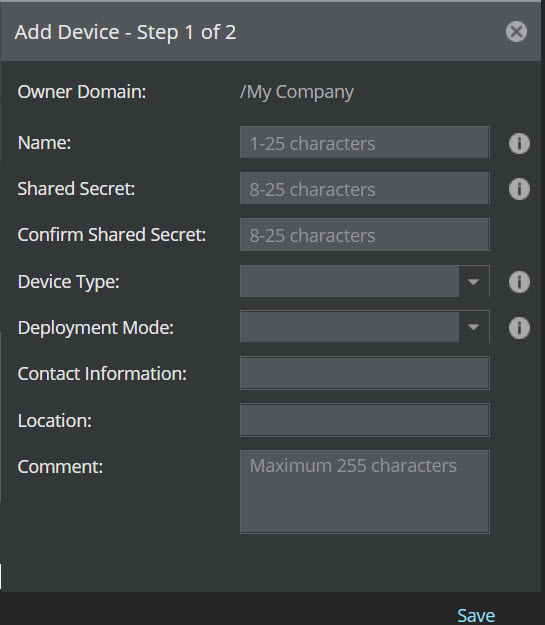
-
Type the same
Device Name as you entered on the Sensor.
Caution
The exact same Sensor Name and Shared Secret must also be entered into the CLI of the Sensor during physical installation. If not, the Manager will not recognize the Sensor trying to communicate with the Manager.
-
Enter the
Shared Secret.
The shared secret must be a minimum of 8 characters and maximum of 25 characters in length. The key cannot start with an exclamation mark nor can have any spaces. The parameters that you can use to define the key are:
- 26 alphabets: upper and lower case (a,b,c,...z and A, B, C,...Z)
- 10 digits: 0 1 2 3 4 5 6 7 8 9
- 32 symbols: ~ ` ! @ # $ % ^ & * ( ) _ + - = [ ] { } \ | ; : " ' , . <? /
- Enter the Confirm Shared Secret.
- Ensure the selected Device type as IPS Sensor.
- Select the Deployment Mode as Direct or Indirect from the drop-down.
- (Optional) Type the Contact Information.
- (Optional) Type the Location.
- (Optional) Type the Comment.
-
Click
Save to add the device to the Manager.
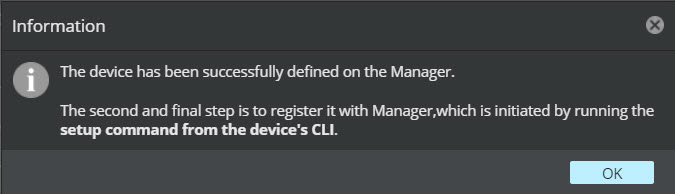
An Information dialog box is displayed to confirm the addition of Sensor. Click OK.