You configure the anti-malware options in an Advanced Malware policy and then assign it to the required Sensor monitoring resources, such as ports, interfaces, and subinterfaces. You must do a configuration and signature set update for any changes in the policy to take effect.
Task
- Select Policy and then select the required admin domain from the Domain drop-down list.
- Select Intrusion Prevention → Policy Types → Advanced Malware.
-
Click
 .
The Advanced Malware page for a new policy opens.
.
The Advanced Malware page for a new policy opens.Update the properties of the Advanced Malware policy 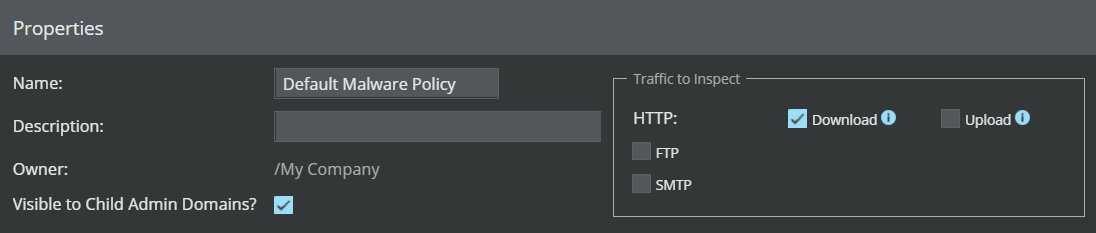
-
Update the following properties.
Field name Description Name Name of the policy Description Description of the policy Owner Name of the admin domain to which the policy belongs Visible to Child Admin Domains? Specifies whether the policy is applicable to all child admin domains Traffic to Inspect Protocols over which advanced malware scanning is performed. The supported protocols are HTTP, FTP, and SMTP. Note
- The HTTP Download option allows you to scan HTTP download/response traffic for presence of malware. This option is enabled by default.
- The HTTP Upload option allows you to scan HTTP upload (POST and PUT) requests for presence of malware. This option is disabled by default. You need to select the Upload checkbox to enable it. For more information on scanning HTTP POST and PUT requests, refer to the Malware inspection on HTTP Upload requests section in Trellix Intrusion Prevention System Product Guide.
Note
FTP malware detection overrides the accelerate-ftp feature even if it is enabled. For more information on the accelerate-ftp command, refer to the CLI commands section in Trellix Intrusion Prevention System Product Guide.
-
Update the
File Scanning Options.
Update the scanning options of the Advanced Malware policy .png)
Note
Name resolution must be enabled on devices which will be using the GTI File Reputation malware engine.
File scanning options Field name Description File Type The file types to be scanned. For information about the supported file types, refer to the table Advanced malware file extension support below. Maximum File Size (KB) Scanned The maximum size currently supported for the corresponding file type. Files that exceed the specified size are not analyzed for malware by any of the engines, including the block and allow lists. The default values are displayed in the Default Malware Policy as well as when you create a policy. The default values are the optimum sizes recommended by Trellix Labs based on their research on malware.
You can set the maximum file size value up to (25*1024) KB/25 MB for all file types. However, the Trellix IPS Anlysis engine and Trellix Cloud engine have a file-size limit. The limits for each Sensor model are as follows:
- NS-series Sensors - (50*1024) KB/50 MB
- Virtual IPS Sensors- (5*1024) KB/5 MB
Note
Trellix recommends that for any file type, you do not set a value more than (5*1024) KB/5 MB as the maximum file size as this might affect the Sensor's performance.
Malware Engines The Malware engines to scan the selected file type. If you select Gateway Anti-Malware for a File Type, you must either use an NS-series Sensor running on Sensor software version 9.1 or above, or NTBA. For MVX to work, you must integrate the corresponding Sensors with the VX appliance. See the chapter Integration with MVX for more information.
For Trellix Intelligent Sandbox to work, you must integrate the corresponding Sensors with Trellix Intelligent Sandbox. See the chapter Integration with Trellix Intelligent Sandbox for more information.
Action Thresholds Specifies the type of response to be made for the attack. The types of responses are: - Alert — Alerts are raised in Attack Log.
- Block — This action blocks packets for detected malware, thus preventing the malicious file from reaching the host.
The first step towards prevention is typically to block attacks that have a high severity level. When you know which attacks you want to block, you can configure your policy to perform the drop attack packets response for those attacks. If not configured in the policy, the Attack Log allows you to update the policy to block traffic.
- Send TCP Reset— Disconnects a TCP connection at the source, destination, or both ends of the transmission, thus preventing the malicious file from reaching the host.
Note
This response may not work effectively with SPAN and tap deployments.
- Add to Block List— If any of the engines report the submitted file to be malicious, the Manager adds the file's MD5 hash to the block list in its database. To be added to this list, the file's severity must be the same or more than what you specify in this field. For example, if you specify
high as the criteria, then files of severity
high and
very high are added to the block list. Within the next 5 minutes, the Manager adds this file to the local block list of all the Sensors that it manages.
Note
The TIE/GTI File Reputation engine does not support Add to Block List response action. You can manually add the desired malware file's MD5 hash to the block list from the Attack Log page.
- Save File— One of the response actions specified is the ability to archive the file in a file store based on the Advanced Malware policy. The files that are selected based on this configuration are forwarded to Manager.
- For files greater than 5 MB, only the first 5 MB is available as the saved file.
- To prevent the Manager's disk from getting frequently filled up, use the Save File feature sparingly.
- The Sensor's simultaneous file scan capacity is reduced if the Save File option is enabled. See the table in this section for the details.
Advanced malware file extension support File Type HTTP Upload and Download SMTP FTP Executables .acm
.ax
.com
.cpl
.dll
.drv
.exe
.fon
.ocx
.olb
.pif
.qts
.qtx
.scr
.sys
.vbx
.vxd
.acm
.ax
.com
.cpl
.dll
.drv
.exe
.fon
.ocx
.olb
.pif
.qts
.qtx
.scr
.sys
.vbx
.vxd
.acm
.ax
.com
.cpl
.dll
.drv
.exe
.fon
.ocx
.olb
.pif
.qts
.qtx
.scr
.sys
.vbx
.vxd
MS Office Files .doc
.docx
.ppt
.pptx
.rtf
.xls
.xlsx
.doc
.docx
.ppt
.pptx
.rtf
.xls
.xlsx
.doc
.docx
.ppt
.pptx
---
.xls
.xlsx
PDF Files .fdf
.pdf
.xdp
.fdf
.pdf
.xdp
.fdf
.pdf
---
Compressed Files .7z
.pkzip
.rar
.zip
.7z
.pkzip
.rar
.zip
---
.pkzip
.rar
.zip
Android Application Packages .apk --- .apk Java Archive .jar .jar .jar Flash Files .swf .swf --- Note
Trellix might enhance the supported file types over time. The file types are subject to change with new signature sets. The Sensor cannot extract .zip, .jar, .apk and office open xml files if correct file extension is not present, as they share the same magic number 50 4B 03 04(PK) .
The Malware Engines supported per file type are:File Type TIE/GTI File Reputation Allow and Block Lists Trellix IPS Analysis Gateway Anti-Malware MVX Trellix Intelligent Sandbox Trellix Cloud Executables .png)
MS Office Files
PDF Files
Compressed Files
Android Application Package
Java Archive
Flash Files
The maximum simultaneous file scan capacity per Sensor model is as follows.Sensor Maximum simultaneous file scan capacity with file save Maximum simultaneous file scan capacity without file save NS9500 stack - 100 Gbps throughput 1,000 4,096 NS9500 stack - 60 Gbps throughput 1,000 2,048 NS9500 stack - 40 Gbps throughput 1,000 2,048 NS9500 standalone - 30 Gbps throughput 1,000 1,024 NS9500 standalone - 20 Gbps throughput 1,000 1,024 NS9500 standalone - 10 Gbps throughput 1,000 1,024 NS9300, NS9200, NS9100 1,000 1,024 NS7500 - 7.5 Gbps throughput 1,000 1,024 NS7500 - 5 Gbps throughput 1,000 1,024 NS7500 - 3 Gbps throughput 1,000 1,024 NS7350, NS7250, NS7150 1,000 1,024 NS7300, NS7200, NS7100 1,000 1,024 NS5200, NS5100 32 1,024 NS3500 16 255 NS3200, NS3100 16 255 IPS-VM600 32 1,024 -
To assign the Advanced Malware Policy to the available interfaces and direction (Inbound, Outbound), select
Prompt for assignment after save.
Assign Interfaces 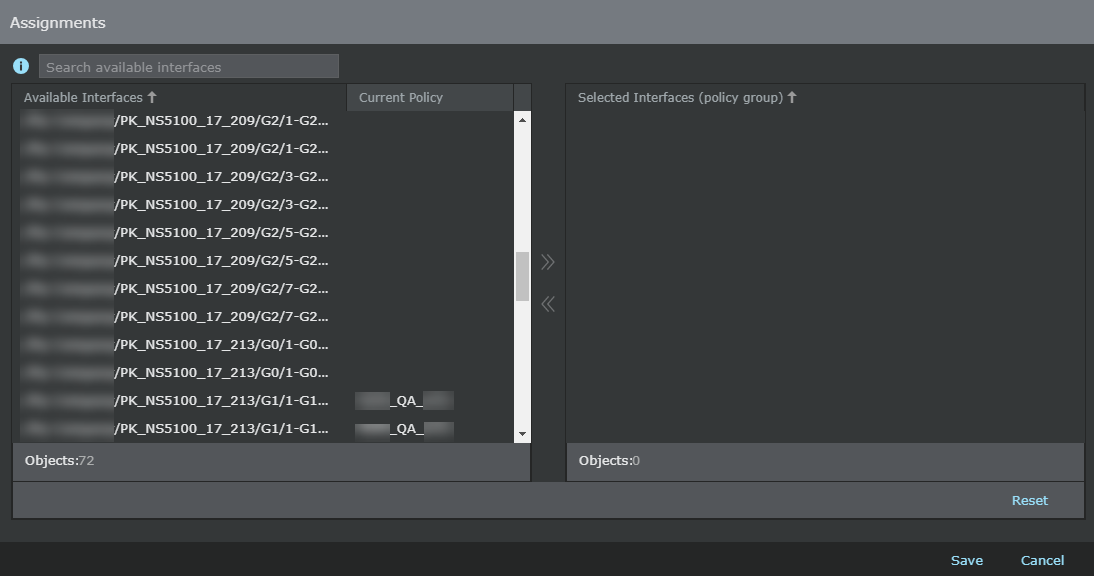
- Select the required interface from the Available Interfaces column and add it to the Selected Interfaces (Policy Group) column.
-
Click
Save.
You are directed to the new policy window.