To create auto-acknowledgement rules for alerts, complete the following tasks:
Note
Adding auto-acknowledgement rules for alerts is not applicable for the Central Manager.
Task
- Select Analysis → <Admin Domain Name> → Attack Log.
- Select the alert for which you want to create an auto-acknowledgement rule, and click Other Actions.
-
Select
Create Exception and click the
Add Auto-Acknowledgement Rule option.
The Add Auto-Acknowledgement Rule panel appears.
Auto acknowledgement rule 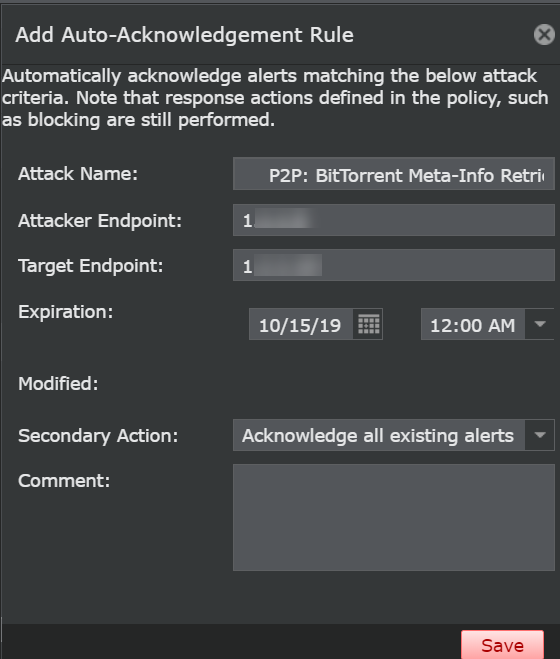
-
The following fields are auto filled based on the alert selected. You can modify the details if required.
Option Definition Attack Name Name of the attack for which the alert was generated. Attacker Endpoint IP address of the attacker. Target Endpoint IP address to which the attack was targeted. Expiration Date and time at which the rule expires. Modified Displays the last modified user name, date and time. The field is blank when creating the rule for the first time. Secondary Action The secondary/additional action to be performed on the alert other than auto acknowledging the alert. - None — No action taken other than auto acknowledging that particular alert.
- Acknowledge all existing alerts that match — Acknowledges all the alerts that match the criteria. You can later view these alerts as acknowledged alerts in the Attack Log.
Comment Type additional comments if required. -
Click
Save to save the Ignore Rule.
For more information on auto-acknowledgement, see the Auto-Acknowledgement section in the Trellix Intrusion Prevention System Product Guide.