A license is required to enable proxy based inbound or outbound SSL decryption. This license has to be added in the Manager.
To add a license to the Manager, perform the following steps:
Task
- Go to Manager → <Admin Domain Name> → Setup → Licenses.
-
Click the
Proxy Decryption tab.
The following details are displayed on the Proxy Decryption tab:
Option definitions Option Definition Required Model — Displays the Sensor model Capacity — Displays the throughput of the Sensor
Assigned To Displays the Sensor to which the license is assigned License Details Customer — Displays the name of the customer who purchased the license
Grant ID — Displays the grant ID of the customer
Key — Displays the license key number
Expiration — Displays the expiration date and time of the license
Added Time — Displays the time at which the license was added to the Manager
By — Displays the user who added the license to the Manager
Comment Displays any comments for the license if any 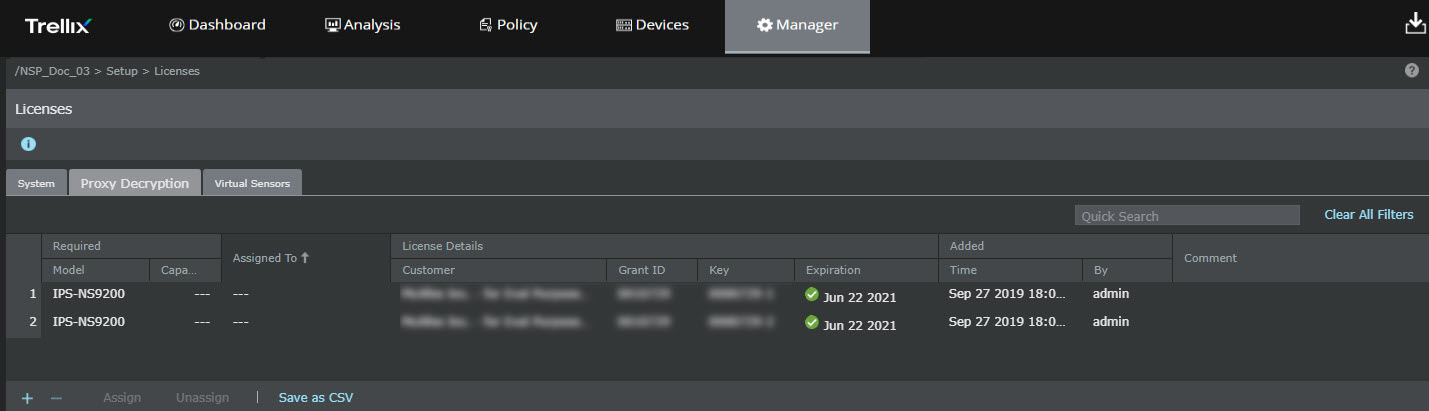
-
Click
.png) The Add License pop-up opens.
The Add License pop-up opens. -
Click
Browse.
Navigate to the location where the license is saved. Select the license and click Open.
Note
The supported license formats are .zip and .jar.
Upload license to the Manager .png)
-
Click
Add.
The license is added to the Manager.
-
To assign the license to a Sensor, click
Assign.
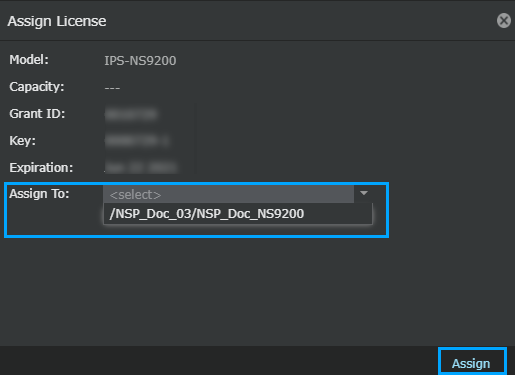
The Assign License pop-up opens.
-
Select a Sensor model from the
Assign To drop-down list to which the license has to be assigned.
-
Click
Assign.
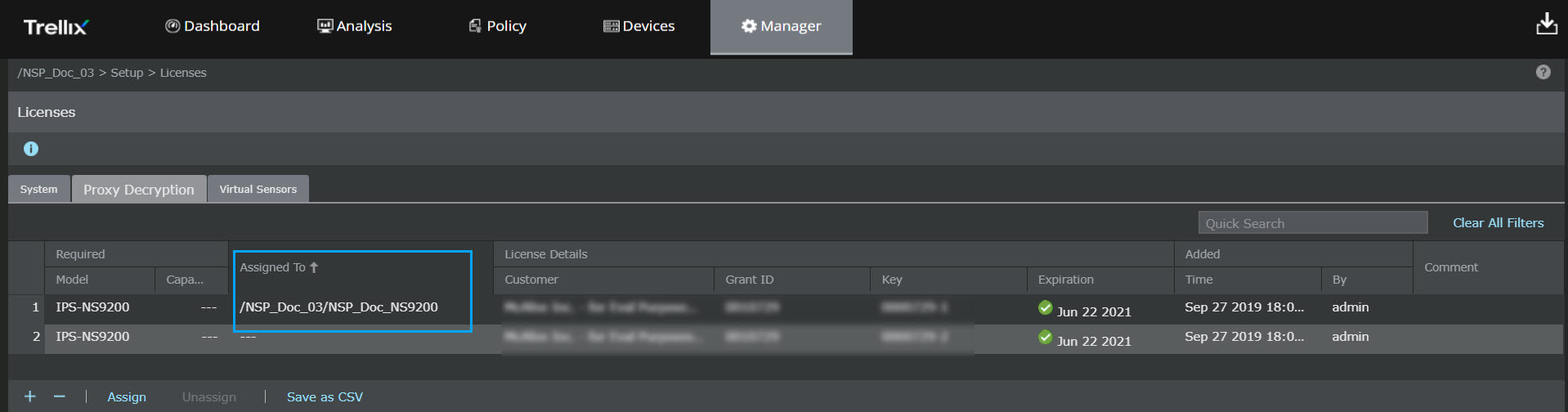
A pop-up message The license has been successfully assigned appears. Click OK.
Note
If a valid license is not assigned to the Sensor, signature set and policy updates are disabled for the Sensor.
-
To delete a license, select the license to be deleted and click
.png) A warning message appears to confirm the deletion. Click OK.
A warning message appears to confirm the deletion. Click OK. - To export the list of licenses, click Save as CSV.