Use the Add Port Mirroring window to add port mirroring for all traffic types (including SSL traffic) or to delete port mirroring from the Network Security monitoring interface pair.
An error is displayed if you did not select the mirror port for the monitoring interface pair.
In the Web UI, choose Settings > Port Mirroring.
Click Add. The Add Port Mirroring window opens.
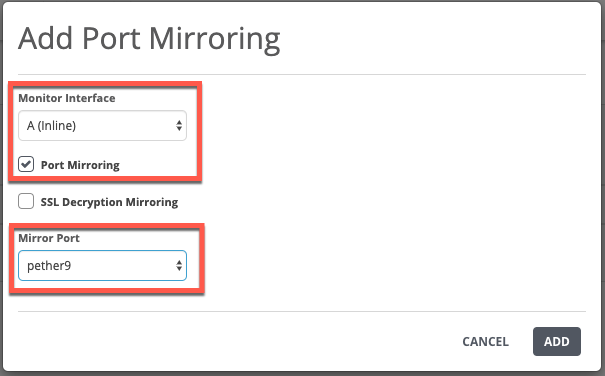
In the Monitor Interface drop-down list, choose the interface pair that is configured on the appliance in inline mode (monitor or block mode) or tap mode.
To add port mirroring for traffic, select the Port Mirroring checkbox.
In the Mirror Port drop-down list, choose the port that will receive the mirrored traffic.
Click Add.
The mirroring port is added to the monitoring interface pair. The following message appears:

In the Web UI, choose Settings > Port Mirroring.
In the table, select the checkbox next to the monitoring interface pair you want to delete.
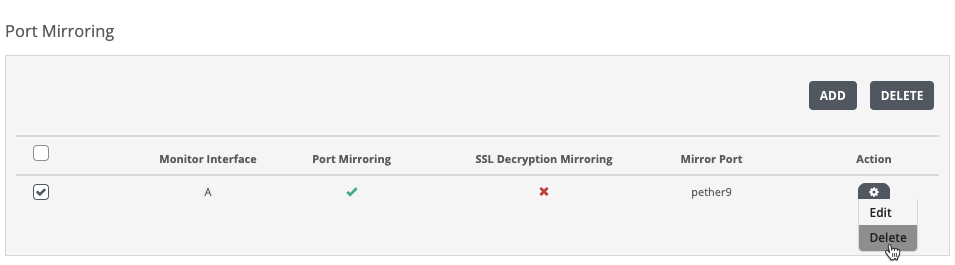
Click the action (
.png) ) icon in the Action column.
) icon in the Action column.Click Delete. A confirmation dialog box appears.
Click Yes to confirm that you want to delete mirroring from the monitoring interface.
The monitoring interface pair is deleted from the port mirroring configuration for traffic.