Use the CIDR Policy Rules Configuration area in the SSL Intercept Settings page to add a rule to the network policy based on the IPv4 or IPv6 address and mask or to delete a rule from the network policy using the Web UI.
In the following example, the Network Security appliance does not yet contain network policy rules.
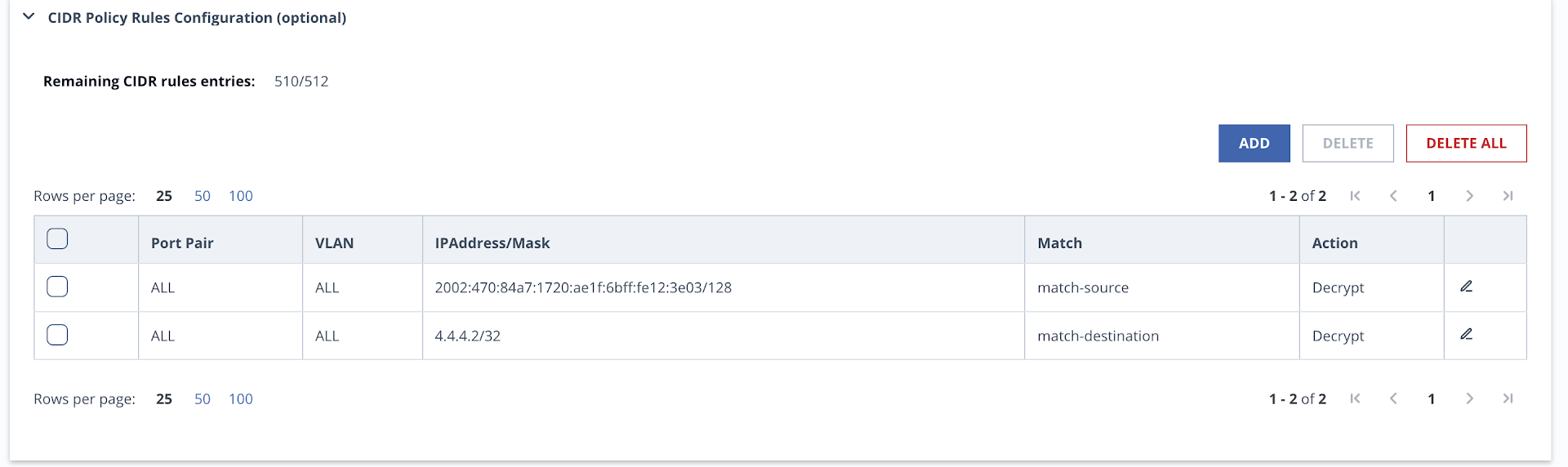
You specify the following in a network policy rule for SSL interception.
Field | Description |
|---|---|
Port Pair | Network port pair designation (A through F) that is configured on the appliance interface for inline deployment. To specify all the network port pairs, use ALL. |
VLAN | VLAN id or ALL. |
IPaddress/Mask | IPv4 or IPv6 source or destination address and mask in CIDR notation. To specify any IP address and mask for the network port pair, use Any. You cannot specify an IPv6 or IPv6 address. |
Match | Apply CIDR rules based on the Source IP address/destination IP address/either of the traffic. |
Action | Action to perform on traffic matching the network policy rule.
|
In the Web UI, choose Settings > SSL Intercept.
Click CIDR Policy Rules Configuration (optional).
Click Add Rules. The Add Rules window opens.
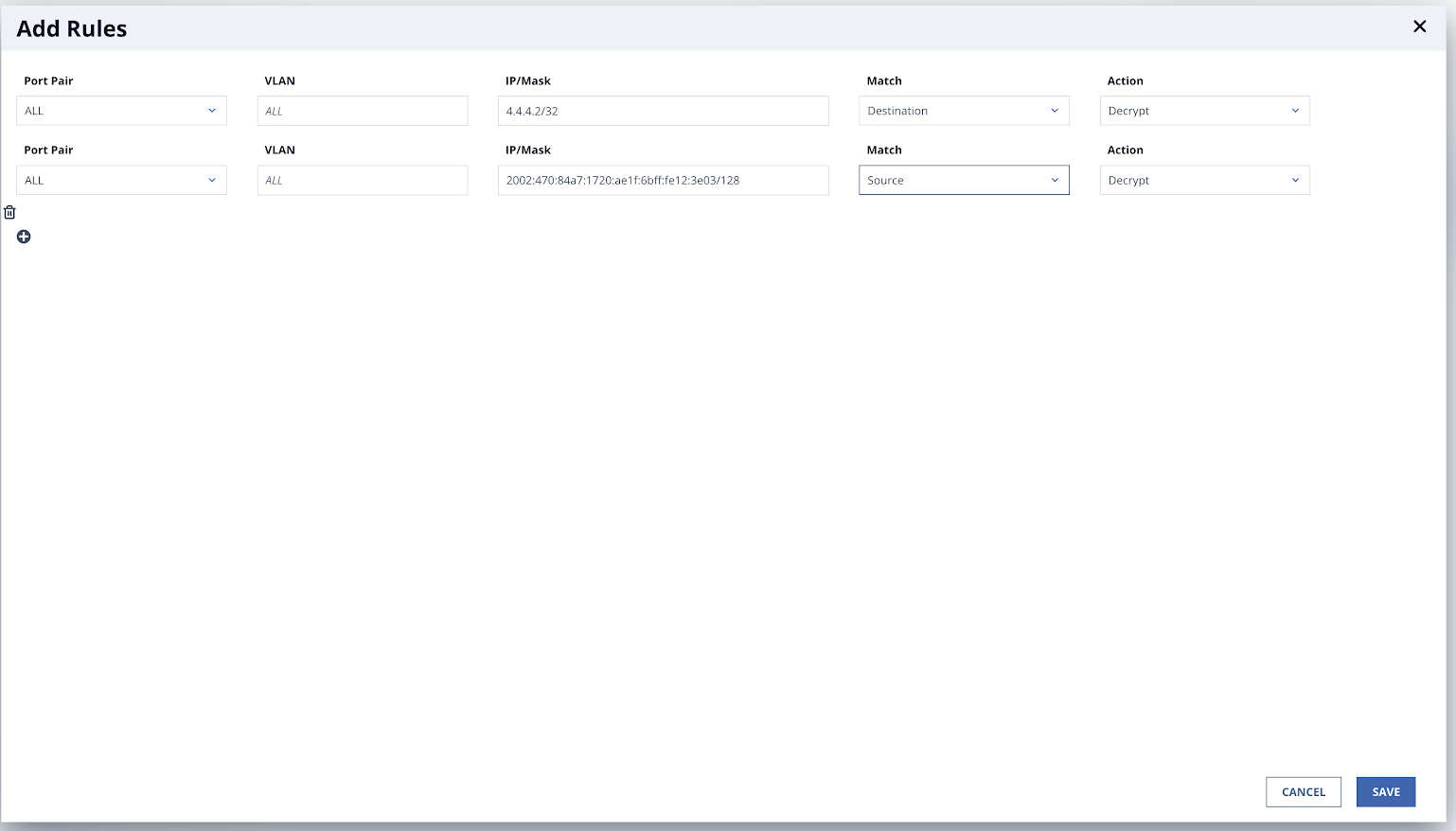
In the Port Pair drop-down list, choose the network port pair that is configured on the appliance interface for inline deployment.
In the VLAN field, enter the VLAN id if VLAN tagged traffic is expected. Else, select ALL.
In the IP/Mask field, enter the source or destination IP address and mask in CIDR format for the network policy rule. The IP mask length in CIDR format is prefixed by a slash (for example, /24).
In the Match drop-down list, choose to add CIDR rules for servers with match source IP address, destination IP address or either of them.
In the Action drop-down list, choose Decrypt or Pass Through.
(Optional) To add additional rules to a network policy, click Add Additional Rule. Repeat steps 4–7 for each rule you want to add to a network policy. To delete a rule from a network policy, click the Delete (trash can) icon.
Click Save.
The rule is added to the network policy table. The following message appears:
In the Web UI, choose Settings > SSL Intercept.
Click CIDR Policy Rules Configuration (optional).
In the table, select the checkbox next to the rule you want to delete. You can select multiple entries at one time.
Click Delete. A confirmation dialog box appears.
Click Yes to confirm that you want to delete the rule.
The rule is deleted from the network policy table. The following message appears: