Power settings
- Press and hold the PWR button for at least 4 seconds to do a power cycle.
- Press and hold the PWR button for at least 8 seconds to do a power shutdown.
System reset
- Press and hold the RST button for at least 1 second, to do a system reset.
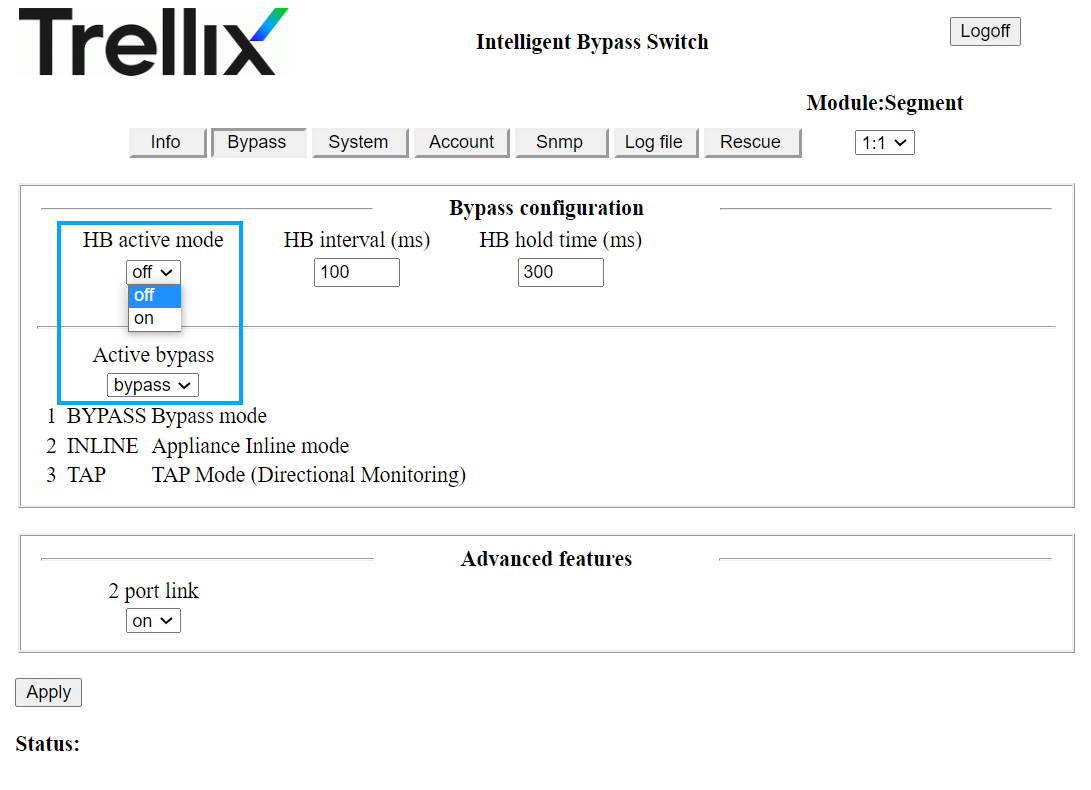
Force active fail-open bypass Kit module to Bypass or Tap mode
- From the web interface, go to Bypass tab.
- Click the HB active mode drop-down and select off.
- Click the Active Bypass drop-down and select bypass or tap.
- Click Apply.
CLI attributes
After logging into the active fail-open bypass Kit CLI, depending on your access level, you will see one of the two login prompts:
- Info.m1s1.40g: AFO$
- Ctrl.m1s1.40g: AFO$
The description of each parameter is given below:
| Parameter | Definition |
|---|---|
| Info | Read-only mode |
| Ctrl | Read/write mode |
| m1s1 | Module 1 - Segment 1 is being accessed. This is the default module at log on.
|
| 40g | Type of active fail-open bypass kit |
| AFO | Active fail-open bypass kit. This value will always remain the same |
Disconnecting an active session
- Type exit from the CLI.
- From the web client, click Logoff in the upper right-hand corner.
Changing the active fail-open bypass Kit module slot
- From the CLI, type set_seg <module_number> 1. The <module_number> parameter can have value of either 1, 2 or 3.
List all get commands
- Type get help from the CLI. The command displays the list of all supported get commands.
List all set commands
- Type set help from the CLI. The command displays the list of all supported set commands.
Technical support information
- Type get_support_info from the CLI. The command displays information needed for the Technical Support team to help resolve technical problems.
Display sessions logged into the system
- Type display_sessions from the CLI.
CLI commands for troubleshooting
The following CLI commands are applicable for 10G/40G Active Fail-Open Bypass Kit:
| Command | Description |
|---|---|
| display_sessions | Displays details of the active CLI sessions |
| exit | Ends current session. Once the sessions ends, the user who logged in after this session started will have read/write access. |
| get_dev_prop | Displays device properties |
| get_dev_state | Displays state of the device |
| get_seg | Displays details of the module and segment that are being used |
| get_support_info <parameter> <number_of_lines> | Displays information needed for the Technical Support team to help resolve technical problems. This command takes the following parameters:
|
| power_off | Shuts down the chassis |
| reboot | Reboots the chassis
|
| reset_err | Clears the ALM LED once error condition is corrected |
| set_default | Resets parameters to factory default |
| set_psw <old_password> <new_password> | Changes the current password |
| set_seg <module> <segment> | Changes the module and the segment to a different active fail-open module in a different slot (either 1 or 2 or 3)
|
| set_session_exp_time <seconds> | Sets the CLI and web sessions to timeout in seconds. The default value is 900 seconds. The maximum allowed value is 86400 seconds. |
| set_time | Sets the time to user-specific time zone. Coordinated Universal Time (UTC) is the default time zone. |
| get help | Displays all supported get commands |
| set help | Displays all supported set commands |