---
title: "Additional troubleshooting tips"
slug: "additional-troubleshooting-tips"
tags: ["Product Usage", "IPS 10.1.10"]
updated: 2026-10-05T15:40:08Z
published: 2026-10-05T15:40:08Z
canonical: "docs.trellix.com/additional-troubleshooting-tips"
---
> ## Documentation Index
> Fetch the complete documentation index at: https://docs.trellix.com/llms.txt
> Use this file to discover all available pages before exploring further.
# Additional troubleshooting tips
## Power settings
- Press and hold the
**PWR** button for at least 4 seconds to do a power cycle.
- Press and hold the
**PWR** button for at least 8 seconds to do a power shutdown.
## System reset
- Press and hold the
**RST** button for at least 1 second, to do a system reset.
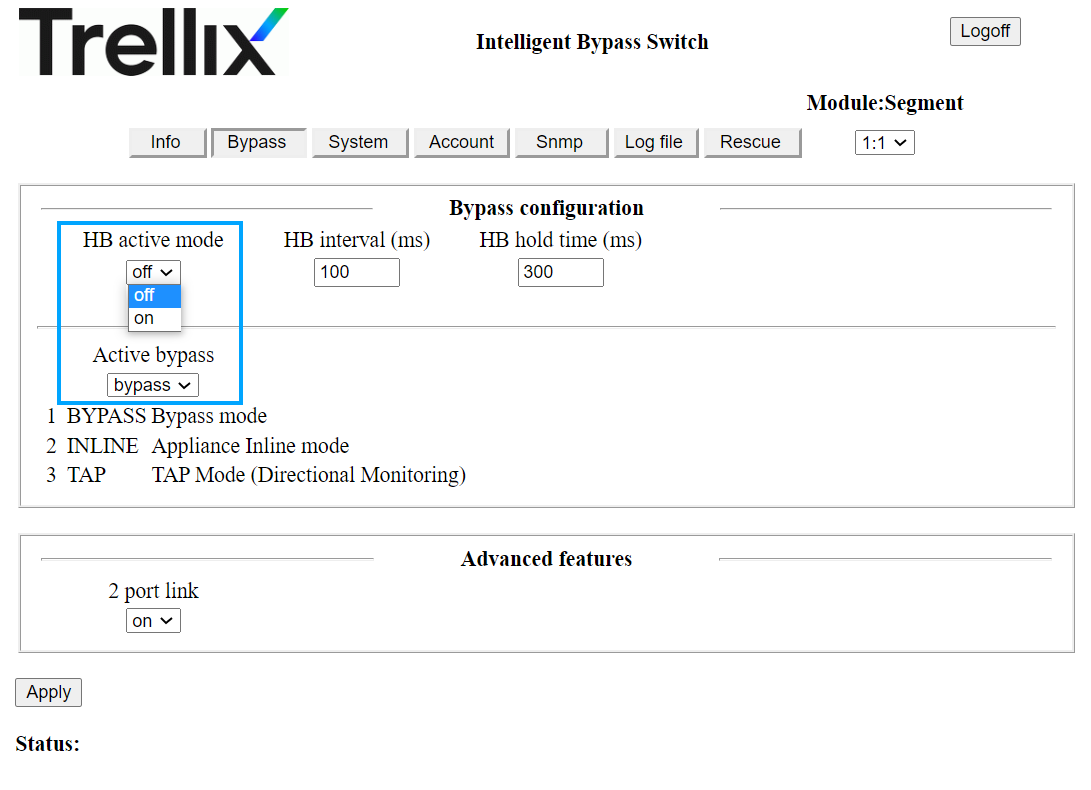
## Force active fail-open bypass Kit module to Bypass or Tap mode
1. From the web interface, go to
**Bypass** tab.
2. Click the
**HB active mode** drop-down and select
**off**.
3. Click the
**Active Bypass** drop-down and select
**bypass** or
**tap**.
4. Click
**Apply**.
## CLI attributes
After logging into the active fail-open bypass Kit CLI, depending on your access level, you will see one of the two login prompts:
- Info.m1s1.40g: AFO$
- Ctrl.m1s1.40g: AFO$
The description of each parameter is given below:
| Parameter | Definition |
| --- | --- |
| Info | Read-only mode |
| Ctrl | Read/write mode |
| m1s1 | Module 1 - Segment 1 is being accessed. This is the default module at log on. > [!NOTE] > Note > > The value for the Segment is always 1. |
| 40g | Type of active fail-open bypass kit |
| AFO | Active fail-open bypass kit. This value will always remain the same |
## Disconnecting an active session
- Type
exit from the CLI.
- From the web client, click
**Logoff** in the upper right-hand corner.
## Changing the active fail-open bypass Kit module slot
- From the CLI, type
set_seg <module_number> 1. The parameter can have value of either 1, 2 or 3.
## List all get commands
- Type
get help from the CLI. The command displays the list of all supported get commands.
## List all set commands
- Type
set help from the CLI. The command displays the list of all supported set commands.
## Technical support information
- Type
get_support_info from the CLI. The command displays information needed for the Technical Support team to help resolve technical problems.
## Display sessions logged into the system
- Type
display_sessions from the CLI.
## CLI commands for troubleshooting
The following CLI commands are applicable for 10G/40G Active Fail-Open Bypass Kit:
| Command | Description |
| --- | --- |
| display_sessions | Displays details of the active CLI sessions |
| exit | Ends current session. Once the sessions ends, the user who logged in after this session started will have read/write access. |
| get_dev_prop | Displays device properties |
| get_dev_state | Displays state of the device |
| get_seg | Displays details of the module and segment that are being used |
| get_support_info <parameter> <number_of_lines> | Displays information needed for the Technical Support team to help resolve technical problems. This command takes the following parameters: - <parameter> — Can be one of the following values: - swd_log — Displays lines of swdaemon log file - kern_log — Displays lines of kernel - snmp_log — Displays lines of snmp log file - <number_of_lines> — Number of lines to be displayed |
| power_off | Shuts down the chassis |
| reboot | Reboots the chassis > [!NOTE] > Note > > The chassis needs to be rebooted when a new module is inserted or if an old module is reseated. |
| reset_err | Clears the **ALM** LED once error condition is corrected |
| set_default | Resets parameters to factory default |
| set_psw <old_password> <new_password> | Changes the current password |
| set_seg <module> <segment> | Changes the module and the segment to a different active fail-open module in a different slot (either 1 or 2 or 3) > [!NOTE] > Note > > The value for the <segment> parameter will always be 1. |
| set_session_exp_time <seconds> | Sets the CLI and web sessions to timeout in seconds. The default value is 900 seconds. The maximum allowed value is 86400 seconds. |
| set_time | Sets the time to user-specific time zone. Coordinated Universal Time (UTC) is the default time zone. |
| get help | Displays all supported get commands |
| set help | Displays all supported set commands |