You can leverage the analysis technique provided by Trellix IPS to perform an in-depth analysis of the malware detected in your network. The Manager provides you with a complete view of the malware and threats on your network for further analysis and actions, thus providing a comprehensive view of the threat landscape in your network. You can view the Top Malware Files. This dashboard is populated because a malicious file has been detected. In addition to viewing the threats to your network, the Manager also provides you the option to archive malware files.
To view malware detected by Trellix IPS, use the Top Malware Files monitor. The dashboard displays the Malware File Hash and the Attack Count of the detected malware. Security monitors are displayed as bar charts in the Dashboard page.
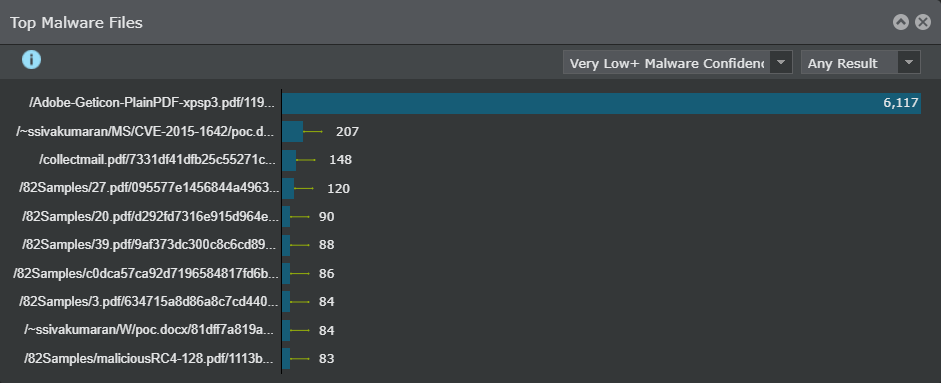
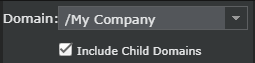
If you want to drill down further on a specific malware, click on a bar, and you will be redirected to the Analysis → Malware Files page, which displays additional details on that malware. This page provides you with the flexibility of filtering and sorting the information displayed based on your choice. In addition to these filtering/sorting options, you can also view the alerts that match the filter criteria by opening the Attack Log page directly from the Threat Explorer. You can view the malware files specific to admin domains by selecting the required admin domain from the Domain drop-down list. Summarized data for malware files, which includes data from the child domains, also can be viewed. If you have integrated the Manager with ePolicy Orchestrator, McAfee® Logon Collector, or McAfee Vulnerability Manager, you can view the endpoint name, operating system, open ports, and known vulnerabilities.
The following chart gives you the comprehensive analysis options provided by the Malware Files page. These tabs are explained in the subsequent sections.
.png)
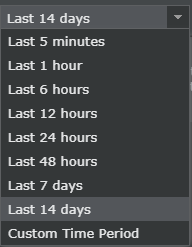
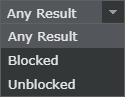
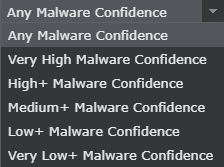
The following filter options are provided.
.png)
| Option | Definitions |
|---|---|
| Hash | Displays the hash value of the file and the actions that you can take.
|
| Overall Malware Confidence | The overall malware confidence level returned by the configured malware scanning engines |
| Individual Engine Confidence | The confidence level returned by each configured malware scanning engine, individually. Click
.png) to view the engine-specific details. to view the engine-specific details.
|
| Last Attack | The date and time the last malware was detected. |
| Total Attacks | The number of times the malware was detected. |
| Last File Name | The name of the last saved malware file. In case of HTTP downloads it will be the URL. |
| File Size (bytes) | The size of the malware file saved |
| Comment | Additional comments on the detected malware |
Attack Log
Upon double-clicking on the malware file hash, the Attack Log opens where you can view and analyze alerts related to the selected hash.
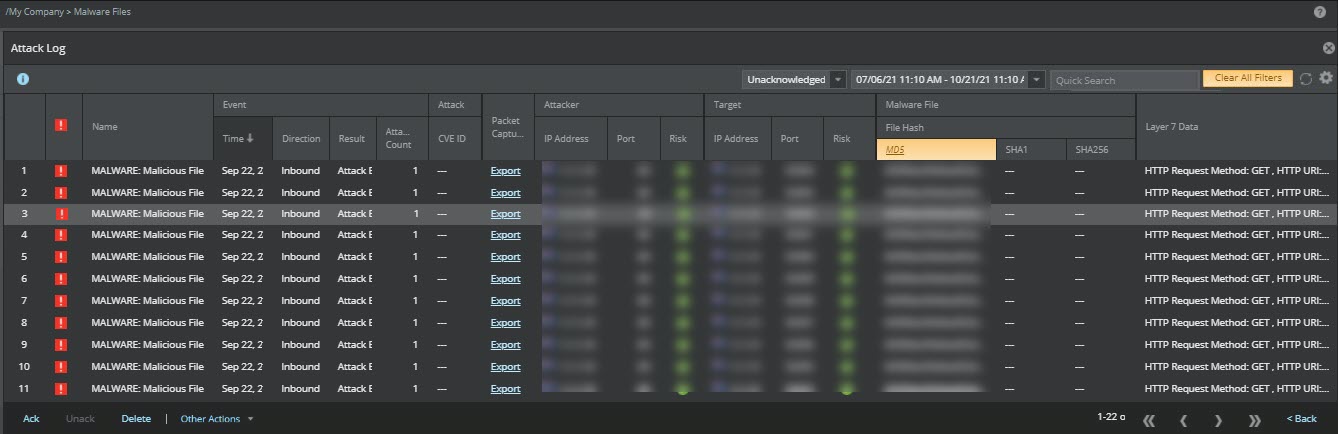
To close the attack log, click
Back or
 icon.
icon.
Manage allow and block lists
The Manage allow and block lists is a link to the File Hashes page. For more information, see the Trellix Intrusion Prevention System Product Guide.