To assign the license to the Sensor, perform the following steps:
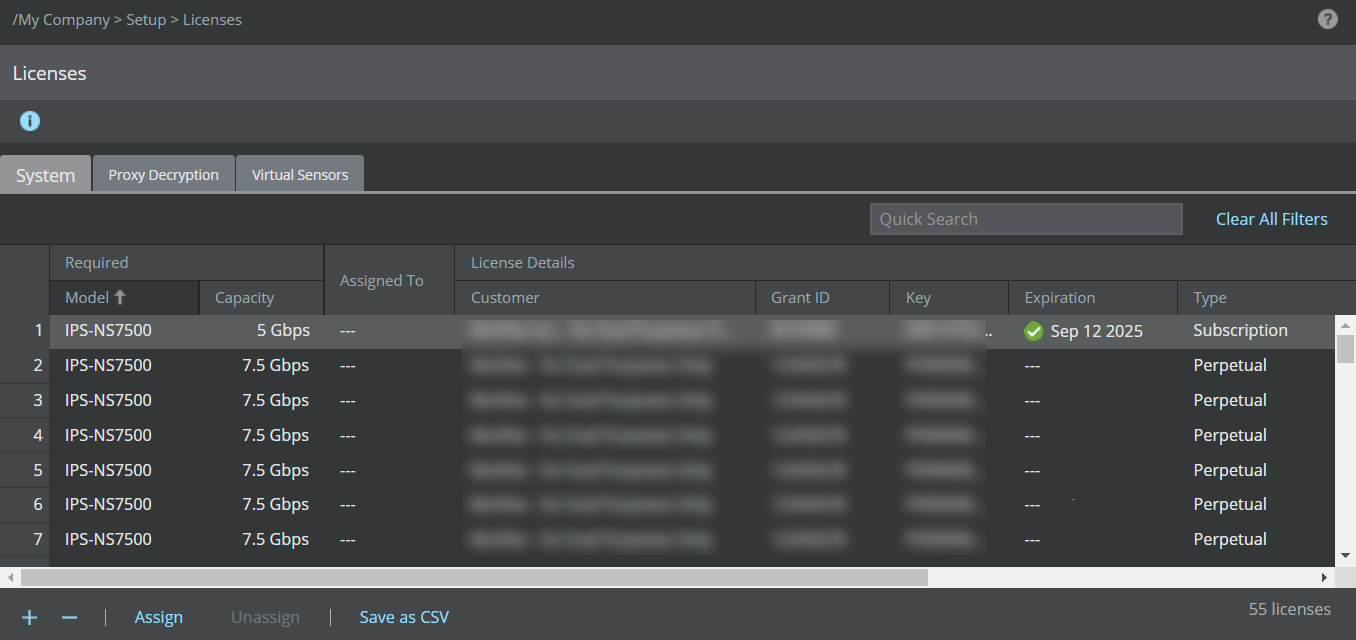
Navigate to Manager → <Admin Domain Name> → Setup → Licenses.
Click the System tab.
Choose the license that suits your requirement and click Assign.
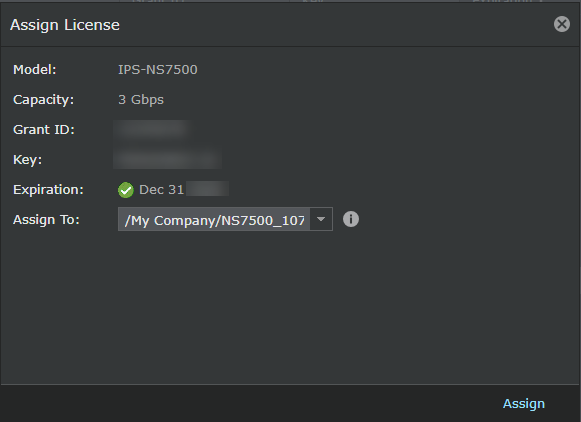
The Assign License pop-up window opens, click the Assign To drop-down menu and select the Sensor.
Click Assign to assign the license to the Sensor.
Note
In case you are replacing an existing license, a Confirmation dialog-box opens. To confirm license replacement, click OK, else, click Cancel.
Upon successful license assignment, an Informational dialog-box opens stating the license has been successfully assigned. Click OK to close it.
.png)
Note
In case you are replacing an existing license with a license of varied capacity, you must reboot the device for the new capacity to take effect. If you are replacing an existing license with a same capacity license, reboot is not required.