When scheduling database tuning, set a time when no other scheduled functions (archivals, backups, file maintenance) are running. The time should be a minimum of an hour after/before other scheduled actions.
To schedule database tuning, do the following:
Task
-
Select
Manager → <Admin Domain Name> → Maintenance → Database Tuning → Automated Tuning.
Note
To schedule database tuning in Central Manager, select Manager → Maintenance → Database Tuning → Automated Tuning.
Database Tuning Scheduler 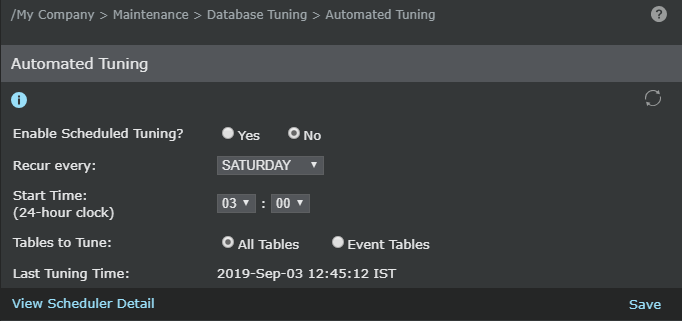
- Select Yes at Enable Scheduled Tuning?
- Select the day of the week when database tuning will occur (Recur every).
- Use the Hr and Min drop-down menus to select the process start time.
-
Select which tables to tune, either
All Tables or only the
Event Tables.
Note the Last Tuning time. This indicates the last time the database tuning process occurred.
-
Click
Save.
The database tuning process is now enabled to start automatically on the configured day and time.
-
(Optional) Click
.png) to clear current changes and view the last saved configuration.
to clear current changes and view the last saved configuration.
-
(Optional) Click
View Scheduler Detail to be redirected to the
Scheduled Tasks page.
This page displays the overall scheduled tasks in the Manager.
Scheduled Task page 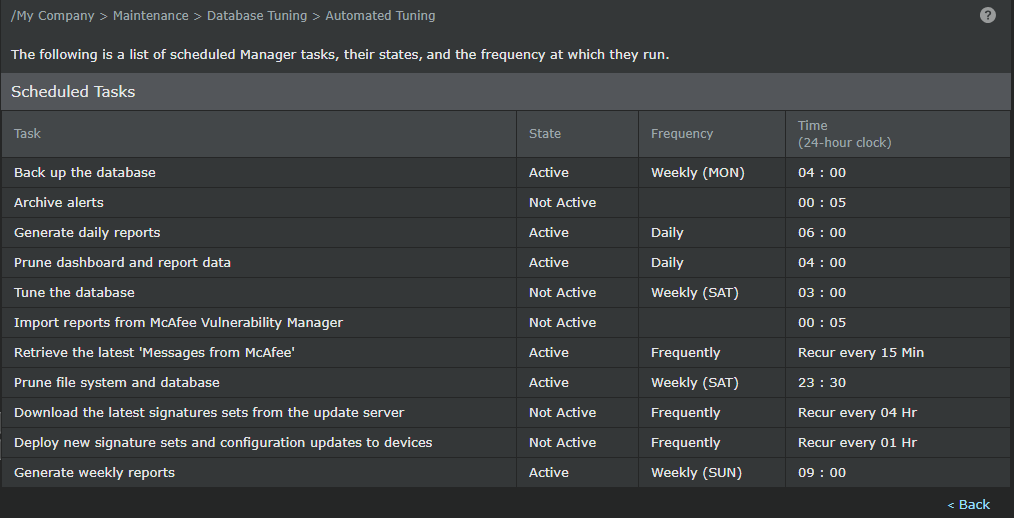
- Click Back to return to the Automated Tuning page.