To launch the External Controller as a virtual machine from Azure marketplace, perform the following steps:
Task
-
Log in to the machine which has the Azure CLI installed on it.
If you are logging in to the Azure CLI for the first time, execute the following command:
az login -
Save the following user data for establishing communication as a .txt file in the machine where Azure CLI is installed:
{ "Primary Manager IP" : "IPS_PRIMARY_MANAGER_PRIVATE_IP", "Secondary Manager IP" : "IPS_SECONDARY_MANAGER_PRIVATE_IP", "Controller Name" : "CONTROLLER_NAME", "Controller Shared Key" : "SHARED_KEY" }If you have deployed the Manager as MDR, use the following user data:
{ "Primary Manager IP" : "IPS_PRIMARY_MANAGER_PRIVATE_IP", "Secondary Manager IP" : "IPS_SECONDARY_MANAGER_PRIVATE_IP", "Controller Name" : "CONTROLLER_NAME", "Controller Shared Key" : "SHARED_KEY" } -
Execute the following command:
az vm image list --all -p trellix_azure --offer trellix_vips_external_controllerParameter Description -p Enter trellix_azure --offer Enter trellix_vips_external_controller Note the urn generated for the Controller image.
-
Execute the following command to accept the terms when deploying the Controller offer for the first time from marketplace:
az vm image accept-terms --urn <from previous step>Parameter Description --urn Enter the urn value generated from the previous step. -
Execute the following command to deploy the Controller virtual machine:
Following are the input parameters required for the CLI command:az vm create --resource-group <resource group name> --name <Controller name> --image <Controller image> --admin-username <user name> --ssh-key-value <ssh key value> --custom-data <location of the .txt file> --size "Standard_F4s_v2 " --subnet <subnet name> --vnet-name <vnet name>Parameter Description --resource-group Name of the resource group where the Controller has to be created --name Combination of name and number to retrieve the Controller name --image URN value of the Controller image from Marketplace --admin-username Login user name for the Controller instances in the scale set --ssh-key-value SSH key value for the Controller --custom-data Location in the machine where the user data .txt file is available --size The Controller is deployed as a Standard F4s_v2 virtual machine. Enter "Standard_F4s_v2". --subnet Names of the subnet where the Controller has to be created --vnet-name Name of the vnet where the Controller has to be created For a list of advanced CLI commands to create a virtual machine, see Azure CLI commands for creating a virtual machinein Microsoft Azure documentation.
The vIPS Controller virtual machine is created.
Tip
To view the External Controller virtual machine, go to All services, under the Compute section, and click Virtual machines. You are directed to the Virtual machines page where you can view or delete the External Controller virtual machine.
-
[Optional] If you are using
IAM role for
Cloud Access, you must assign the user assigned managed identity to the External Controller virtual machine.
To assign user assigned managed identity to the External Controller virtual machine, do the following:
- Go to the External Controller instance you want to assign the IAM role to, under Identity category, and select User assigned.
- The Add user assigned managed identity window opens.
- Select the required User assigned managed identities and click Add.
-
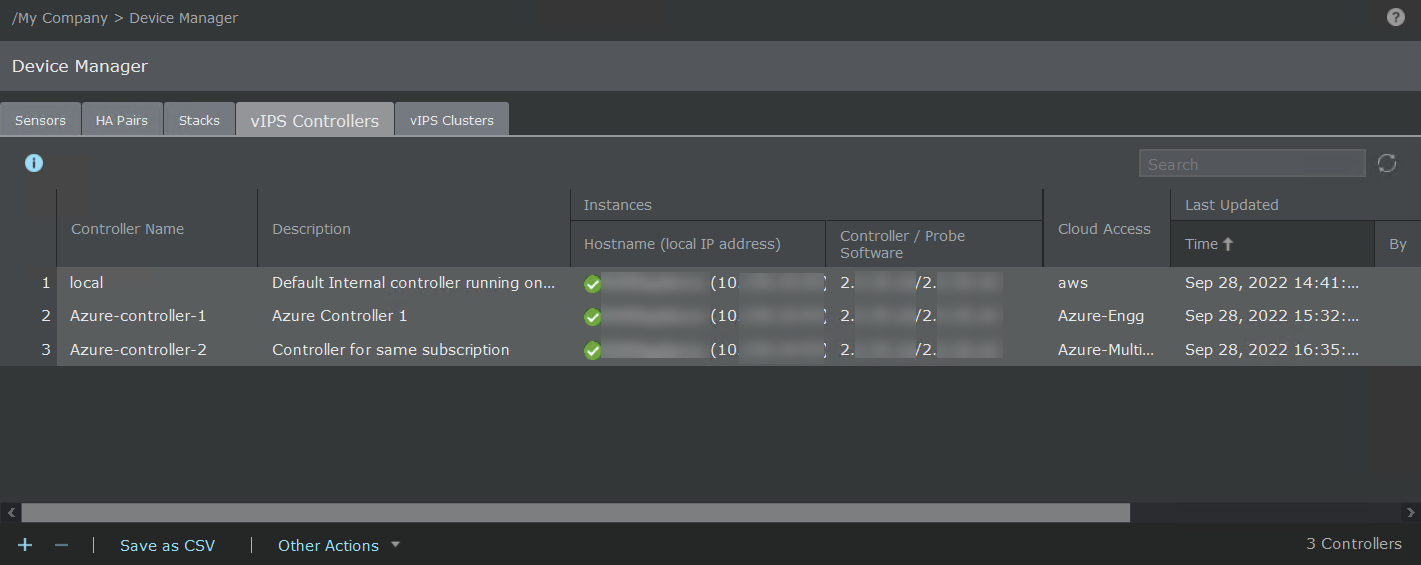
After the External Controller is deployed, go to
vIPS Controllers tab in the Manager from
Devices → <Admin Domain Name> → Global → Device Manager to validate successful deployment of the External Controller.
If the External Controller is deployed successfully, a green icon appears next to the Controller name.