You can add, edit, or delete a Syslog server from the Syslog tab.
Task
-
To add a Syslog server, go to the
Syslog tab and click the
.png) icon at the bottom-left corner of the page.
The Syslog Server Configuration Details panel opens to the right of the page.
icon at the bottom-left corner of the page.
The Syslog Server Configuration Details panel opens to the right of the page.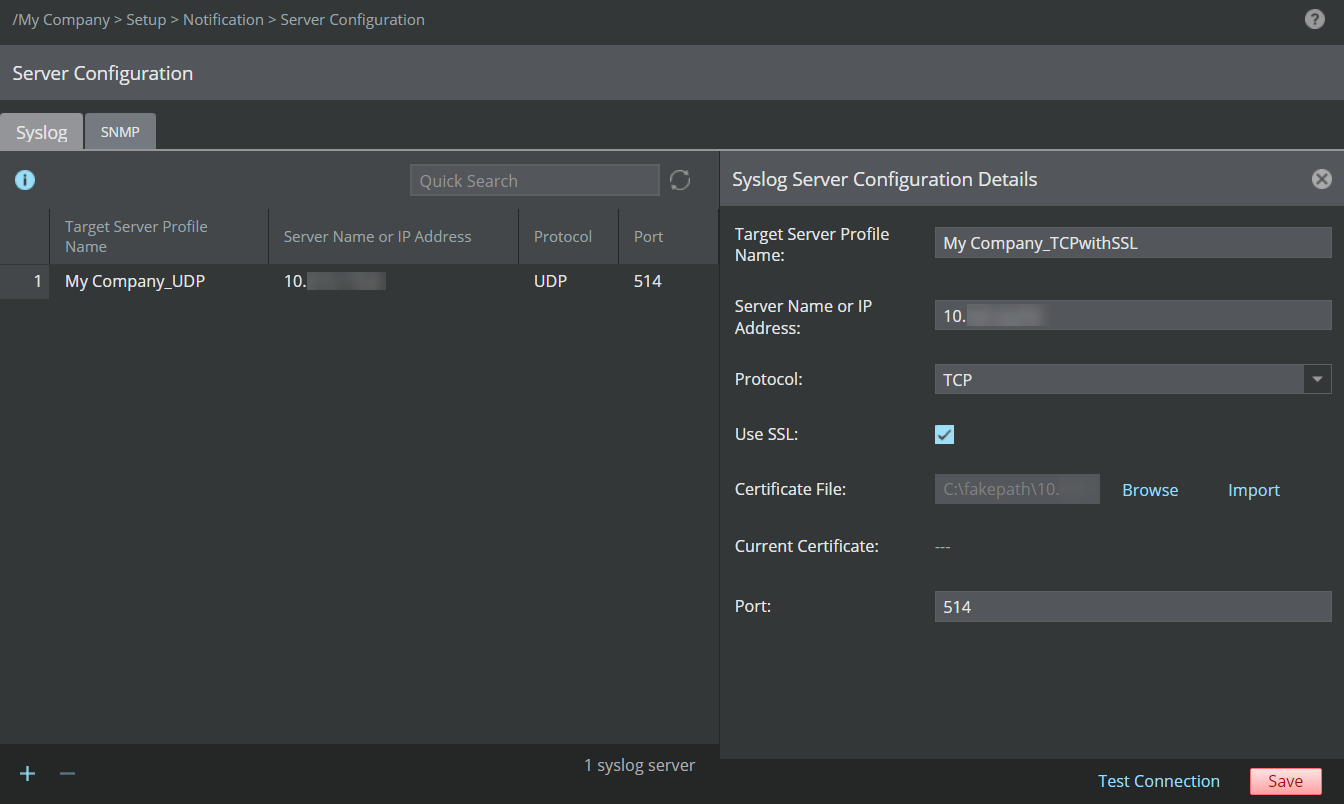
-
Specify your options in the appropriate fields.
Field Description Target Server Profile Name Specify a profile name for the server addition. This name will be used while configuring the Syslog notification profile. Note
It is recommended to specify the Server Profile Name as <DomainName>_<ServerProfileName> to avoid confusing with child domains names.
Server Name or IP Address The server name or IP address of the target Syslog server. The IP address can be IPv4 or IPv6. Protocol The protocol used. This can be TCP/UDP. Port The listening port of the target server The following options appear only when TCP Protocol is selected. Use SSL If you are selecting this check-box, you need to provide a certificate for SSL communication. Certificate File Click Browse to select the certificate. Upon selecting the certificate, click Import. The supported certificate file format is .pem. 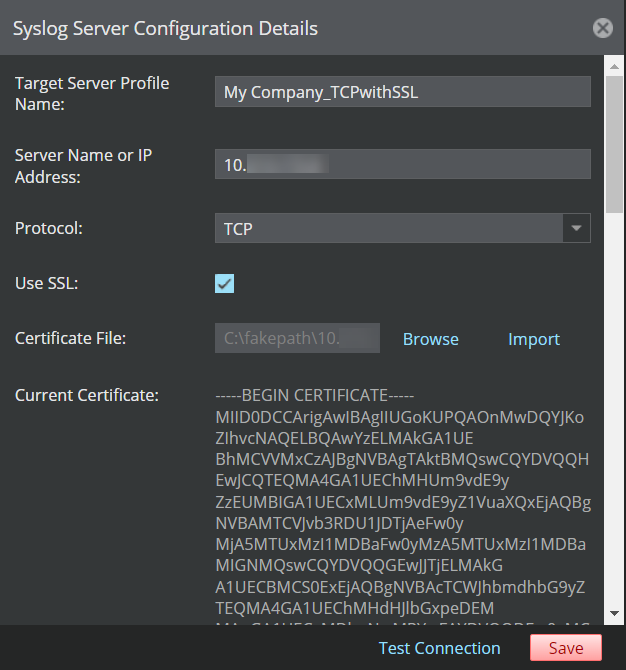
Current Certificate Displays the imported/existing certificate content. Test Connection Click Test Connection to check if the connection is successful. If a TCP server is down, at least five attempts will be made to ping the server before a fault is raised. -
Click
Save.
The Syslog server is added under the Syslog tab.
- If you want to modify an existing entry, double-click the specific Syslog entry. The Syslog Server Configuration Details panel opens where you can update the required fields and save the changes.
-
In case you want to delete an existing server, select the specific entry and click
.jpg) . You can delete only one server entry at a time.
. You can delete only one server entry at a time.