To set up communication between the Manager and the Controller server you have to configure the Controllers in the Manager.
Prerequisite:
Ensure you have created a registered application to configure a Controller in Azure. You require the application key generated or IAM role before configuring the Controller.
Steps:
In the Manager, go to Devices → <Admin Domain Name> → Global → Device Manager.
The Device Manager page is displayed.
Select the vIPS Controllers tab. All the Controllers configured are displayed.
Column
Definition
Controller Name
Displays the name of the Controller
 - This icon is displayed if the cloud details are not configured for the Local Controller. You need to enter the cloud account to complete Controller configuration. In case the cloud account is incomplete, the invalid icon will be always displayed.
Description
Displays additional information for the Controller
Instances
Hostname (local IP address)
Displays the name or the IP address of the Controller Server. The icon before the Controller IP address displays the status of the Controller. The status can be one of the following:
 Online
 Disconnected
Controller/Probe Software
Displays the software version of the Controller and the vIPS Probe
Cloud Access
Displays the name of the cloud service provider
Last Updated
Time
Displays the time when the Controller was last updated
By
Displays the user who modified the Controller.

Refresh the status of all the Controllers.
Search
Enter the keyword to search the required Controller.

Create a new vIPS External Controller.

Deletes a Controller
Save as CSV
Creates a .csv list of the list of Controllers
Other Actions
Download Controller Logs
Downloads the logs for the Controller
The Controller logs are downloaded in the form of a zip file.
View VMs
To view the VMs managed by the Controller
Configure a public Manager name or IP
Assigns a public IP address or a domain name for the Manager
Enable the Use a Public Manager Name or IP in the Public Manager Name or IP dialog box.
Enter the public IP address or a domain name in the Public Manager Name or IP text box and click Save.
<Number> Controllers
Displays the total number of Controllers available in the Manager
Controllers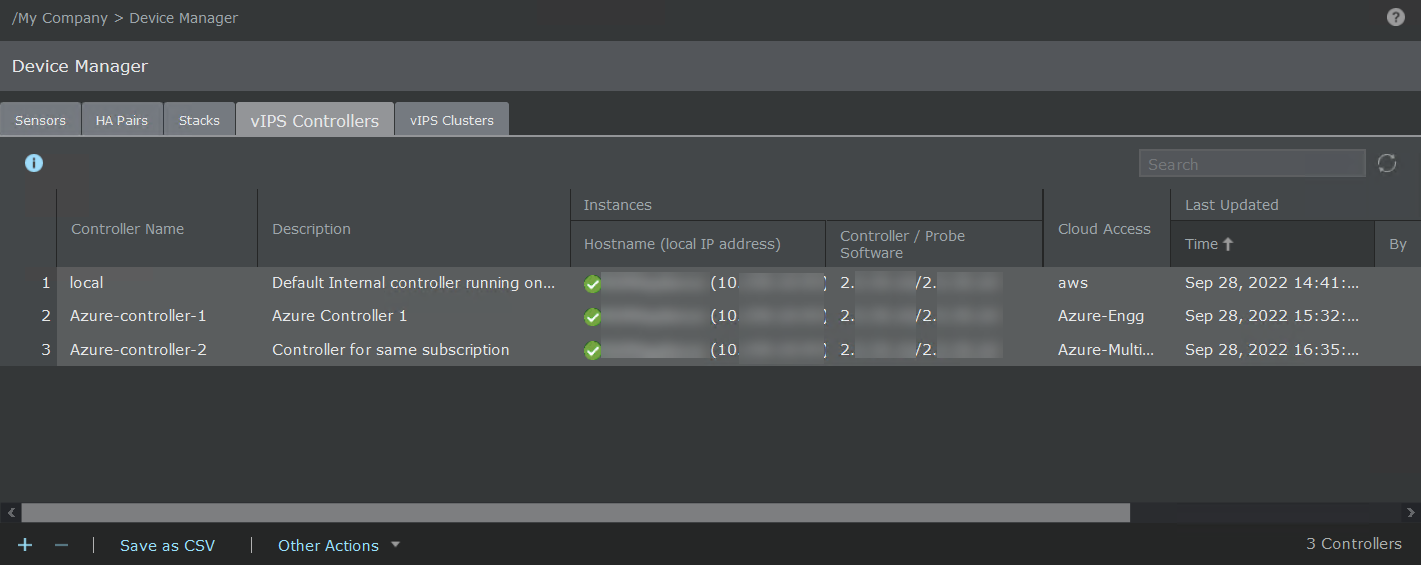
(Optional) To create a new External Controller, click
.The Controller Details panel appears where you can provide credentials for the cloud environment, the IP address, and the corresponding subnet details of the Controller.
Enter the required details:
Option definitionsOption
Definition
Controller Name
Enter a unique name for the Controller.
Note
This is field is editable only for External Controller.
Note
The minimum length for name is 1 character. The name can contain up to 50 alphanumeric (upper or lower case letters) characters, including hyphens and underscores. The name must begin with a letter.
Description
Enter the description for the Controller.
Note
This is field is editable only for External Controller.
Note
The minimum length for description is 1 character. The maximum allowed character length is 150 characters.
Shared Key
Enter a secret key for the Controller.
Note
This is field is available only for External Controller.
Confirm Shared Key
Re-enter the secret key for the Controller.
Note
This is field is available only for External Controller.
Public Manager Name or IP
Public IP address or the domain name of the Manager. To assign a public IP address or a domain name for the Manager, click Other Actions → Configure Manager's Public IP Address, and select Use a Public Manager Name or IP. Enter the public IP address or the domain name of the Manager in the Public Manager Name or IP text box and click Save.
Last Updated
It is blank when creating the Controller for the first time. For an existing Controller, it displays the date, time, and user who last updated the Controller settings.
Trellix Virtual IPS Clusters
It is blank when creating the Controller for the first time. For an existing Controller, it displays the list of Clusters assigned to this Controller.
Cloud Access
Add a Cloud account. The Manager uses the following methods to access a Cloud account:
Access Key: Access Key and Shared key are used to access the Azure account. Use this method if you are running the controller in another cloud environment and not in the Azure environment.
IAM Role: IAM role associated with the Controller is used to access the instance.
By using the Cloud account credentials, Manager discovers and lists all the instances available in the Resource Group of the Cloud account. You can view the list of instances at Analysis → <Admin Domain Name> → Virtual Machines.

Edit a Cloud account.
You can also add multiple Azure accounts by clicking
.Instance
Note
Only after the Controller establishes trust with the Manager, the below values are populated.
Status
The icon displays the status of the Instance. The status can be one of the following:
Online DisconnectedHostname
Displays the name of the Controller
Name Tag
Displays the tag of the Controller
Private IP Address
Displays the private IP address of the Controller
Public IP Address
Displays the public IP address of the Controller
Instance ID
Displays the ID of the Controller
Cloud
Displays the Virtual Cloud network details of the Controller
Region
Displays the Region of the Controller
Controller Software
Displays the Controller software version
Probe Software
Displays the vIPS Probe software version
Save
Click to save the settings.
To view the details for a Controller, double-click the Controller. The Controller Details panel opens. It displays the Controller and Probe version installed along with the date, time and the user who last modified it.
To edit a Controller, double-click the Controller and edit the required details in the Controller panel, and click Save.