Use the Advanced Device Settings page to configure settings for packet captures, tunneled traffic, and CLI activity.
Task
-
At an Admin domain level, select
Devices → <Admin Domain Name> → Global → IPS Device Settings → Advanced Device Settings.
The Advanced Device Settings page appears.
Note
Alternatively, you can configure these settings for a Sensor from Devices → <Admin Domain Name> → Devices → <Sensor_name> → Setup → Advanced → Advanced Device Settings.
- The bytes to be captured when pre-attack capturing is enabled is set in the IPS Policy and is displayed on this page. Valid values are 128 and 256 bytes.
- Select the Inspect Tunneled traffic checkbox to parse IPv4 and IPv6 traffic for all supported tunneling protocols like GRE, GTP for malware detection. By default, this checkbox is deselected.
- Select a Snort Rule Engine. You can select either the Trellix IPS Snort engine or the Suricata Snort engine. By default, the Snort Rule Engine is set to Trellix IPS Snort.
-
From
CLI Activity Logging options, select
Log to Device Only,
Log to Manager Only, or
Log to Device and Manager to track executed CLI commands. By default, this is set to
Disabled.
.jpg)
- Select Show CPU usage in the CLI to determine the Sensor load. By default, this checkbox is deselected.
- Select Log SSH Access to the CLI to log all attempts to access CLI on the device. By default, this checkbox is deselected.
-
Use the
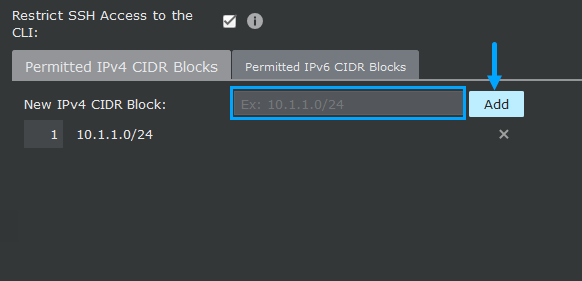
Restrict SSH Access to CLI checkbox to configure IP addresses or CIDR blocks to restrict SSH access. You can set IPv4 and IPv6 blocks and click
Add. By default, this checkbox is deselected.
Note
For Virtual IPS Sensors in the AWS environment, this checkbox must be selected and the IPv4/IPv6 CIDR blocks must be added to restrict SSH access from external invalid IPs.
- Click Save.