You can configure device profiling at the interface level as follows:
Task
- Navigate to Policy → <Admin Domain Name> → Intrusion Prevention → Policy Manager.
-
On the
Interfaces tab, double-click on the interface to which you would like to enable device profiling.
The <Device Name/Interface> panel opens.
-
In the
Inspection Options section, select the policy from the
Policy drop-down list.
To create a new policy, click the
.png) icon or click the
icon or click the
.png) icon to edit an already assigned policy.
If you are creating a new policy proceed to step 4. If you are editing an existing policy proceed to step 5.
icon to edit an already assigned policy.
If you are creating a new policy proceed to step 4. If you are editing an existing policy proceed to step 5. -
The
Properties page opens. Enter the
Name and
Description. Select the
Visibility and click
Next.
The Inspection Options page opens.
Passive Device Profiling per interface 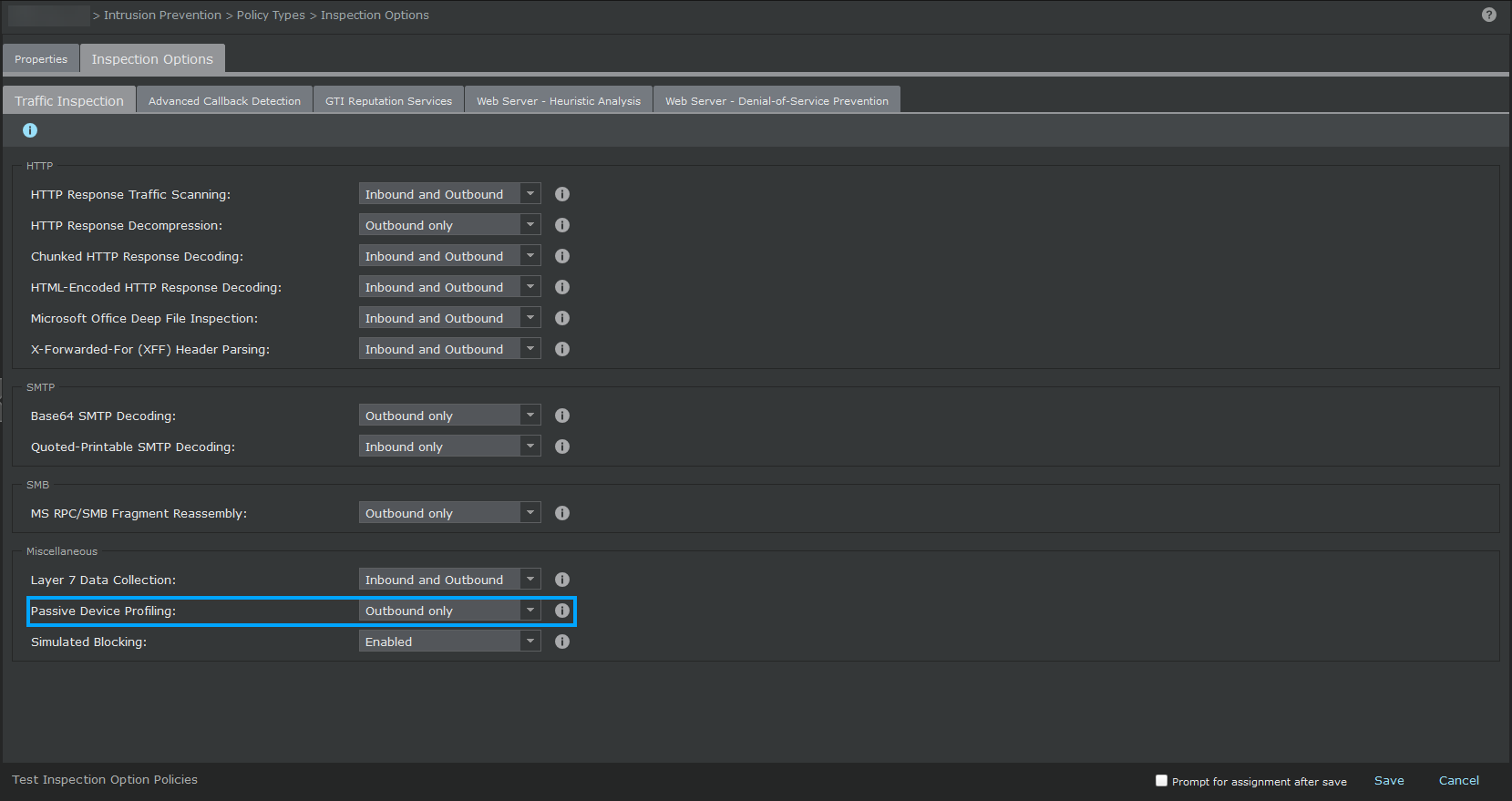
- On the Traffic Inspection tab, under Miscellaneous, enable Passive Device Profiling in the required direction.
- Click Save in the Inspection Options page.
- To save the configuration changes, click Save in the <Device Name/Interface> panel.