Follow this procedure to enable metrics collection for a specific device:
Task
-
Select
Devices → <Admin Domain Name> → Devices → <Device Name> → Setup → Performance Monitoring → Metrics or
Devices → <Child Admin Domain Name> → Devices → <Device Name> → Setup → Performance Monitoring → Metrics to view the
Metrics page.
Enable Metrics 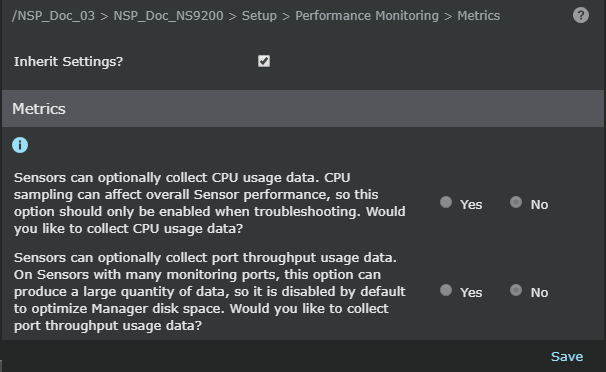
- Select the Inherit Settings? checkbox to inherit the settings from parent admin domain. Deselect this checkbox if you do not want to inherit settings from parent admin domain.
- Select Yes or No against the choice Sensors can optionally collect CPU usage data. CPU sampling can affect overall sensor performance, so this option should only be enabled when troubleshooting. Would you like to collect CPU usage data?.
- Select Yes or No against the choice Sensors can optionally collect port throughput usage data. On sensors with many monitoring ports, this option can produce a large quantity of data, so it is disabled by default to optimize Manager disk space. Would you like to collect port throughput usage data?.
-
Click
Save.
Note
When metrics collection is enabled, devices automatically forward core metrics to the Manager.