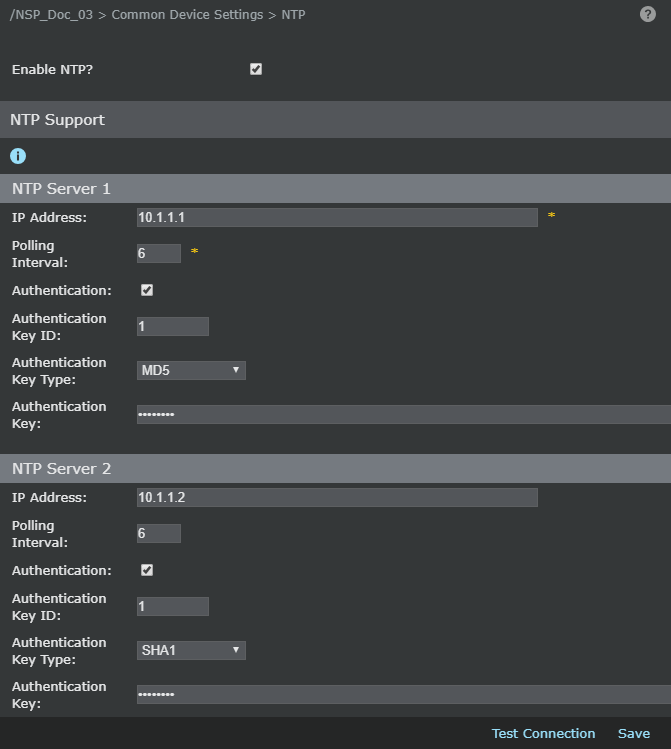
NTP support allows you to configure the Sensor as an NTP client that synchronizes time from a public NTP server instead of updating time only with the Manager server.
If NTP is configured and Manager connectivity is established, the Sensor receives time from both the NTP server and the Manager. If there is loss of connectivity with either the Manager or NTP server, then the other takes over as the time source.
The Manager should be synced with an NTP server, prior to starting NTP on the Sensor. Not doing this will break the communication between the Sensors and the Manager.
If the Manager is not using the time received from the NTP server, there might be issues related to time difference while switching from NTP server to the Manager and vice versa.
To specify your NTP server, do the following:
Task
-
Select
Devices → <Admin Domain Name> → Global → Common Device Settings → NTP
The NTP Support page appears.
Note
The NTP can also be configured for each device as well.
-
To enable communication with the NTP server, select
Enable NTP Server?
To stop NTP from the Manager, unselect this option.
-
Configure two NTP servers: the Sensor will use one of the configured NTP servers based on least RTT (Round-Trip Time).
- Type the IP Address. This can be an IPv4 or IPv6 address.
- Enter the Polling Interval. The range is 3 ~ 17. The configured polling interval is applied as 2^x seconds (2 power x).
- Select Authentication to enable authenticating the NTP servers.
- Enter the Authentication Key and Authentication Key ID.
-
Select the
Authentication Key Type;
MD5,
SHA, or
SHA1.
Note
The parameters in d and e are provided by the NTP service provider.
- Click on the Test Connection button to check the connectivity to the NTP server. The status of the connectivity tests is displayed in the NTP page.
-
Click
Save to save your settings.
Note
The IPv4 and IPv6 addresses are mutually exclusive. For any configuration, either the IPv4 or IPv6 address will be used. For the IPv6 address to work, the Sensor management port should be assigned an IPv6 address.
Configure NTP servers