The Layer 7 DoS protection settings for web servers are disabled by default. You can configure the Layer 7 DoS inspection options in the parent domain at a global level and inherit these options in the child admin domains (interfaces and subinterfaces). You can modify the inherited settings at the child admin domains. You can also modify the setting at the interface level.
Task
- Click the Policy tab.
- Select the domain from the Domain drop‑down list.
- Navigate to Intrusion Prevention → Policy Types → Inspection Options.
-
To create a new policy, click
.png) . To edit an already existing policy, double click on the policy. If you are creating a new policy, proceed to step 5. If you are editing an already existing policy, proceed to step 6.
The following substeps have to be followed when configuring Layer 7 DoS protection at an interface level:
. To edit an already existing policy, double click on the policy. If you are creating a new policy, proceed to step 5. If you are editing an already existing policy, proceed to step 6.
The following substeps have to be followed when configuring Layer 7 DoS protection at an interface level:- In the Policy tab, after selecting the Domain, navigate to Intrusion Prevention → Policy Manager.
-
On the
Interface tab, double-click the interface to enable Layer 7 DoS protection.
The <Device name/Interface> panel opens.
-
In the
Inspection Options section, select the policy from the
Policy drop down list.
To create a new policy, click the icon or click the
.png) icon to edit an already assigned policy.
icon to edit an already assigned policy.
You can also assign a policy to an interface by selecting the Prompt for assignment after save option in the Inspection Options page.
If you are creating a new policy proceed to step 5. If you are editing an existing policy proceed to step 6.
-
The
Properties page opens. Enter the
Name and
Description. Select the
Visibility and click
Next.
The Inspection Options page opens.
Configuration of Web Server-Denial of Service 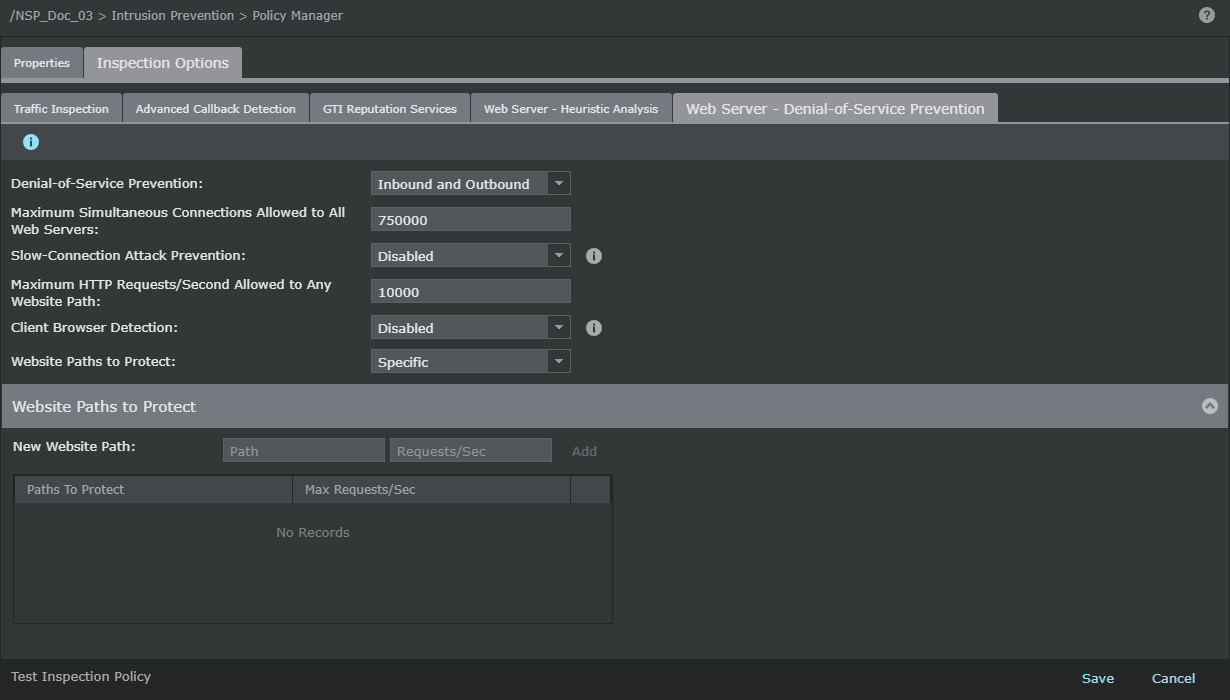
-
Configure the following DoS protection settings.
Web Server - option definitions Option Definition Denial-of-Service Prevention Select the direction of traffic for which you would like to configure the DoS prevention. Maximum Simultaneous Connections Allowed to All Web Servers Specifies the threshold for maximum connections allowed to all web servers from a host. When connection limiting rules are created, whichever has smaller threshold raises an alert first.
Slow-Connection Attack Prevention Enable this option to close 10% of the oldest slow open connections. This option is disabled by default.
Maximum HTTP Requests/Second Allowed to Any Website Path Specifies the threshold for maximum HTTP requests allowed to all website per second Client Browser Detection Enable this option to send a challenge back to the user to determine if the HTTP requests are originating from valid browsers or Bots. Browser Detection Method The detection methods use the challenge/response mechanism to detect a valid client browser. The options are HTML Challenge and JavaScript Challenge. This option is not supported in span and tap modes.
Website Paths to Protect Specify website paths to which the HTTP requests are sent, to be protected. You can protect All or Specific paths. A maximum of 64 website paths per Sensor and 8 website paths per interface can be protected.
Website Paths to Protect New Website Path Enter the website paths that you want to protect in New Website Path and click Add. For example, if you specify /trellix.com as a path, then the Sensor inspects only those requests that contain /trellix.com.
- Path — Specify the website path you would like to protect.
- Requests/Second — Specify the maximum HTTP requests allowed to the protected website path.
- To delete a website path, hover over the path and click the X icon.
- Click Save.