Sensors support both normal blocking and SmartBlocking. SmartBlocking is the blocking of attacks based on the Benign Trigger Probability (BTP) value of the attack signatures which trigger the attack. Trellix recommends certain attacks for SmartBlocking, and these are referred to as Recommended for SmartBlocking (RFSB) attacks. While creating an attack set profile, you can enable SmartBlocking for those exploit, recon, or policy violation attacks for which Trellix has recommended SmartBlocking.
Task
- In the Manager, click Policy and select the required Domain.
-
Select
Intrusion Prevention → Objects → Attack Set Profiles.
The Attack Set Profiles page is displayed.
Attack Set Profiles page 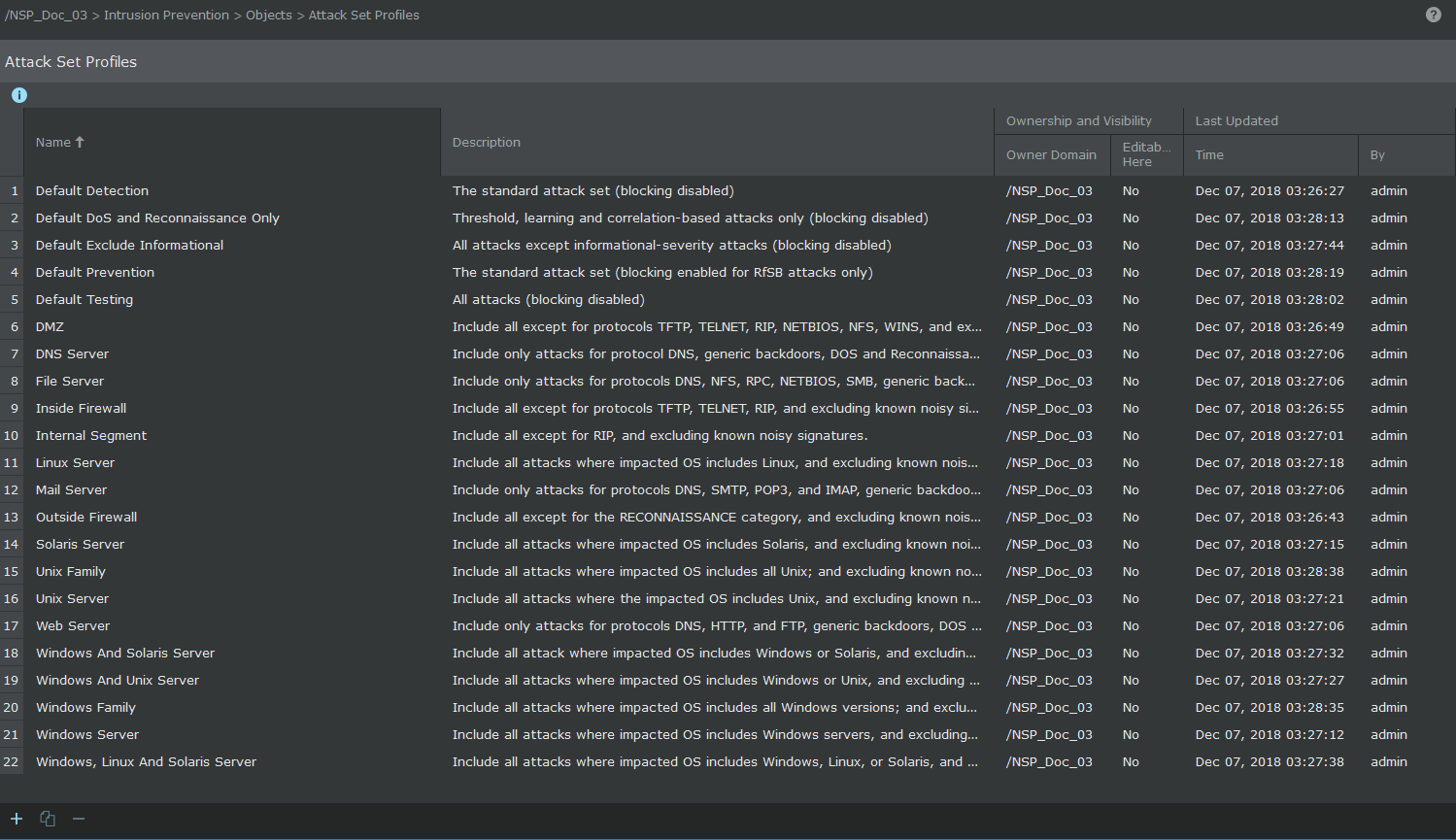
-
Click
.png) .
The new page with Properties tab is displayed.
.
The new page with Properties tab is displayed.Properties tab .png)
The following fields are displayed on the Properties tab:Option Definition Name Type the name of the attack set profiles profile. The name should contain only letters, numericals, spaces, commas, hyphens and underscores. Note
The name field should not be left blank and no special character should be entered while typing the name
Description Type the description of the attack set profiles profile. Owner Displays the domain to which the IPS Policy belongs Editable here Indicates whether you can edit or delete an attack set profiles profile from the current admin domain Default Blocking Behavior for Recommended for SmartBlocking (RfSB) Attacks To enable SmartBlocking, select the options from the drop-down list of the following categories: RfSB Exploits
RfSB Malware Detections
RfSB Reconnaissance Attacks
RfSB Policy Violations
The available options for the above mentioned categories are Blocking disabled and Enable SmartBlocking.
-
Click
Next to save the changes made on the
Properties tab of the attack set profiles profile. The
Attacks to Include/Exclude tab is displayed.
Attacks to Include/Exclude tab .png)
-
On the
Attacks to Include/Exclude tab, click the appropriate button to insert a new rule.
You can insert a new rule by click either
 or
or
 . The
Details panel is displayed.
. The
Details panel is displayed.
Details panel 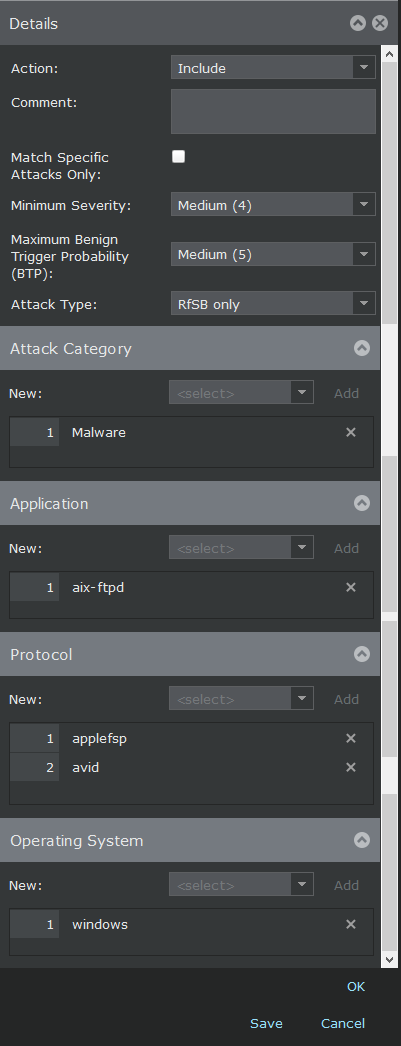
-
In the
Details panel, select the appropriate options.
Option Definition Action Select the action as Include or Exclude. Comment Enter additional comments, if any. Match Specific Attacks Only Select the checkbox if you want to mark the rule for a specific attack. Minimum Severity Select the minimum severity level from the drop-down list. The following are the available options: - None
- Informational (0)
- Low (1)
- Low (2)
- Low (3)
- Medium (4)
- Medium (5)
- Medium (6)
- High (7)
- High (8)
- High (9)
Maximum Benign Trigger Probability (BTP) Specify the maximum probability of the search for this attack that will return a false positive. The following are the available options: - None (0)
- Low (1)
- Low (2)
- Medium (3)
- Medium (4)
- Medium (5)
- High (6)
- High (7)
Attack Type From the drop-down list, select the attack type as Any or RfSB only Attack Category - Select the application category from the drop-down-list.
The application categories are:
- Exploit
- Malware
- Policy Violation
- Reconnaissance
- Click on the Add button to add the application category to the list.
Click
.png) to remove the item from the list.
to remove the item from the list.
Application - Select the applications from the drop-down-list.
- Click on the Add button to add the applications to the list.
Click
to remove the application from the list.
Protocol - Select the protocol from the drop-down-list.
- Click on the Add button to add the protocol to the list.
Click
to remove the protocol from the list.
Operating System - Select the operating system from the drop-down-list.
- Click on the Add button to add the operating system to the list.
Click
to remove the operating system from the list.
Specific Attacks This section is displayed only if you select the Match Specific Attacks Only option. - Type and search for a specific attack by typing the first few letters of the attack in the text field. The list of attacks matching with the letters are displayed.
- Select the required attack from the drop-down list.
- Click on the Add button to add the attack to the list.
Click
to remove the attack from the list.
- Click OK to confirm the configuration changes.
-
Repeat the relevant steps to add more rules to this attack set profiles profile. In the
Attacks to Include/Exclude tab, you can perform one of the following actions:
Option Definition
Inserts a new rule above the currently selected rule
Inserts a new rule below the currently selected rule 
Clones the currently selected rule 
Deletes the currently selected rule 
Moves the currently selected rule one row up 
Moves the currently selected rule one row down -
Click
Save to save your attack set profiles profile.
Your new attack set profiles profile is listed in the Attack set Profiles page.