---
title: "Deploying Virtual Sensor monitoring ports in inline fail-open mode"
slug: "deploying-virtual-sensor-monitoring-ports-in-inline-fail-open-mode"
tags: ["Product Usage", "vIPS 10.1.10"]
updated: 2026-09-11T20:35:31Z
published: 2026-09-11T20:35:31Z
canonical: "docs.trellix.com/deploying-virtual-sensor-monitoring-ports-in-inline-fail-open-mode"
---
> ## Documentation Index
> Fetch the complete documentation index at: https://docs.trellix.com/llms.txt
> Use this file to discover all available pages before exploring further.
# Deploying Virtual Sensor monitoring ports in inline fail-open mode
## Before you begin
Before you deploy monitoring ports in inline fail-open mode, make sure the Sensor is functioning as expected with the same ports in inline fail-closed mode.
If a Virtual Sensor receives traffic from a physical network device, you can deploy an inline pair in inline fail-open mode. Consider a scenario, wherein the Virtual Sensor inspects traffic between virtual machines as shown below (scenario 4).
Scenario 4, wherein the Virtual Sensor inspects traffic between virtual machines

The monitoring port pair 1-2 is inline between physical switches 1 and 2. By default, inline monitoring ports of a Virtual Sensor are in the fail-closed mode. The network between the client and the server is broken under any of the following conditions:
- Link failure in either port 1 or 2
- Power or application failure in the Virtual Sensor
- Either vSwitch0 or vSwitch1 is down
- Link failure in either vmnic0 or vmnic1
- The ESX server is down
To mitigate the risk of network breakdown due to these conditions, you can deploy the monitoring port 1-2 in fail-open mode. Fail-open operation for the monitoring ports of a Virtual Sensor, require the use of an external copper bypass switch.
- Only
Trellix-certified 10/100/1000 external Copper active fail-open bypass kits are supported.
- Installing the active fail-open bypass kit involves a brief network downtime.
Scenario, wherein the active fail-open bypass kit is installed

## Task
1. Install the 10/100/1000 external Copper active fail-open bypass kit and power it on (with dual power sources).
Refer to
1/10 Gigabit Modular Active Fail-Open Bypass Kit Guide for more information.
2. Disconnect the trunk port of Physical switch 1 from vmnic0, and connect the trunk port to the port marked NET0 in the bypass kit.
3. Similarly, disconnect the trunk port of Physical switch 2 from vmnic1, and connect the trunk port to the port marked NET1 in the bypass kit.
4. Connect the port marked MON0 to vmnic0 and the port marked MON1 to vmnic1.
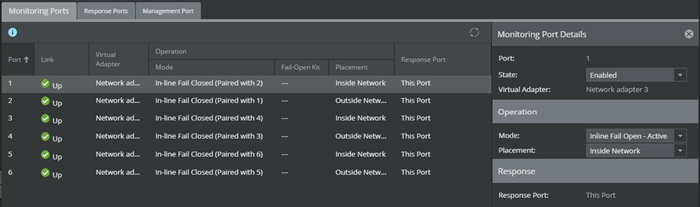
5. In the Manager, set the port in inline fail-open active mode.
1. Click the
**Devices** tab.
2. Select the domain from the
**Domain** drop-down list.
3. In the left pane, click the
**Devices** tab.
4. Select the device from the
**Device** drop-down list.
5. Select
**Setup** → **Physical Ports.**
6. Double-click on the required port and select
**Inline Fail Open – Active** in the
**Mode** field.
7. Confirm and then click
**Save.**
- In the Sensor CLI, run the
show intfport <port number> command and verify that
**Fail-Open Switch** shows
**PRESENT** and
**Fail-Open Port** shows
**INLINE.**
- When the Sensor is operating, the switch is
*on* and routes all traffic directly through the Virtual Sensor.
Routing when Sensor is operating

- When the Sensor fails, the switch automatically shifts the Virtual Sensor to a bypass state; in-line traffic continues to flow through the network link, but is no longer routed through the Sensor.
Routing when Sensor fails

- When a monitoring port goes down, its status in the Manager is shown as
*unknown*. A critical-fault message is also generated. This message is cleared when the monitoring port pair is back inline.
- If the monitoring port is down or if the Sensor goes into layer 2 bypass mode, the fail-open bypass kit turns
*on* and the traffic bypasses the Sensor. If you run the
show intfport <port number> command, the
**Fail-Open Port** field displays
**BYPASS.**
- If the Sensor layer 2 bypass mode, the
**Fail-Open Port** field, displays
**LAYER2_BYPASS.**
- Once the Sensor resumes normal operation, the bypass switch returns to the
*off* state, enabling in-line monitoring again.
> [!NOTE]
> Note
>
> For the details of how the external Copper active fail-open bypass kit works, see the 1/10 Gigabit Modular Active Fail-Open Bypass Kit Guide.
6. You can also configure the bypass switch to operate in tap mode.
- See
1/10 Gigabit Modular Active Fail-Open Bypass Kit Guide for information.
- There is no specific configuration in the
**Physical Ports** page in the Manager for tap mode. The configuration is only in the bypass switch.
- When the bypass switch is in tap mode, and you run
show intfport <port number> command, the
**Fail-Open Port** field displays
**TAP.**