If you have configured the Logon Collector you can view user details in the Attack Log page.
Task
- Navigate to Analysis → <Admin Domain Name> → Attack Log.
-
Double-click the alert for which you want to view the alert details.
The alert details panel opens.
-
You can view the user details in the
Attacker / Target section.
User details in Attack Log 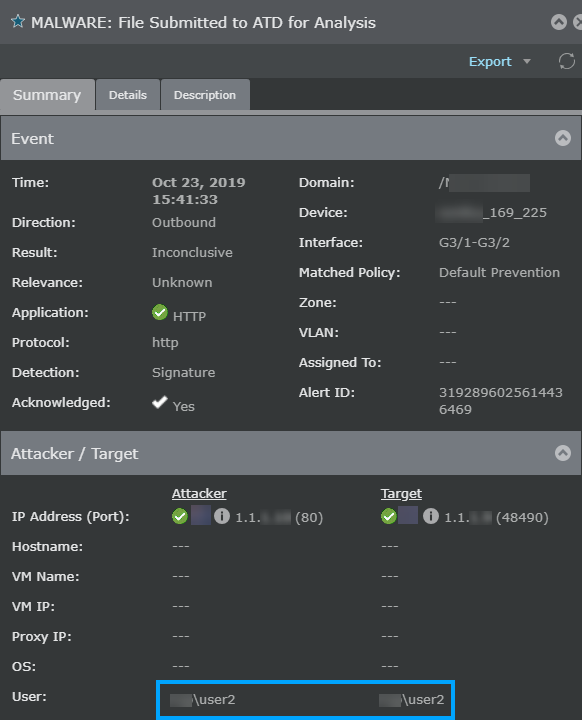
The user details (Logon Collector data) are displayed in the Attack Log page only if the option to display is enabled in the ems.properties file. If it is not enabled, perform the following steps to enable the option.- In the Manager, using Windows Explorer go to %programfiles%\Trellix\IPS Manager\App\config.
- Locate the ems.properties file, and right-click and open it using Windows Notepad.
-
Ensure that the following values are configured (If the entries are not available, add the entries manually):
iv.mlc.alert.preprocessor.enabled=trueiv.mlc.alert.preprocessor.daemon.enabled=true