DNS connectivity
DNS connectivity to the Sensor sometimes has issues due to incorrect configuration or incorrect DNS server IP address. You can view the DNS connectivity fault on the Faults tab page in the Manager. The Device DNS server connectivity status faults are generated by the Sensor whenever there is an issue in DNS connectivity.
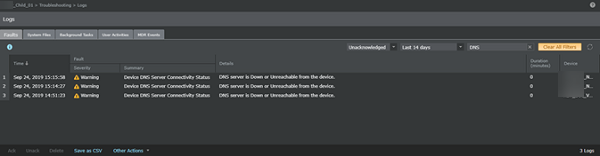
You can perform the following high-level troubleshooting steps to solve the connectivity problem:
- Check the
Devices → <Admin Domain Name> → Global → Common Device Settings → Name Resolution for the global level setting in the Manager to see if the parent domain has the primary and secondary DNS server information entered correctly.
Global level DNS server setting 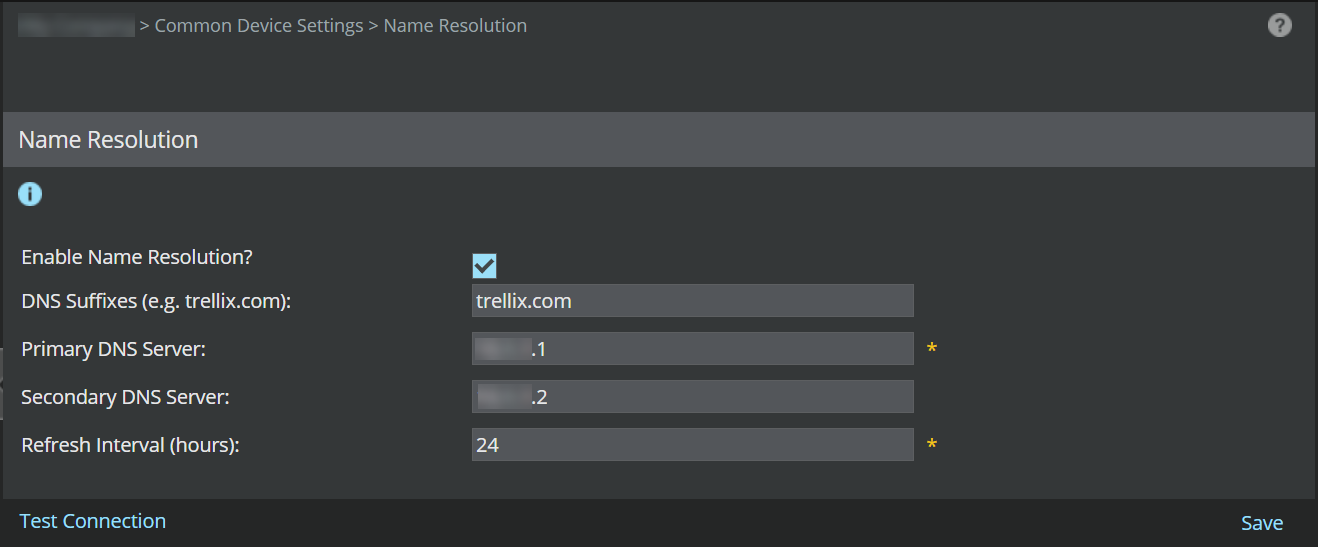
- If the global setting has the correct information, check the
Devices → <Admin Domain Name> → Devices → <Device Name> → Setup → Name Resolution device level setting to see if it inherits the global settings. Make sure that the
Inherit Settings? is selected and also check if the inherited information is correct.
Device level DNS server setting 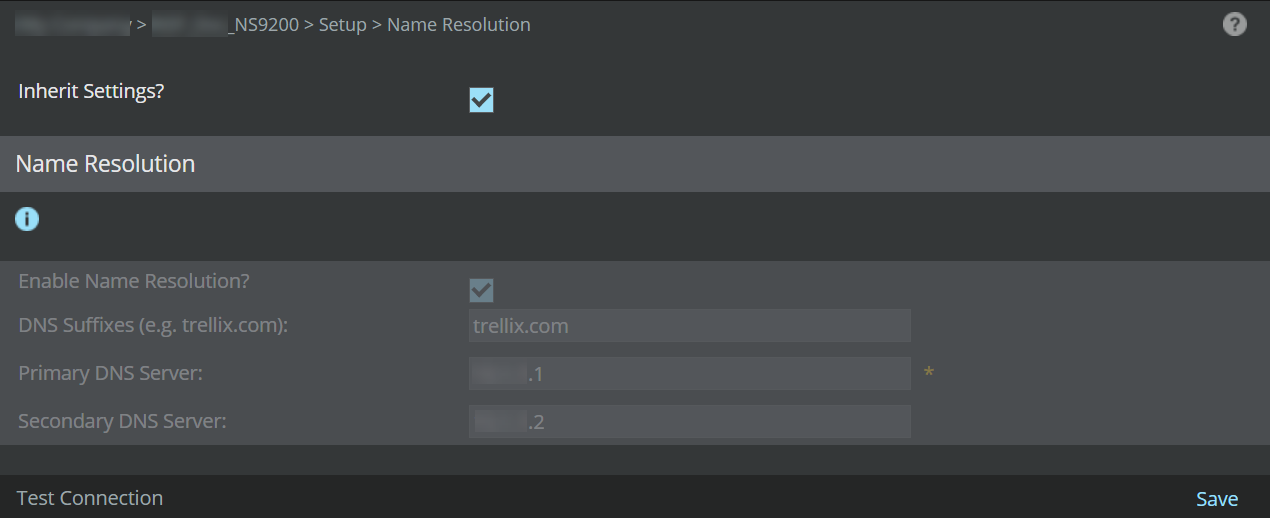
If the connectivity problem still persists contact Trellix Support for further assistance.
GTI file reputation
In case of any errors for file reputation analysis, you can perform the following high-level troubleshooting steps:
- Check if the malware detection is enabled in Policy → <Admin Domain Name> → Intrusion Prevention → Policy Types → Advanced Malware Policies.
- In case of file reputation, the request is sent for bad file reputation. The file is sent as an MD5 checksum in DNS requests. If there is no response from the DNS, check the DNS connectivity. If the DNS connectivity has any issues, perform the high-level steps mentioned under
DNS connectivity to solve the problem.
If the DNS connectivity is working correctly, there will be a response for the file reputation request. Confirm the connectivity by executing and checking the output of show malwareenginestats CLI command.
Check the output of malware statistics for GTI file reputation engine. The Number of files sent and Number of response Received should show an increase in comparison with the number of files sent/received before sending the reputation request.
Malware Statistics for GTI File Reputation Engine
Number of files sent: 11132
Number of response Received: 9377
Number of files ignored: 1755
Number of files with malware score clean: 0
Number of alerts with malware score very low: 37
Number of alerts with malware score low: 0
Number of alerts with malware score medium: 0
Number of alerts with malware score high: 0
Number of alerts with malware score very high: 1233
Number of alerts with malware score unknown: 8051
Total number of alerts sent: 1233
Total number of attacks blocked: 1233
Total number of TCP resets sent: 1233
If the connectivity problem still persists contact Trellix Support for further assistance.
GTI IP reputation
When a syn packet is seen, the Sensor checks to see if IP reputation is enabled for that port/protocol. When enabled, the Sensor sends a query to the management process. The first flow is always allowed to pass through since the reputation score is not available. After a reputation score is assigned to the packet, the score is updated to the Sensor. The subsequent flows from the same IP address is marked with the reputation score in the header for lookup in datapath processor. Source IP is checked for inbound flows, and destination IP is checked for outbound flows, even though the entire 5-tuple is passed in the query.
The Sensor connectivity status with GTI server critical fault is generated by the Sensor in the Manager whenever the GTI server has connectivity issues to the Sensor.
You can perform the following high-level troubleshooting steps to solve the connectivity problem:
- Check if proxy configuration is required. If the organization has a firewall/proxy between the Sensor management port and the cloud, the proxy has to be configured with username/password, if required. You can configure the proxy server under Manager → <Admin Domain Name> → Setup → Proxy Server.
- Port 443 should not be blocked on the management port network.
- Check the Devices → <Admin Domain Name> → Global → Common Device Settings → Name Resolution for the global level setting in the Manager to see if the parent domain has the primary and secondary DNS server information entered correctly.
If the connectivity problem still persists, contact Trellix Support for further assistance.