You can configure the details for the integration at an admin domain so that the corresponding Sensors and child domains can inherit these settings. However, you must enable the integration at the Sensor level for the Sensor and the Manager to be able to communicate with Intelligent Sandbox.
Task
- In the Manager, select the Devices tab.
- Select the required domain from the Domain drop-down list and then select Global.
- Select IPS Device Settings → Intelligent Sandbox Integration.
-
Enter the configuration details in the corresponding fields.
Enabling the integration for an admin domain 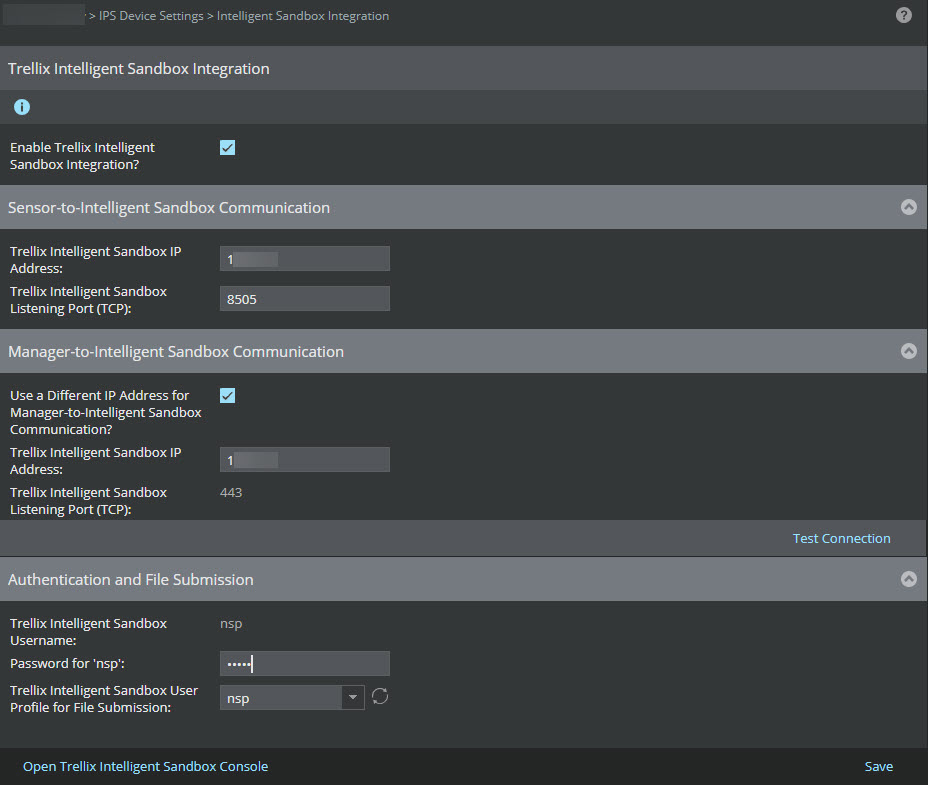
Option definitions Option Definition Enable Trellix Intelligent Sandbox Integration? Select to configure the details for the integration at this domain level. Trellix Intelligent Sandbox IP Address Enter the IPv4 address of Trellix Intelligent Sandbox for communicating with Sensor. Trellix Intelligent Sandbox Listening Port (TCP) This is the port that Trellix Intelligent Sandbox will listen for connections from Sensors. The default port is 8505. You can modify if required.
Use a Different IP Address for Manager-to-Intelligent Sandbox Communication? Check if you want Manager to communicate with the Intelligent Sandbox appliance using a different IP address than the IP address the Sensor is using to communicate with the same Intelligent Sandbox appliance. Trellix Intelligent Sandbox IP Address Enter the IPv4 address of Trellix Intelligent Sandbox for communicating with Manager. Enter same IP address entered above incase you have not checked Use a Different IP Address for Manager-to-Intelligent Sandbox Communication? box, else enter different IP address for communication between Manager and Intelligent Sandbox. Trellix Intelligent Sandbox Listening Port (TCP) This is the port that Trellix Intelligent Sandbox will listen for connections from Sensors. The default port is 8505. You can modify if required.
Test connection Click to verify if the Manager is able to communicate with Trellix Intelligent Sandbox using the details you configured. For the Sensor, you can ping the IP address of Trellix Intelligent Sandbox appliance from the Sensor CLI. Trellix Intelligent Sandbox Username The pre-defined user name, which the Manager uses to log on to Trellix Intelligent Sandbox, is displayed. You cannot enter a different name or change this default name in Trellix Intelligent Sandbox. Password for 'nsp' Enter the corresponding password. The default password is admin. As a precaution, change this password in the NSP User user record in Trellix Intelligent Sandbox. - Click Open Trellix Intelligent Sandbox Console to open Trellix Intelligent Sandbox web application.
- In Trellix Intelligent Sandbox web application, select Manage → User Management.
- Select NSP User and click Edit to change the password.
- Click Save.
Trellix Intelligent Sandbox User Profile for File Submission Select from the drop-down your user profile created under Trellix Intelligent Sandbox. With the 9.1 release, a Sensor can have its own analyzer profile as configured by the user. Save Saves the Trellix Intelligent Sandbox details in the Manager database. Open Trellix Intelligent Sandbox Console Click to access the logon page of Trellix Intelligent Sandbox with which the Sensor is currently integrated.