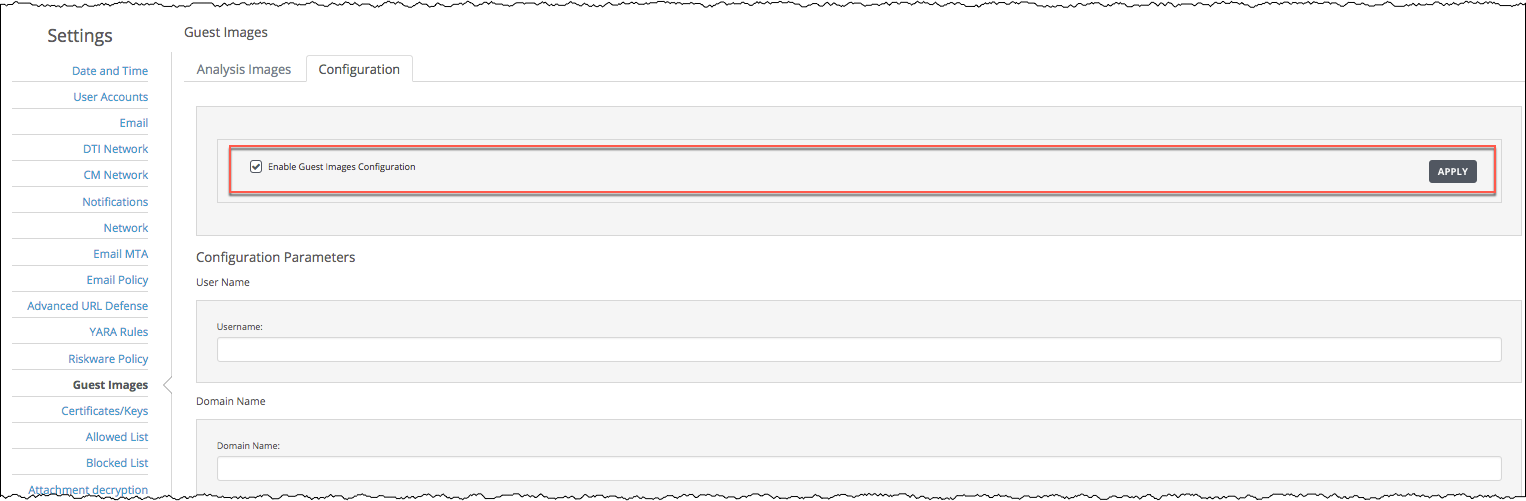
Use the Settings > Configuration page to enable or disable the guest image parameter settings:
On this page, you can set multiple parameter settings at one time.
Prerequisites
An established connection between the Network Security appliance and the Internet
Administrator or Operator access to the Network Security appliance
Guidelines
Use the following guidelines when configuring your guest image parameter settings:
User name, domain name, host name, and computer name fields accept alphanumeric characters, a dot ("."), a dash ("-"), and an underscore ("_").
To delete entries, you must clear the field or click the trash can icon.
After you enter information into field parameters (such as file path names, URLs, credentials, and directories), the system will run a validation test. If an entry is invalid, you will be prompted to resolve the error before the entry is added to the list. You then can proceed to the next parameter field.
Passwords are not validated.
You must click Save at the bottom of the page to save your changes.
To enable or disable the guest image parameter settings:
Go to the Guest Images page. Click Settings > Guest Images > Configuration.
Select the Enable Guest Images Configuration checkbox to enable the feature.
To disable the feature, clear the Enable Guest Images Configuration checkbox.
Click Apply to turn on the parameter setting display area. The following message appears:

Note
Guest image parameter configuration is disabled and the fields are empty by default.
You cannot revert to the factory guest image settings (empty fields) after you have configured and saved your parameter settings.
When you disable and re-enable guest image parameter settings, your last saved settings can be modified or cleared.
Enter one or more of the following configuration settings:
Parameter group
Fields
Description
Response
User Name
—
Name of user
—
Domain Name
—
Name of domain
—
Host Name
—
Name of host
—
Computer Name
—
Name of computer
—
Windows Recent Files
File Path
List of file path names
Enter a file path name. For example, c:\windows\sample.txt.
Office Recent Files
Office Recent
File Path
Name of file path
Enter a file path name. For example, c:\office\recent. txt.
Browser History
Browser History URL
List of URLs
Enter a URL. For example, http://www.google.com.
Honey Credentials
Type
System or Browser
Enter a honey credential that includes type (system or browser), user name, and password. For example, browser:john.smith: honey_password123.
User Name
Name of user
—
Password
Password for authenticating honey credential
—
Honey Files
Honey File
List of honey file path names
—
Honey Directories
Honey Directory
List of honey directory path names
—
DNS Cache Entries
Host Name
Host name entry
—
IP
IPv4 address
—
Host File Entries
Host Name
Host name entry
—
IP
IPv4 address
—
Outlook Account
User Name
Outlook user name
—
Password
Password for authenticating Outlook account
—
FTP Account
Host Name
FTP host name
—
User Name
FTP user name
—
Password
Password for authenticating FTP account
—
Skype User Account
User Name
Skype user name
—
Password
Password for authenticating Skype account
—
Click Save to save your changes.