Use the Riskware Policy Configuration page to enable or disable riskware detection custom policy rules on the Network Security appliance using the Web UI.
Note
The Riskware Policy Rules table does not appear in the Settings > Riskware Policy page of the Web UI until riskware detection is enabled.
In the Web UI, choose Settings > Riskware Policy.
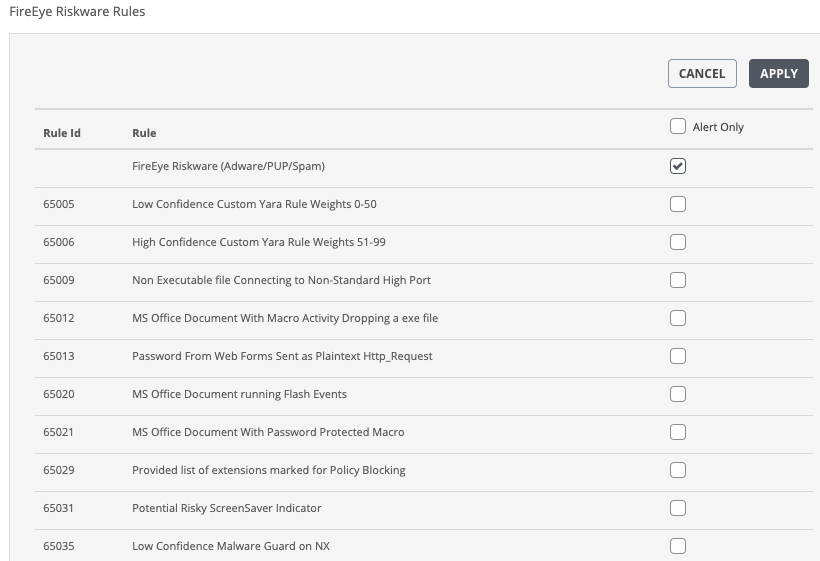
In the Riskware Policy Rules table, select the checkbox in the Alert Only column for the custom policy rule you want to enable for riskware detection. You can select multiple rules at one time.
Click Apply.
In the Web UI, choose Settings > Riskware Policy.
In the Riskware Policy Rules table, clear the checkbox in the Alert Only column for the custom policy rule you want to disable for riskware detection. You can select multiple rules at one time.
Click Apply.