Use the Log Manager tab of the Central Management System appliance to generate log files and download them. You can then search the log files for Network Security HA-specific messages, as described in this section.
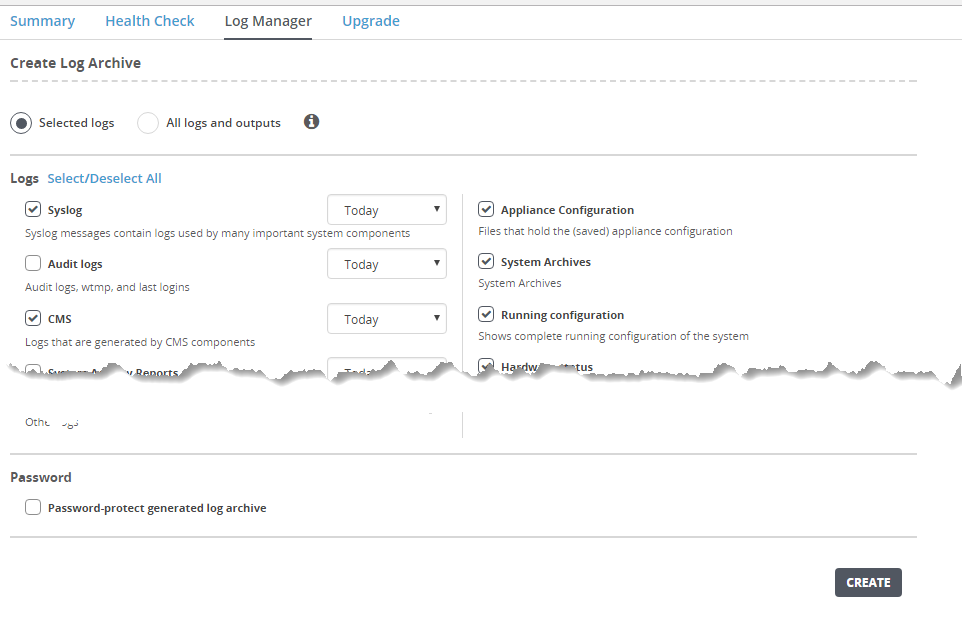
Log in to the Central Management System Web UI.
Click the About tab.
Click Log Manager.
Click Log categories shown below. All categories are selected by default.
Select or clear checkboxes to specify the categories you want to include in the logs.
If a drop-down list is present, select the time period the log should cover. The default is today. The other options are past week, past 2 weeks, and past month.
Clear the Password-protect generated log archive checkbox.
Important
If this checkbox is selected, you will be unable to open the files.
Click Create. A status message is displayed while the log is being created.
Locate the log file archive in the Archives section.
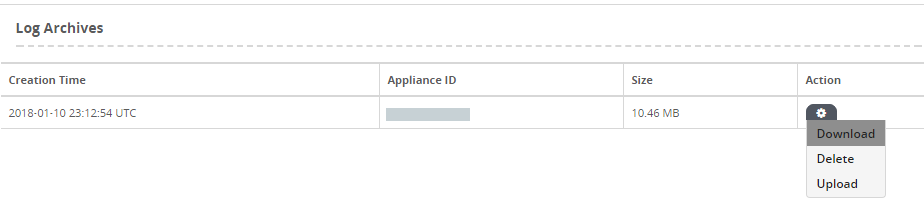
Click Download.
The log archive is downloaded to your local file system. The archive name begins with the hostname of the node.
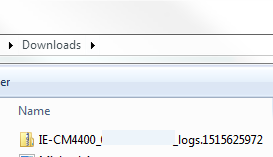
Locate the file and open it in a text editor or program of your choice.
Search for the keywords of interest (for example, mismatch or degraded).