TACACS+ authentication
Go to Devices → <Admin Domain Name> → Devices → <Device Name> → Setup → Remote Access → TACACS+.
When FIPS mode is enabled in the Sensor, configuration for TACACS+ authentication is disabled.
Importing a Sensor's configuration
Go to Devices → <Admin Domain Name> → Devices → <Device Name> → Maintenance → Import Configuration.
While importing a Sensor configuration file from a non-FIPS-enabled Sensor to a FIPS-enabled Sensor, the configurations that are not supported in the FIPS mode are ignored.
Sensor Failover
Go to Devices → <Admin Domain Name> → Global → Failover Pairs.
When one of the Sensors in a failover pair is FIPS-enabled, it is required that the peer Sensor is also FIPS-enabled.
Sensor Report
Go to Manager → <Admin Domain Name> → Reporting → Configuration Reports → IPS Sensor.
The Sensor report displays the FIPS Mode field with the status of the configuration. The Sensor Information table displays whether the FIPS mode is enabled, disabled, or not supported in the Sensor.
Certificate Expiration Fault
To view the fault information, select Manager → <Admin Domain Name> → Troubleshooting → Logs → Faults.
The Manager raises a fault if a certificate has either expired or is approaching expiration. This check is done as part of scheduled file pruning and will not be done during Manager start-up.
View Details
You should update the ems.properties file for various settings explained in the sections below. This file is available at /opt/IPSManager/App/config/.
Go to Devices → <Admin Domain Name> → Devices → <Device Name> → Summary.
The details includes a field called FIPS Mode that displays FIPS compliance information for an installed Sensor. The FIPS Mode field displays whether FIPS is enabled, disabled or not supported in the Sensor.
Logon History
This feature is enabled by setting this property in ems.properties file:
iv.access.control.authentication.loginHistoryTimePeriodLastNumberOfDays=30
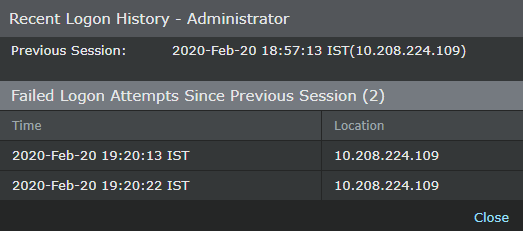
To view Recent Logon History window, click Login History link in the header bar located on top of the menu bar.
The Recent Logon History window displays failed and successful logon attempts for a number of days set in ems.properties.
The period of time is set by assigning a value to the loginHistoryTimePeriodLastNumberOfDays property in the ems.properties file. If this property is not defined or set to -1 in the ems.properties file, then the Recent Logon History page will display failed logon attempts.
Shutdown on audit failure
This feature is enabled by setting this property in ems.properties file:
iv.core.audit.ShutDownOnAuditFailureEnabled=true
The Manager must invoke a system shutdown in the event of an audit failure. If the audit system detects an exception while attempting to audit to database or audit to file, it shuts down the Manager. Note since audit failure forcibly shuts down the Manager, it requires the Manager to be manually restarted. Server logs contain the root cause of audit failure. Also, system fault is listed after the Manager is successfully restarted.