The Guest Portal Settings page allows you to display a custom logo and a custom message for the guest portal.
To display a custom logo and a custom message in the guest portal in the Manager, do the following:
Task
-
Go to
Manager → <Admin Domain Name> → Setup → Intrusion Prevention → Guest Portal Settings.
Guest Portal Settings in the Manager 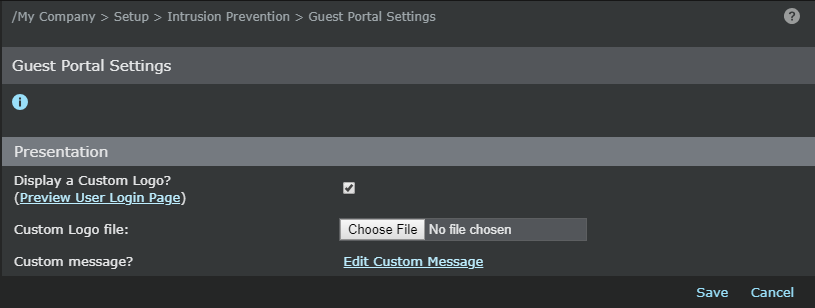
-
Check the required settings for
Presentation.
- (Optional) Select the Display a Custom Logo? checkbox.
- Click Choose File and add a file from the appropriate location.
- Click Custom Message to customize text that needs to be displayed for a user to acknowledge before logging into the Guest Portal.
- To save the Guest Portal settings, click Save.