---
title: "High-level steps for integrating with Trellix Intelligent Sandbox"
slug: "high-level-steps-for-integrating-with-trellix-intelligent-sandbox"
tags: ["Integration", "IPS 10.1.10"]
updated: 2026-09-21T08:19:56Z
published: 2026-09-21T08:19:56Z
canonical: "docs.trellix.com/high-level-steps-for-integrating-with-trellix-intelligent-sandbox"
---
> ## Documentation Index
> Fetch the complete documentation index at: https://docs.trellix.com/llms.txt
> Use this file to discover all available pages before exploring further.
# High-level steps for integrating with Trellix Intelligent Sandbox
This section provides the high-level steps on how to integrate Trellix IPS with Trellix Intelligent Sandbox. This section assumes that Trellix Intelligent Sandbox is up and running. For information on how to install and configure Trellix Intelligent Sandbox, see its documentation.
Summarized steps for configuring malware analysis
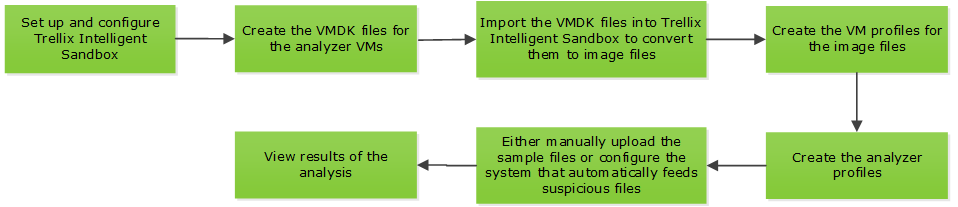
1. Set up the
Trellix Intelligent Sandbox appliance and ensure it is up and running.
- Make sure the
Trellix Intelligent Sandbox appliance has the network connections it needs for your application. Make sure the Sensor, Manager, and the
Intelligent Sandbox appliance are able to ping each other.
- Make sure the required static analysis modules, such as the
Trellix GTI and
Trellix Gateway Anti-Malware Engine have the latest DATs.
2. Create the required VMDK files for the analyzer VMs and import them into
Trellix Intelligent Sandbox. The Android analyzer VM is available by default.
3. Convert the VMDK files to image files and then create the corresponding VM profiles.
4. Create the analyzer profiles you need under
Trellix Intelligent Sandbox interface. You can select these analyzer profiles from the drop-down list under the Manager interface. The Manager also allows different Sensors to have their own analyzer profile as configured by the respective Sensor users. This implies that the users can use a single
Trellix Intelligent Sandbox device, but can have different analyzer profile per
Trellix IPS device or per interface.
5. If you want
Trellix Intelligent Sandbox to upload the results to an FTP server, configure it and have the details with you before you create the profiles for the corresponding users.
6. Log on to
Trellix Intelligent Sandbox web application using respective
Trellix IPS user credential created for different Sensors integrated with
Trellix Intelligent Sandbox and upload a sample file for analysis. This is to check if you have configured
Trellix Intelligent Sandbox as required.
7. In the
**Analysis Status** page, monitor the status of the analysis.
8. After the analysis is complete, view the report in the
**Analysis Results** page.
For information on all the above tasks, see the Trellix Intelligent Sandbox Product Guide.
To integrate Trellix Intelligent Sandbox and Trellix IPS, these additional steps are required:
1. Configure the
Trellix Intelligent Sandbox details for the required admin domains and enable communication.
2. Enable the integration for the required Sensors under those domains. You can inherit the
Trellix Intelligent Sandbox details from the admin domain or override them at the Sensor level.
3. Configure an Advanced Malware policy with
Intelligent Sandbox selected for the required file types. Ensure that you have assigned this Advanced Malware policy to the required inline monitoring ports. See the
Trellix Intrusion Prevention System Product Guide for information on how to configure and apply Advanced Malware policies.