This is the third (optional) step in configuring Manager for relevance analysis. This step is optional if you are using Vulnerability Manager scans, because you can import Vulnerability Manager scan reports either manually or automatically as per schedule. Other third party scans only be imported manually.
For importing scanned vulnerability reports from Vulnerability Manager database to Manager database, you can use the Automation function in Manager.
During the automatic import process, the Automation scheduler invokes a stored procedure in the Vulnerability database, which returns all the vulnerability data to the Manager database. The vulnerability data retrieved corresponds to the scan configuration that was used for vulnerability assessment. Manager retrieves the relevance information based on the last import time of Automation.
Task
-
Select
Manager → <Admin Domain Name> → Integration → Vulnerability Assessment → MVM → Alert Relevance → Automation to perform this action from root or child admin domains.
The Vulnerability Manager Scheduler window is displayed.
Automation sub-tab 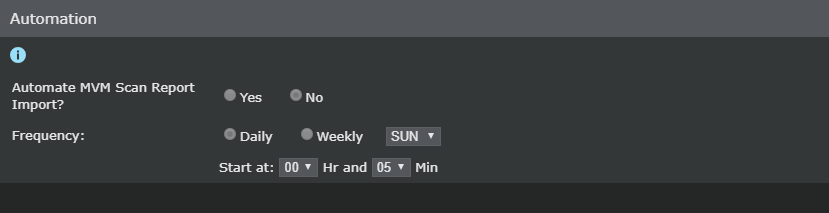
- Select Yes for Automate MVM Scan Report Import? option. This enables automatic import of reports by the scheduler.
- To schedule the frequency of import on a weekly or daily basis, select Daily or Weekly import options for the Frequency.
- Select the start time for scheduler operation from Start At.
-
If you wish to import the vulnerability data from Vulnerability Manager immediately, select
Import Now!.
The page is refreshed, and a message is displayed that vulnerability data is successfully imported from Vulnerability Manager database.
-
Click
Apply, to save your settings. The page is refreshed, and a message is displayed that the settings are successfully updated.
Note
The Import Now! feature available in the parent domain, at Manager → <Admin Domain Name> → Integration → Vulnerability Assessment → MVM → Alert Relevance → Automation, is not applicable for child domains that have Vulnerability Manager settings (Manager → <Admin Domain Name> → Integration → Vulnerability Assessment → MVM → Alert Relevance → Enable or Manager → <Child Admin Domain Name> → Integration → Vulnerability Assessment → MVM → Alert Relevance → Enable) set to Inherit Settings?. Consequently, Import Now! and Apply buttons are not seen in the Automation page (Manager → <Admin Domain Name> → Integration → Vulnerability Assessment → MVM → Alert Relevance → Automation or Manager → <Child Admin Domain Name> → Integration → Vulnerability Assessment → MVM → Alert Relevance → Automation) of such child domains.