Use the Custom Whitelist area in the Whitelist Categories (optional) page to import a list of domains for the custom whitelist exception category to your appliance. You can upload an unlimited number of domains to the Network Security appliance from an ASCII text file or CSV file. You must specify each domain entry on a separate line. You must also specify an empty entry as the last line. Otherwise, the last domain is not uploaded to the appliance.
Prerequisites
Create an ASCII text or CSV file that contains the domains for the custom whitelist exception category. The file must be accessible from the local machine from which you access the Web UI.
Administrator or Operator access to the Network Security appliance.
In the Web UI, choose Settings > SSL Intercept.
Click Whitelist Categories (optional).
Click Custom Whitelist Exception.
Click Import Domain.
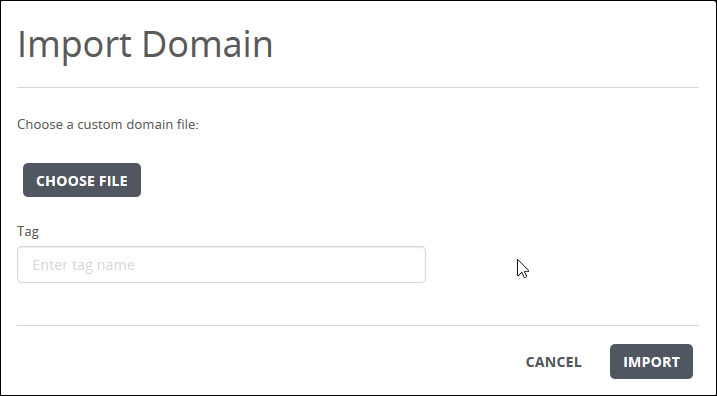
Click Choose File and navigate to the file that contains the domains for the custom whitelist you want to import.
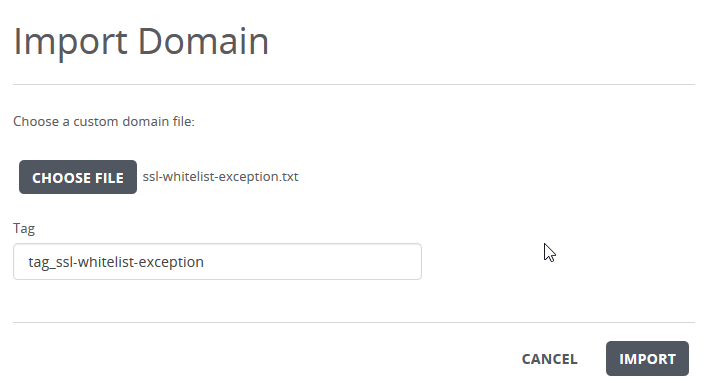
In the Tag field, change the tag name or enter a new tag.
Click Import.