Task
-
Go to
Manager → <Admin Domain Name> → Integration → ePO → ePO Integration.
The Enable ePO Integration page appears.
-
Select the checkbox for
Enable Endpoint Lookup?.
Enabling this option provides endpoint details like hostname, current user and OS version in the Attack Log.
-
Select the checkbox for
Enable Endpoint Tagging?.
Enabling this option allows you to tag endpoints in Attack Log.
-
Click
Next.
The ePO Server Settings page appears.
ePO Server Settings page 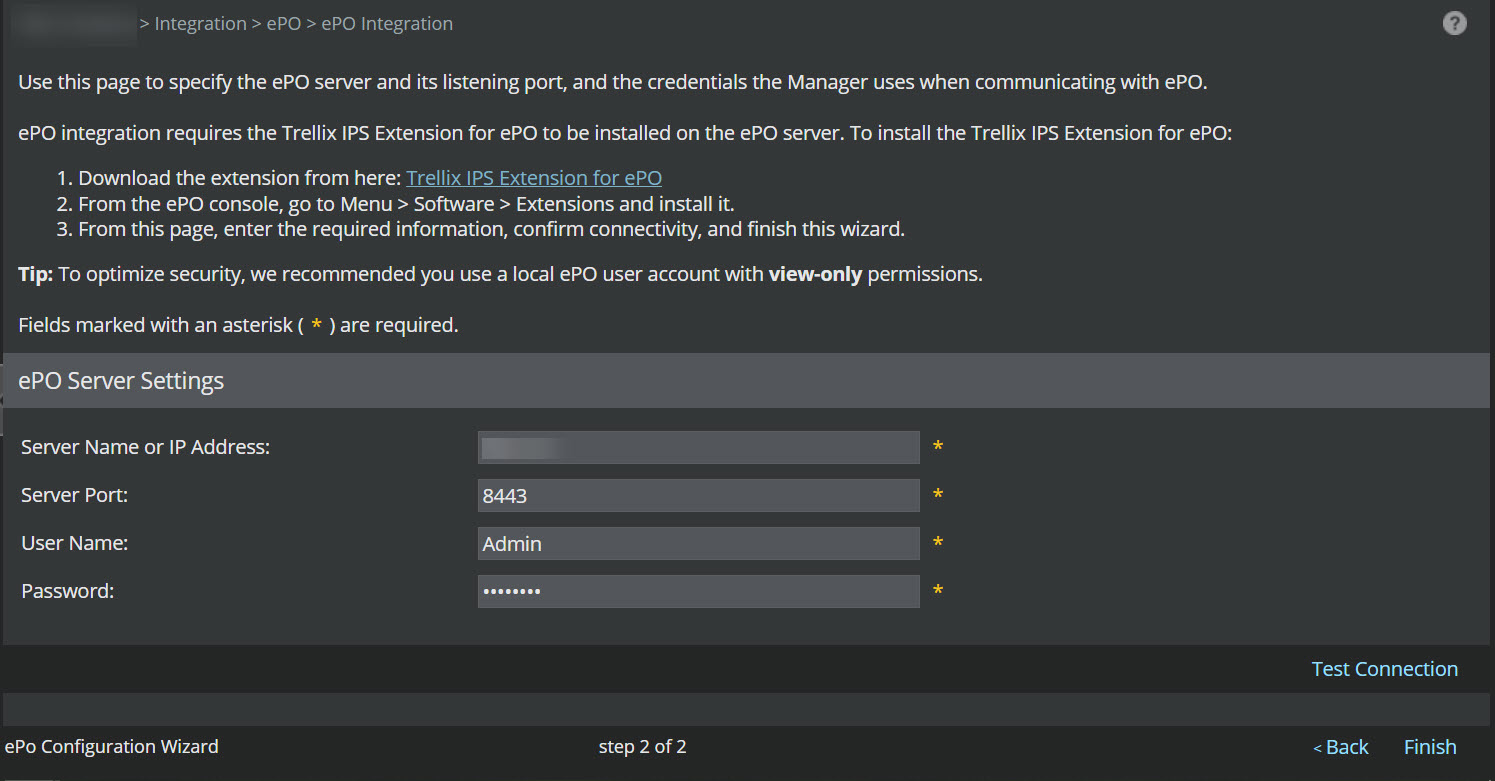
- Click the Trellix IPS Extension for ePO hyperlink to download the TrellixIPSExtension.zip file.
- Save the file in a convenient location in the local hard disk.
-
Log on to the
ePolicy Orchestrator - On-prem console.
The ePolicy Orchestrator - On-prem home page appears.
-
Go to
Menu → Software → Extensions.
The Extension page appears.
- Click Install Extension at the bottom of the page.
-
Browse to the location that you have stored
TrellixIPSExtension.zip file.
Once installed, the Manager is listed under the Extensions list.
- Close ePolicy Orchestrator - On-prem and return to the Manager.
-
Go to
Manager → <Admin Domain Name> → Integration → ePO → ePO Integration.
Field Description Server Name or IP Address Enter the name or the IP of the Trellix ePO - On-prem server running the extension file. Note that this Trellix ePO - On-prem server should have the details of the hosts covered by the admin domain. Contact your Trellix ePO - On-prem administrator for the server name and IP.
Server Port Specify the HTTPS listening port on the Trellix ePO - On-prem server that will be used for the Manager -Trellix ePO - On-prem communication. Contact your Trellix ePO - On-prem administrator for the port number. User Name Enter the username to be used while connecting to the Trellix ePO - On-prem server. Trellix recommends you create an Trellix ePO - On-prem user account with view-only permissions required for integration.
Password Enter the password for connecting to the Trellix ePO - On-prem server. - Click Test Connection to ensure that the extension file is installed and started on the Trellix ePO - On-prem server.
- If the connection is up, then click Finish.