The Manager supports report generation in the following languages:
- English
- Chinese Simplified
- Chinese Traditional
- Japanese
- Korean
You can configure, schedule, and view the generated reports in all the five languages mentioned.
You can select the language from Manager → <Admin Domain Name> → Reporting → Preferences → Language drop-down list. The Configuration Reports page is displayed in English the first time you access it. Subsequently, it is displayed in the language that you last chose.
Note
If you are accessing Manager from a client machine, you need to install East Asian characters; else such characters in the reports appear as square boxes or question marks. To install the East Asian characters, select Settings → Control Panel → Regional and Language options → Languages and select Install files for East Asian languages, Install Asian Language Characters and then restart the machine.
Note
To view the PDF version of the localized reports, you need the required fonts in your Acrobat Reader. The first time you attempt to view the PDF version, Acrobat Reader attempts to update with the required fonts.
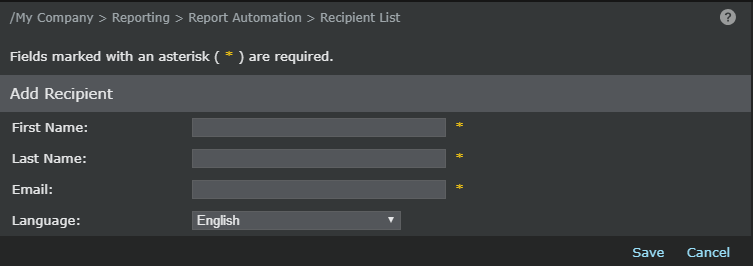
You can specify the language for the recipients of scheduled reports, and the scheduled reports are generated in those languages. For example, if you have scheduled the Executive Summary Report with five recipients (one recipient for each language including English), this report is generated in all the five languages at the specified time and the appropriate version is emailed to the recipients. That is, the Japanese recipient receives the Japanese version of the report.
The data retrieved from the database is displayed in the language in which it is stored in the database, and this data is independent of the language that you choose in the Reporting menu. For example, if a saved report was generated in English, you cannot view it in Japanese by choosing Japanese in the Language page. To do this, you need to add another recipient for this report with the language as Japanese.
The Language column in the Sent Reports page indicates the language in which the reports were generated. Also, for saved reports that are not in English, you can identify the language through the last two letters of the report name:
"ja" indicates Japanese, "ko" indicates Korean, "CN" indicates Chinese Simplified, and "TW" indicates Chinese Traditional.
In the following pages, you can enter text in the language that you had chosen:
- Add Report Template (Description)
- Edit Report Template (Description)
- Add Recipient (First Name and Last Name)
- Edit Recipient (First Name and Last Name)
The following table provides the extent of localization in the Reports module:
| Category | Extent of Localization |
|---|---|
| User-configurable data retrieved from the database | Not localized |
| Data that is not user-configurable | Fully localized |
| Informational messages | Fully localized |
| Error messages | Fully localized |
| Online Help | Available in English only by default. The localized online help can be requested for separately, which can be manually installed in your Manager setup. |
| Text in charts and graphs | Partially localized |
| Dates | Fully localized |
| Calendar | Fully localized |
| Numeric, monetary, and metric | Partially localized |
| Data input through keyboard | Partially localized |