---
title: "Malware inspection on HTTP Upload requests"
slug: "malware-inspection-on-http-upload-requests"
tags: ["Product Usage", "IPS 10.1.10"]
updated: 2026-10-05T15:39:58Z
published: 2026-10-05T15:39:58Z
canonical: "docs.trellix.com/malware-inspection-on-http-upload-requests"
---
> ## Documentation Index
> Fetch the complete documentation index at: https://docs.trellix.com/llms.txt
> Use this file to discover all available pages before exploring further.
# Malware inspection on HTTP Upload requests
Trellix Intrusion Prevention System offers malware inspection capabilities for HTTP upload requests generated in the network. The HTTP **Upload** option is useful in environments where files uploaded through the network need to be scanned.
Selecting HTTP Upload option
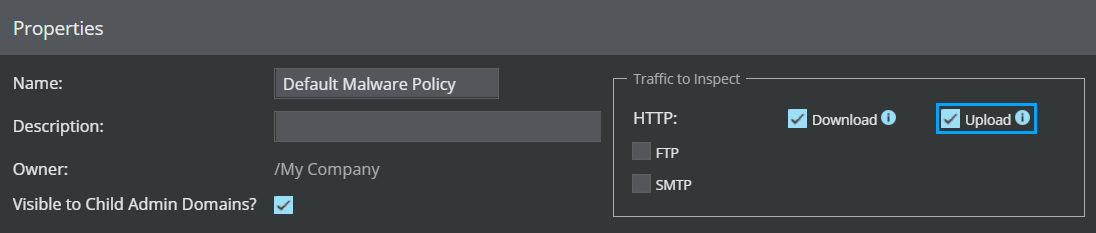
The Sensor has capabilities to scan both HTTP multipart and non-multipart requests for presence of malware.
In case of HTTP requests containing multiparts, malware inspection is supported only on the following multipart Content-Types:
- Multipart/alternative
- Multipart/digest
- Multipart/form-data
- Multipart/mixed
- Multipart/parallel
- Multipart/related
- Multipart/report
Multipart Content-Types that are currently not supported for inspection are:
- Multipart/signed
- Multipart/encrypted
- Multipart/byteranges
- Nested Multipart forms
> [!NOTE]
> Note
>
> The Sensor does not support the inspection of malware files when files are transferred/uploaded using encoding mechanisms. These encodings are generally indicated by Content-Encoding/Content-Transfer-Encoding/Transfer-Encoding headers. To view the list of file types and their extensions supported for scanning, see the table File scanning options within the section [Add an Advanced Malware policy](/network-and-platform/docs/add-an-advanced-malware-policy-1).
> [!NOTE]
> Note
>
> For information about the maximum file size that can be scanned, see the table File scanning options within the section [Add an Advanced Malware policy](/network-and-platform/docs/add-an-advanced-malware-policy-1).
You can view Layer 7 HTTP data for an alert from the **Attack Log** by following these tasks:
1. Navigate to
**Analysis** → **** → **Malware Files**.
2. Double-click on the malware file hash that is associated with a malicious HTTP request. The
**Attack Log** opens where you can view and analyze alerts related to the selected hash.
3. Double-click on an alert to view all information related to the attack.
4. The
**** panel opens on the right-hand side. Click the
**Details** tab and scroll down to
**Layer 7** section to view the HTTP fields associated with the alert.
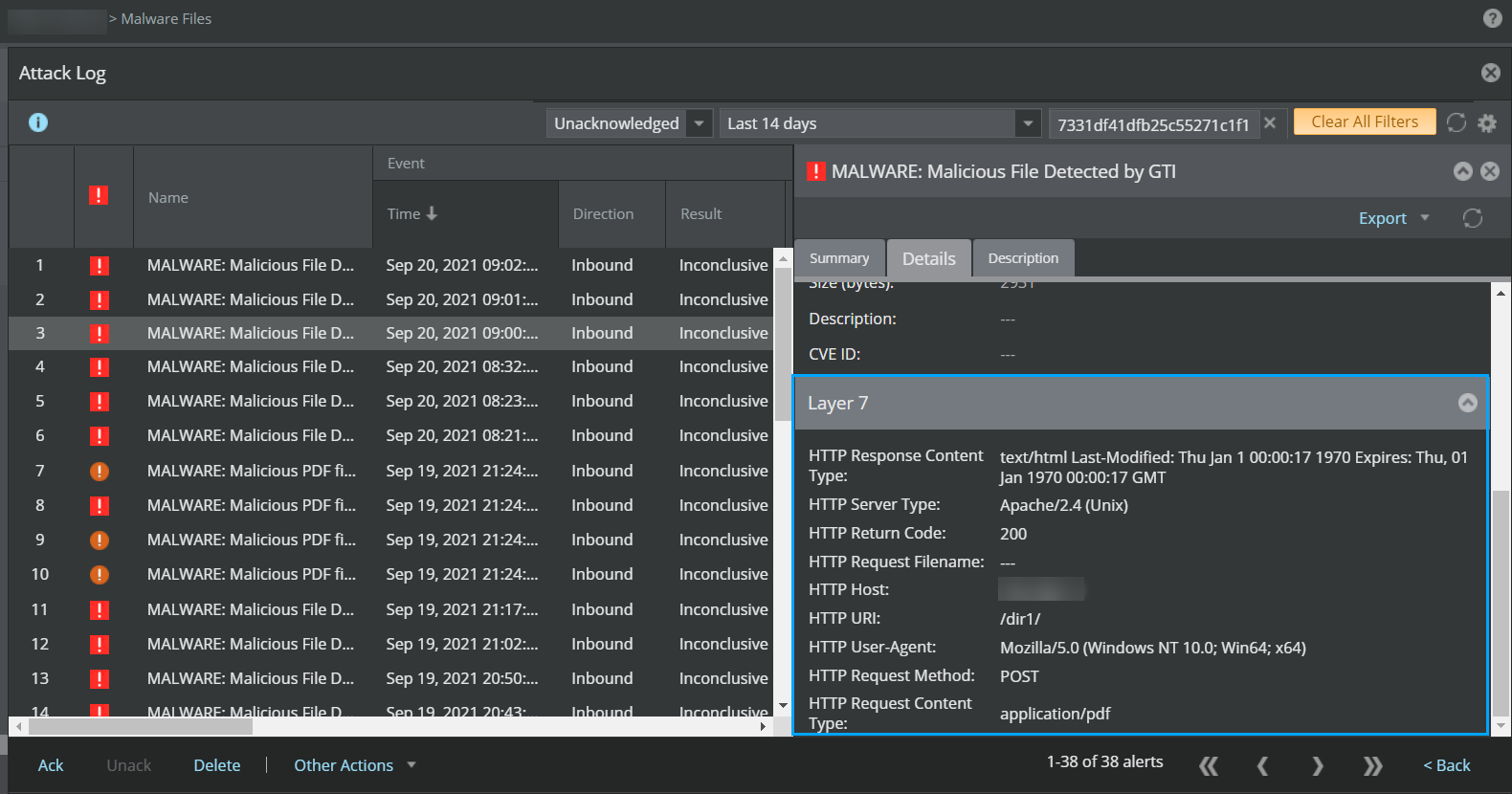
The HTTP fields displayed under the Layer 7 section vary depending on the HTTP alert you select for examination.
> [!NOTE]
> Note
>
> The limit for the number of files uploaded and scanned per single HTTP POST or PUT transaction is 10.
> [!NOTE]
> Note
>
> Malware inspection on HTTP requests requires additional system resources and can therefore impact overall Sensor performance.