Use this file to discover all available pages before exploring further.
The new docs.trellix.com features a modernized UI and AI-powered conversational search. Content is currently available in English, with additional languages launching in early November 2026. We hope you enjoy the updated experience.
Make sure that you have write access to the root admin domain.
You might want to exclude certain domains from DNS-based analysis for callback detection. Include all such domains in the domain name exceptions list in the Manager. You can also use the domain name exceptions list to exclude C&C server domains by the callback detectors.
Task
Create a .csv file, which contains all domains to be included in the domain name exception list.
Make sure that each domain name is separated by a comma.
Sample .csv file
The domain names, which you include in the domain name exceptions can contain any number of levels. However, for levels above the second level, the domain name in the DNS response must exactly match to be exempted.
For example, if the domain name exceptions contain .org, all domain names for which the top-level domain is
.org are exempted.
If the domain name exceptions contain ntp.org, all domain names ending with ntp.org are exempted. For example, 1.pool.ntp.org is exempted.
If the domain name exceptions contain pool.ntp.org, the domain name in the DNS response must exactly be pool.ntp.org to be exempted. That is, 1.pol.ntp.org is not exempted.
If the domain name exceptions contain ntp.org and 1.pool.ntp.org, 2.pool.ntp.org is also exempted. If you have ntp.org in the domain name exceptions, you need not include 1.pool.ntp.org in the domain name exceptions.
As a best practice, make sure that you add all your organization's public and internal domain names to the exceptions list. If
Trellix is an example, you add
trellix.com and
nai.org to the exception list. Add the first last two domain labels for such exceptions. That is, instead of
www.trellix.com, add
trellix.com. This ensures that Sensor resources are not spent on analyzing DNS traffic of known domains.
At a point in time, you can store up to 700 domain name exceptions in your Manager.
In the Manager, select
Policy → <Admin Domain Name> → Intrusion Prevention → Exceptions → Domain Names.
To manage
Callback Detection Exclusions:
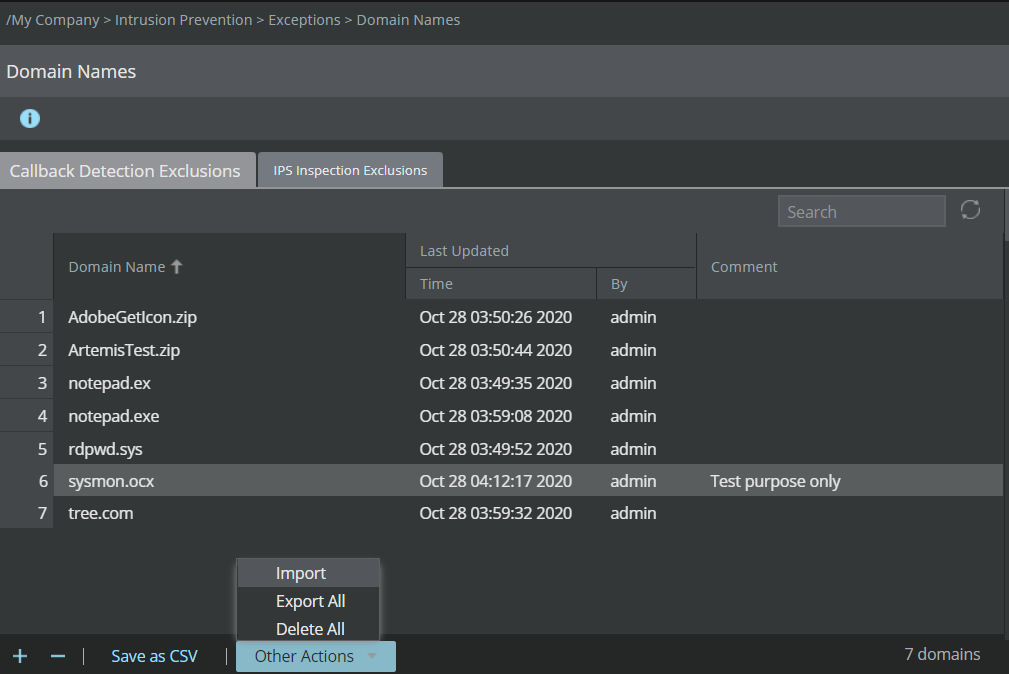
To import the domain names from the .csv file, click
Other Actions → Import on the
Callback Detection Exclusions tab.
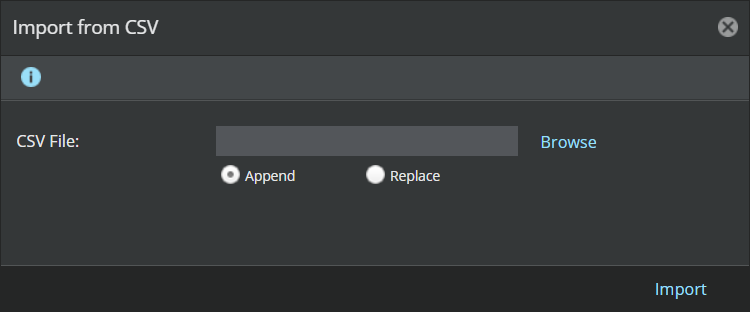
Import from CSV window appears. Browse the .csv file and click
Import in the
Import from CSV window.
Import Domain Names from a CSV file The domain names are displayed in the
Domain Names page.
Domain Name — Name of the domain imported
Last updated — Automatically populates the
Date and
Time when a domain name was imported and the user who imported it
Comment — Enter a comment for the required record names. Double-click the
Comment column for a record and type in the comment.
You cannot include the comments in the .csv file when the domain names are imported. You can manually enter them in the
Domain Names page.
Imported domain names
To add a single domain to the exclusion list, click
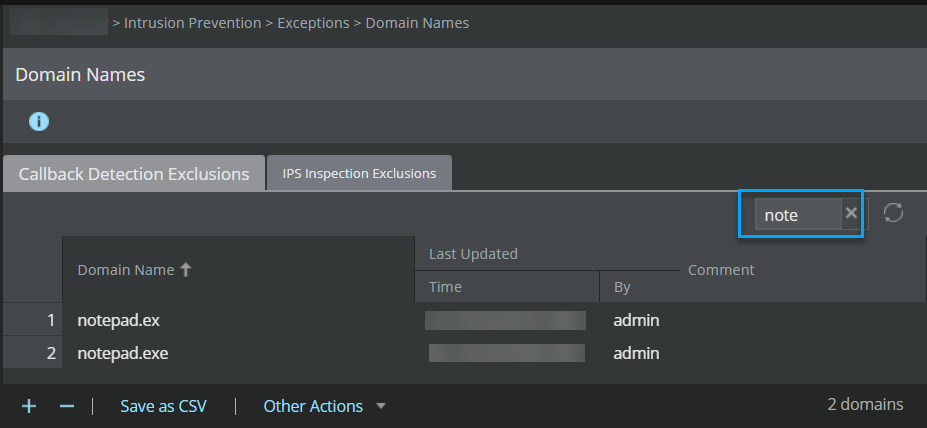
To locate records in the
Domain Names page, enter a string in the
Search box.
All records containing the entered string in any of the columns are listed.
Search records
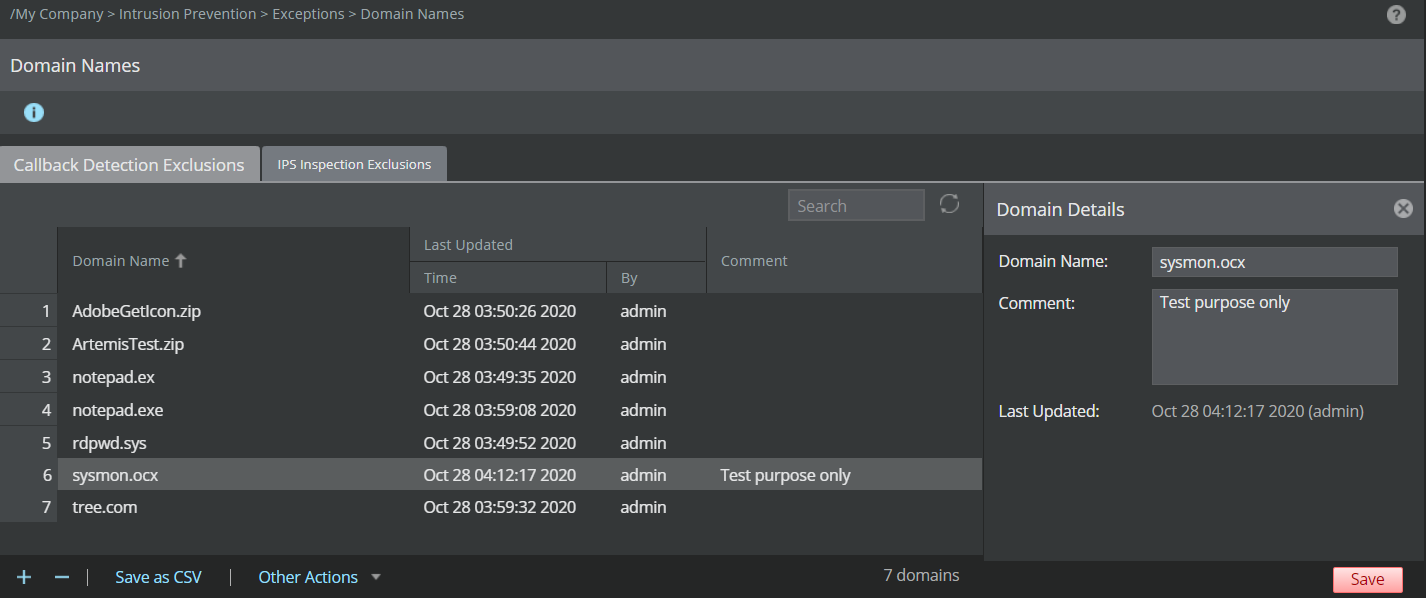
To edit any record, double click the domain.
You can edit the domain in the
Domain Details pane. Click
Save.
Edit record
To delete records, select the domain name and click
.
To delete all the records, click
Other Actions → Delete All.
Delete records
To export the current list of domain name exceptions to a .csv file, click
Other Actions → Export All and save the file.
Only the domain names are exported and not the comments.
You can also save all the existing domains. Click
Save as CSV to save the existing list.
To manage
IPS Inspection Exclusions:
To import the domain names from the .csv file, click
Other Actions → Import on the
IPS Inspection Exclusions tab.
Import from CSV window appears. Browse the .csv file and click
Import in the
Import from CSV window.
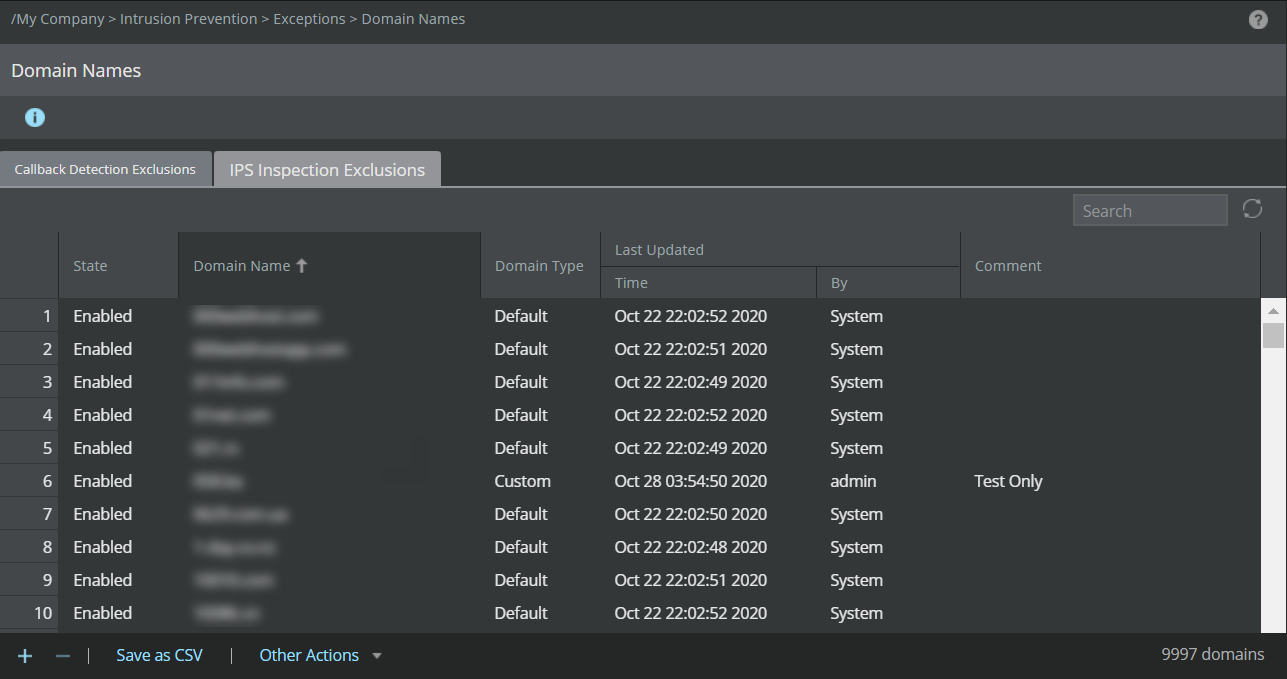
Import Domain Names from a CSV file The domain names are displayed in the
Domain Names page.
Domain Name — Name of the domain imported
Last updated — Automatically populates the
Date and
Time when a domain name was imported and the user who imported it
Comment — Enter a comment for the required record names. Double-click the
Comment column for a record and type in the comment. The comment is automatically saved when you click outside the column.
You cannot include the comments in the .csv file to be included when the domain names are imported. You can only manually enter them in the
Domain Names page.
Imported domain names
To add a single domain to the exclusion list, click
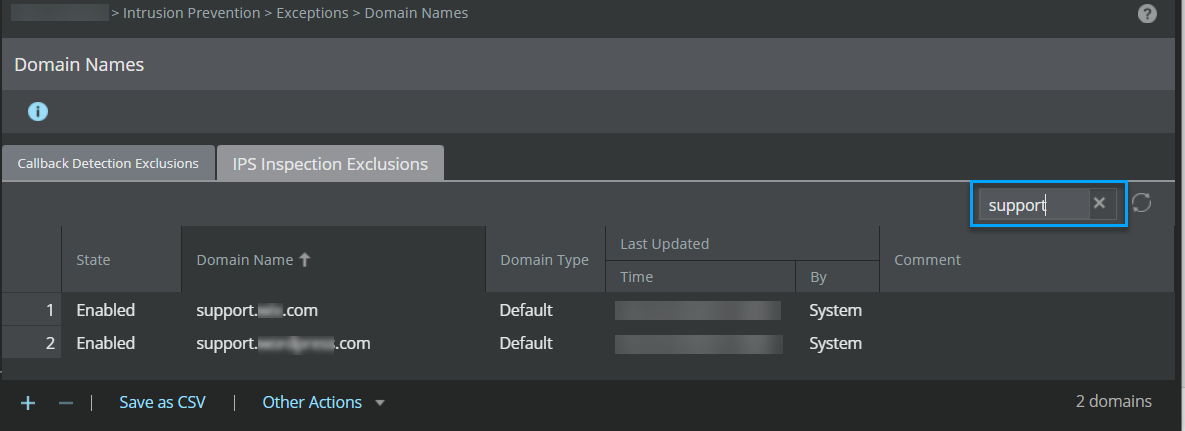
To locate records in the
Domain Names page, enter a string in the
Search box.
All records containing the entered string in any of the columns are listed.
Search records
To edit any record, double click the domain.
You can edit the domain in the
Domain Details pane.
Note
You cannot edit the
Domain Name for a default domain. You can either enable or disable a default domain name by selecting the domain and selecting the
Enabled or
Disabled option in the
State drop-down list in
Domain Details pane.
To delete records, select the domain name and click
.
To delete all custom records, click
Other Actions → Delete All Custom.
Delete records
To export the current list of custom domain name exceptions to a .csv file, click
Other Actions → Export All Custom and save the file.
Only the domain names are exported and not the comments.
You can also save all the existing domains. Click
Save as CSV to save the existing list.
.png)
.png)
.png) .
To delete all the records, click Other Actions → Delete All.
.
To delete all the records, click Other Actions → Delete All.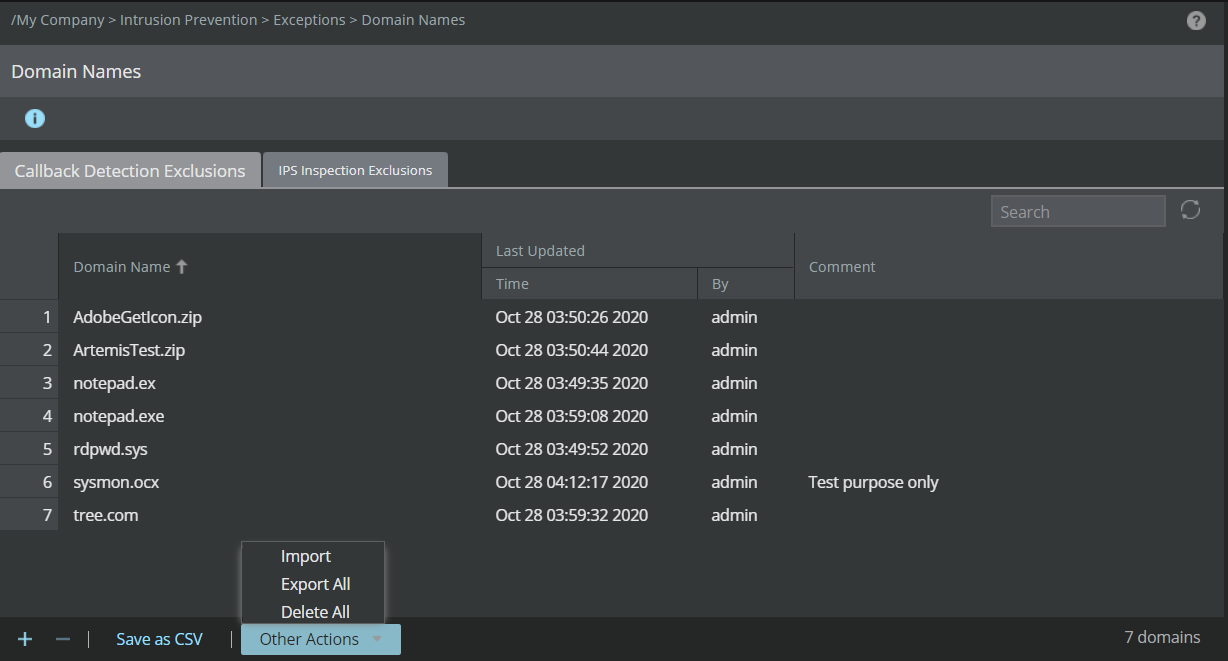
.png)