Sensors support four traffic types:
- Dedicated
- VLAN
- Bridge VLAN
- CIDR
By default, all interfaces monitor traffic in Dedicated mode: the interface monitors all transmissions without regard to network segmentation. Traffic segmentation by VLAN tag or CIDR addressing is supported. If your traffic is segmented into VLANs, for example between switches in a building, you can change the interface type to VLAN. More commonly, if you have used CIDR addressing in your network, changing the traffic type to CIDR helps you better protect specific networks/hosts in your system. For VLAN and CIDR interfaces, you are able to add the network IDs, either VLAN tags or CIDR addresses, in order to specify unique networks in your domain.
By segmenting the network traffic into VLAN or CIDR, the user has more flexibility in applying multiple policies to traffic subflows. This is accomplished by configuring one or more traffic subflows (VLAN tag(s)/CIDR block(s)) into a sub-interface.
A Bridge VLAN interface functions exactly like a VLAN interface except that post-IPS, if the traffic is OK, the Sensor changes the VLAN ID to that of the peer ID.
The VLAN Bridging feature enables you to subject inter-VLAN traffic to IPS with the least number of Sensors. You can also use the VLAN Bridging feature in conjunction with EtherChannel Load Balancing on your switches, to incrementally increase the IPS bandwidth of your Trellix IPS infrastructure.
Note
You cannot change the traffic type of an allocated interface. Since the interface has been allocated, it is the "virtual" property of the child domain. Therefore, full ownership cannot be granted. Only the admin domain in which the physical port(s) — thus interface — reside owns the interface and can make this type of change.
Caution
If you decide to again change your traffic type settings after having once changed from Dedicated to VLAN or CIDR, all of the previous configurations performed at the interface and sub-interface levels for the interface are erased in favor of the new configuration. This can affect many scenarios including the creation of a child admin domain to where an interface has been allocated.
To change the traffic type of an interface and add VLAN or CIDR network IDs, do the following:
Task
-
For a standalone Sensor, select
Devices → <Admin Domain Name> → Devices → <Device Name> → IPS Interfaces → <Interface_Name> → Properties.
For Sensors in a stack, select Devices → <Admin Domain Name> → Devices → <Device Name> → IPS Interfaces → <Stackname-node id> → <Interface_Name> → Properties.
Manage Interface - changing traffic type 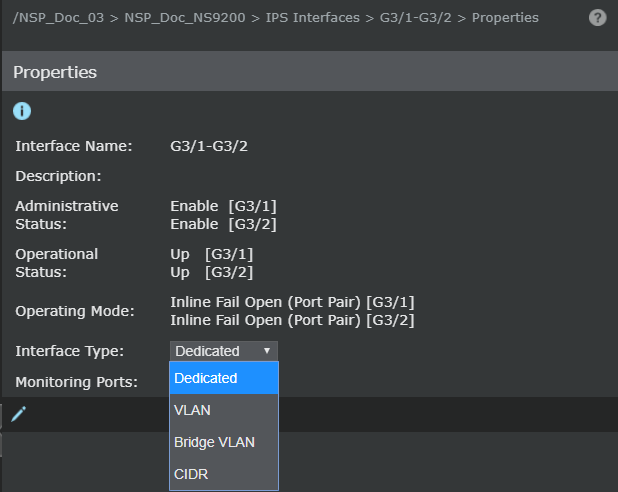
-
Select the
Interface Type as one of the following:
- Dedicated: (default) no segmentation of traffic
- VLAN: enables segment of interface into multiple networks by VLAN tags
- Bridge VLAN: enables bridging of traffic between VLANs
Note
When the Sensor is down, the traffic is forwarded through the peer port with the same VLAN ID with which it came to the Sensor. So, if your switches are not configured to handle such a scenario, the packets may get dropped. You can set up a fail-over Sensor to mitigate this risk.
- CIDR: enables segment of interface into multiple networks by CIDR addressing
If you selected VLAN or CIDR, go to Step 3. If you selected Dedicated, you are done.
-
Click
.png) from the new VLAN or CIDR window to add the VLAN/CIDR IDs.
from the new VLAN or CIDR window to add the VLAN/CIDR IDs.
Edit Dedicated Interface tab 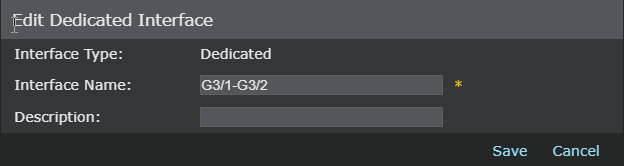
-
(Optional) Clear the port number(s) and type new text in the
Interface Name field. The custom name can have up to 45 alphanumeric characters including hyphens, underscores, and periods. The text you enter appears under IPS Interfaces where the interface node is located; the physical port number is still listed in parentheses at the end of your text. For example, if you typed "VLANs 1-5" as the Interface Name for port pair G3/1-G3/2, IPS Interfaces lists the node as
VLANs 1-5(G3/1-G3/2).
Note
If you had changed the Interface Name earlier and if you want to restore the default, click Reset Name to Default. This action has no effect on the Description field.
Note
If you have given a custom name to an interface and later allocated the interface to a child domain, the custom name is not inherited by the child.
Interface name change under IPS Interfaces 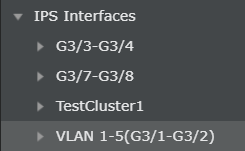
-
(Optional) Type an interface
Description. This text does not display under IPS Interfaces, only in the interface detail. A unique description can only be entered when the interface type has been changed to VLAN or CIDR.
Edit VLAN IDs 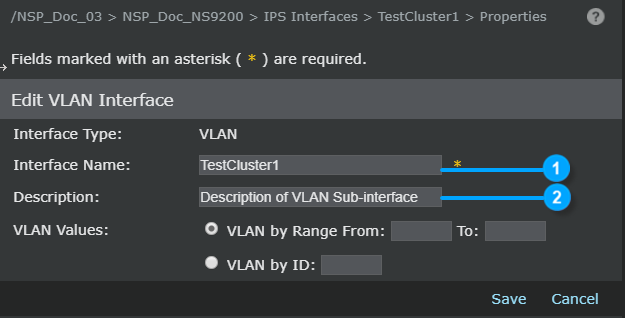
Item Description 1 Custom name, default is port number; this name appears under IPS Interfaces 2 Only appears in interface description dialog -
Add the VLAN/CIDR IDs you want to monitor.
- For VLAN, you can type the VLAN tags by range or by individual ID. The valid range is 0 to 4095, and the maximum number of VLAN tags per interface is 254. If you create a sub-interface and assign all the 254 VLANs to the sub-interface, you can create more number of VLANs in the interface.
- For CIDR, type the network
IP Address and
Mask Length and click
Add to List. This network address must follow standard CIDR addressing rules (correct IP and mask length combination) to be valid.
- The CIDR IP address field now enables you to enter IPv4 addresses in 4 different fields separated with dots. You can now enter the IP address value in the corresponding fields.
- The maximum value in each field is 255. If you enter ".", you are tabbed to the next field.
- Only numerical values between 0—9 are allowed. Special characters are not allowed. Pressing tab after the last field tabs you to select the mask field.
Tip
If you are unsure about your exact VLAN/CIDR IDs and you do not enter IDs, you can always add your IDs later.
Edit CIDR Interface 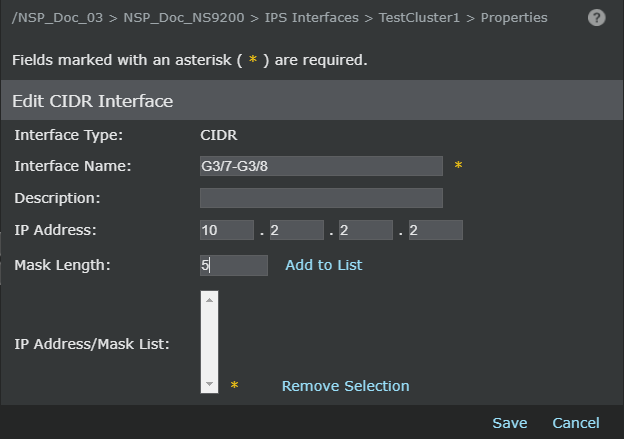
- Click Save to save your interface additions; click Cancel to abort.
- Download the changes to your Sensor by clicking Deploy Pending Changes.