Before you begin
You have reviewed the notes on Sensor downtime window. See Reviewing the upgrade considerations.
Task
If you have not already done so, download the latest 10.8.x signature set from the Update Server.
In the Manager, go to Manager → <Admin Domain Name> → Trellix IPS Protection Status. Select Signature Sets tab. Then, select Download Latest Signature Set. See the Trellix Intrusion Prevention System Product Guide, for step-by-step information on how to download the signature set. For a list of currently supported protocols, see KB61036 at Trellix Support Portal. Do not push the signature set to your Sensors at this point; it will be sent with the Sensor software in step 8.
Note
If you are using the Advanced Callback Detection feature, make sure you have downloaded the latest callback detectors to the Manager. See Trellix Intrusion Prevention System Product Guide for the details on downloading callback detectors.
If you had created Trellix IPS custom attacks in the previous version of the Manager, verify that those attacks are present in the Custom Attack Editor.
Download the most recent 10.1 Sensor software images from the Update Server onto the Manager.
To download the Sensor software version to the Manager, go to Manager → <Admin Domain Name> → Trellix IPS Protection Status. Select Device Software tab. The Device Software tab is displayed. Select Download Device Software.
Select the applicable Sensor software version from the Software Available for Download section and click Download.
To push the Sensor software to your Sensors, go to Devices → <Admin Domain Name> → Global → Device Manager.
The Device Manager page is displayed.
Select the Sensors tab. From the list, select the required Sensor.
The Manager provides an option to concurrently perform the software upgrade for multiple Sensors using same model and software version.
Note
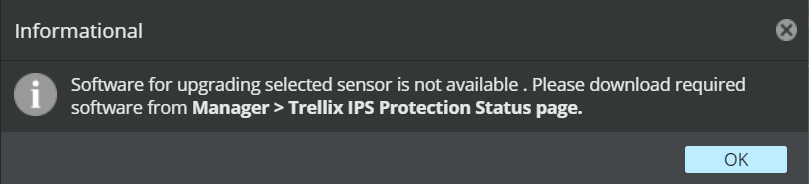
For selected Sensor, if the required software version is not downloaded in the Manager, an Informational dialog box is displayed.
Select Upgrade Device Software from Other Actions drop-down.
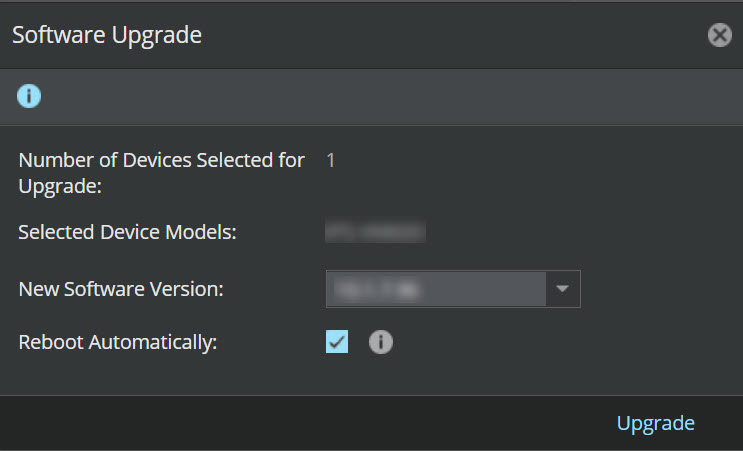
The Software Upgrade dialog box is displayed.
Select the New Software Version to be downloaded to the Sensor from the drop-down.
Note
You can only view the downloaded device software versions.
To automatically push the Sensor for reboot, enable Reboot Automatically.
By default the this option is enabled. If required, it can be disabled. For NS-series Sensors, you must do a full reboot as hitless reboot is not supported when SSL decryption is enabled.
Click the Upgrade to initiate the process.
Note
This will push the signature set as well as the software to the Sensors.
Incompatible custom attack fault is raised in the Faults tab in Manager → <Admin Domain Name> → Troubleshooting → Logs.
Wait for the push to complete.
This process takes at least 5 minutes. To know when the process is complete, log in to the Sensor and look for the following status by using the downloadstatus CLI command:
Last Upgrade Status: Good
Last Update Time: (Time should reflect when the push is complete)
You will be prompted to reboot the Sensor upon completion of the Sensor software upgrade.
Once the reboot process is complete, verify that the Sensor's operational status is up; and that it comes up with the latest software version as well as latest signature set. To verify, go to Devices → <Admin Domain Name> → Devices → <Device Name> → Summary.
Use the Performance Charts to verify the performance of the Sensors.
This is to make sure the upgrade was successful. For information on how to check Sensor performance from Performance Charts, see Trellix Intrusion Prevention System Product Guide.
Important
If you have a HA pair configured, both the Sensors forming the pair should be running on the same Sensor software version. See Updating Sensor software in a failover pair.