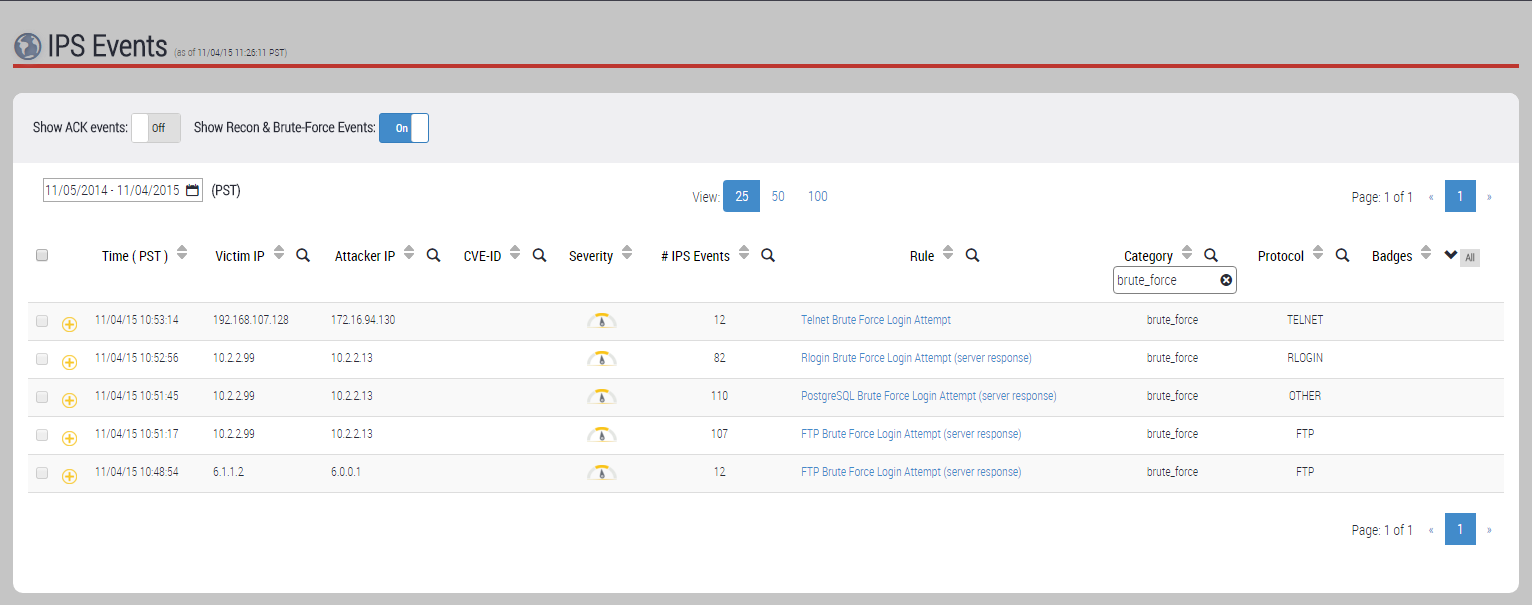
On the IPS Events page, you can show or hide reconnaissance events and brute-force events. IPS reconnaissance events and brute-force events are hidden by default. To show brute-force events only, filter the list on the threat category brute_force.
Prerequisites
Log in to the Web UI of the IPS appliance as Analyst or Admin.
Procedure
To show brute-force events in the IPS Events page:
Choose IPS > IPS Events.
Select the time frame you want to view by using the calendar icon (
 ).
).Set Show Recon & Brute‑Force Events to the On position. The list expands to include IPS reconnaissance events and brute-force events.
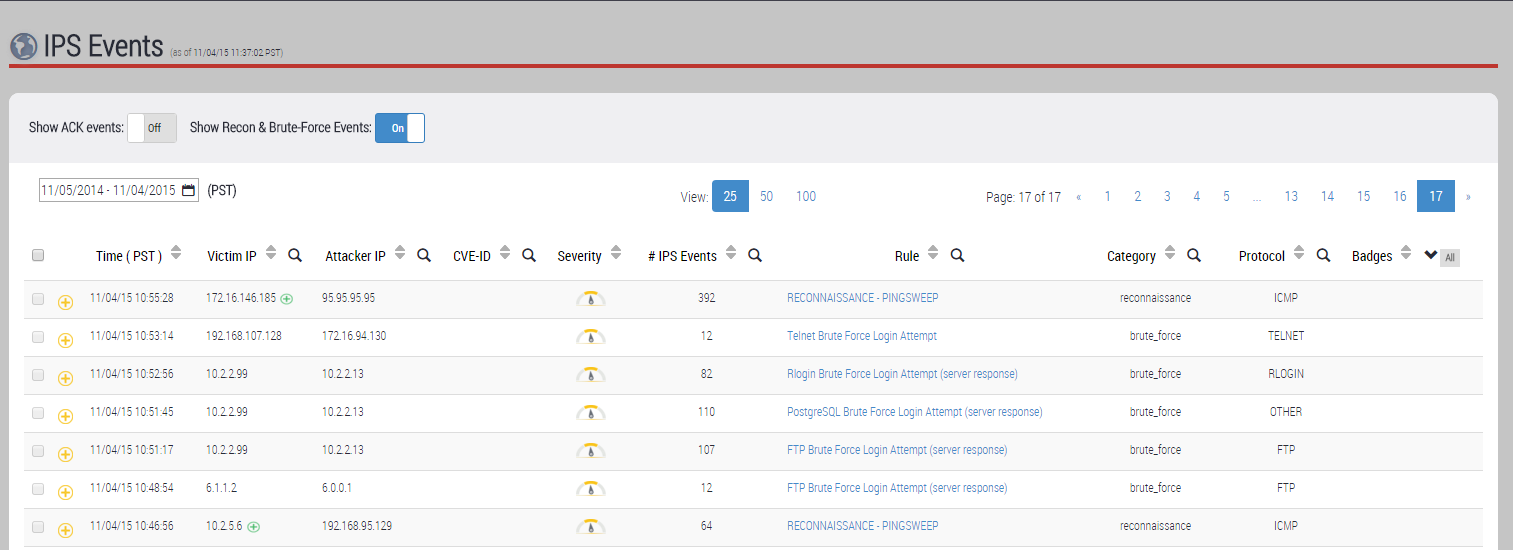
Click the search icon (
 ) in the Category heading.
In the text below the Category heading, type brute_force.
Press Enter.
The list displays brute-force events only.