Start the FCM Agent service after updating the permissions for the Windows Registry.
Task
- From the Windows Start button, click Run and open services.msc.
-
You can find
Foundstone Configuration Management (FCM) Agent here.
Services page 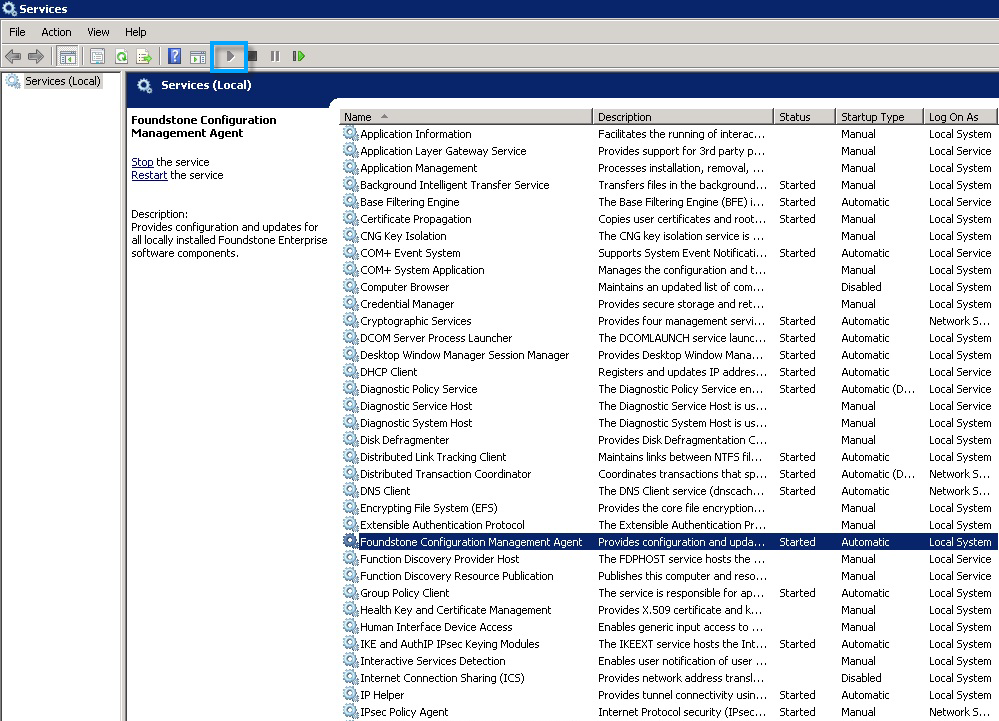
-
Click the
Start button (
 ) to start the FCM Agent service.
After the FCM Agent Service is successfully started, the SSHStatuscache and Statuscache keys are pushed to Agent software from HKLM\Software\wow6432Node\Foundstone location, with a slight delay of 30 to 40 seconds. The two keys should appear in the registry before proceeding to retrieving the MVM certificate.
) to start the FCM Agent service.
After the FCM Agent Service is successfully started, the SSHStatuscache and Statuscache keys are pushed to Agent software from HKLM\Software\wow6432Node\Foundstone location, with a slight delay of 30 to 40 seconds. The two keys should appear in the registry before proceeding to retrieving the MVM certificate. -
Select
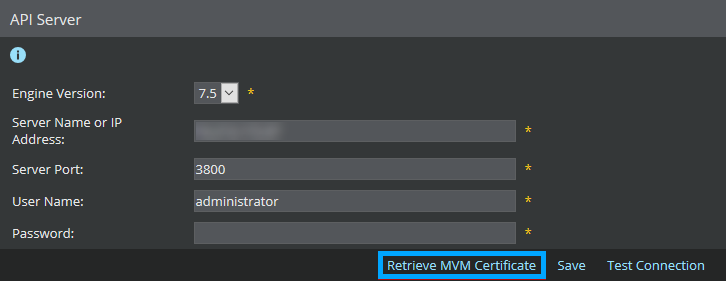
Manager → <Admin Domain Name> → Integration → Vulnerability Assessment → MVM → Vulnerability Scanning → API Server.
The Retrive MVM Certificate option is enabled.
-
Click
Retrive MVM Certificate to import the client certificates into the Manager keystore.
Vulnerability Manager Server Settings area