You must have Administrator privileges on your Windows server to uninstall the Manager or Central Manager. Follow the steps given below for uninstalling Central Manager and Manager.
To uninstall the Manager software:
Note
Trellix recommends you stop the Manager service and applicable Java services before starting an uninstall. If not, you will have to manually delete files from the IPS Manager program folder.
Task
-
Go to
Start → Settings → Control Panel → Add/Remove Programs and select
Trellix IPS Manager.
Programs and Features in Control Panel 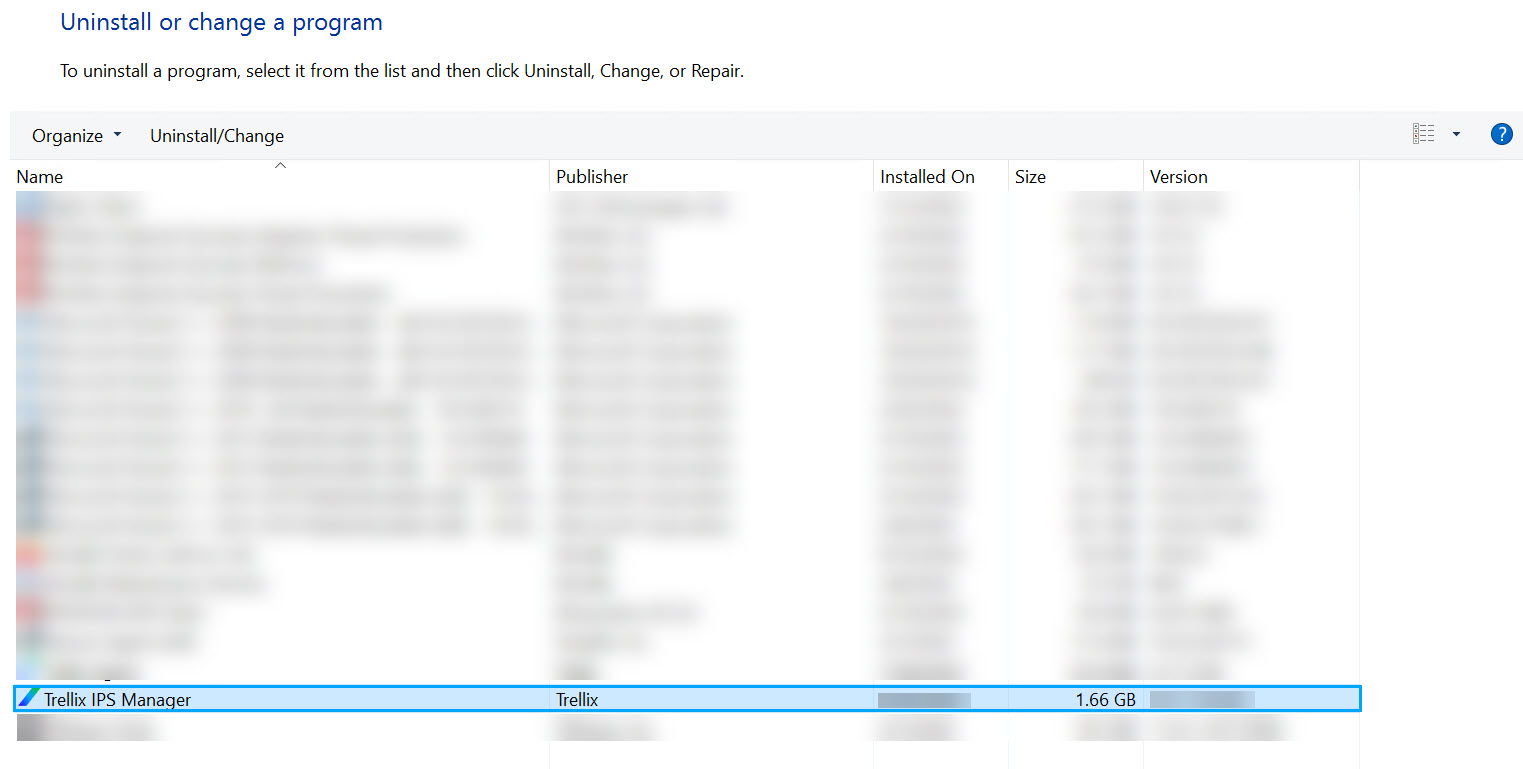
The Uninstall Manager window appears. -
Click
Uninstall to start the uninstallation process.
Uninstall Manager window 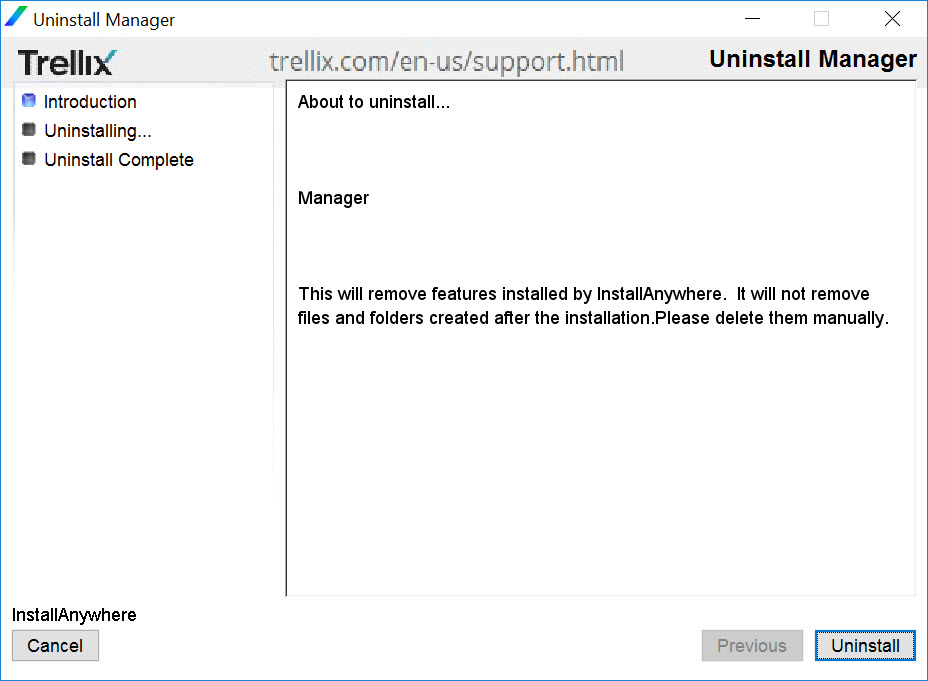
-
After uninstallation, the message
The following items could not be removed: is displayed along with a list of directories that were not removed during uninstallation. Click
Done.
Uninstall Complete window 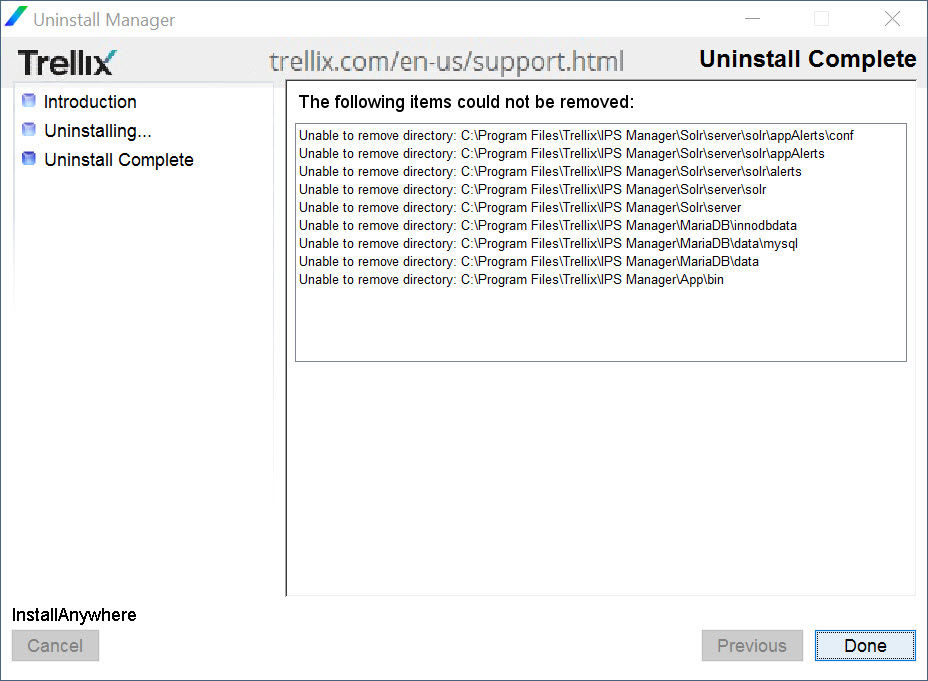
Note
Log files, archival files, databases (MariaDB and Solr) and user specific data are not removed during the uninstallation. This data still remains in the Manager install directory. If you wish to remove all this data, navigate to the location where you installed the Manager and delete the IPS Manager directory.