Configuration updates refer to changes to device and interface/subinterface configurations, such as port configuration, non-standard ports, interface traffic types, and configuration changes to the Sensor.
Signature updates have new and modified signatures that can apply to the attacks enforced in a chosen policy. Policy changes update the device in case of a newly applied policy or changes made to the current enforced policy.
You can schedule configurations to be pushed to the Sensors from Manager → <Admin Domain Name> → Trellix IPS Protection Status. Select Signature Sets tab. The Signature Sets tab is displayed. Schedule the frequency at which the automatic deployment must occur by enabling the Automatically Deploy New Signature Sets option from Automatic Deployment (Manager to Devices). The configurations are automatically deployed to Sensors from Manager based on schedule.
All configurations in the Policy page that apply to your Sensors can also be manually pushed from Devices → <Admin Domain Name> → Global → Device Manager. Select Sensors tab. From the list, select the required Sensors. Select Sync (all Sensors in a domain) or Devices → <Admin Domain Name> → Devices → <Device Name> → Deploy Pending Changes (to a single Sensor) action.
Scheduled deployment
- Select
Manager → <Admin Domain Name> → Trellix IPS Protection Status. Select
Signature Sets tab. The
Signature Sets tab is displayed.
Automatic Deployment (Manager to Devices) 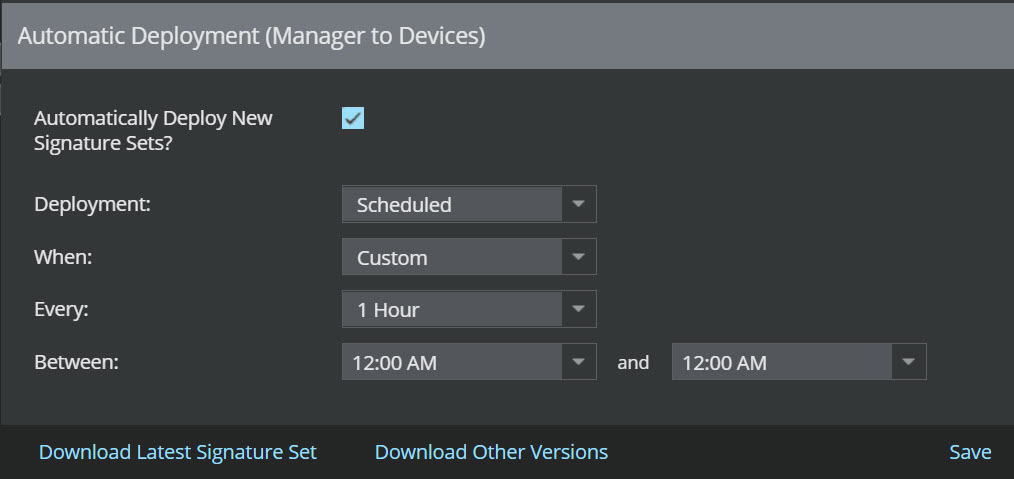
- Enable
Automatically Deploy New Signature Sets? option. By default, it is disabled.
- To push signature sets update to all Sensors immediately after it is downloaded to the Manager, select Immediate (after download) from Deployment drop-down. Click Save to setup the automatic deployment.
- To configure the required interval of automatic deployment, select Scheduled from Deployment drop-down option. Choosing this provides, When option.
- From the
When option, customize the interval at which the deployment must occur. The following options are displayed in the drop-down list:
- Daily: To deploy new signature sets daily. Set the time at which the deployment must occur.
- Weekly: To deploy new signature sets weekly. Set the day of the week and time at which the deployment must occur.
- Custom: To customize the interval at which the deployments must occur. The following options are displayed:
- Every: Set the recurrence of time for the devices to poll the Manager.
- Between: Set the time range at which the deployment must occur.
- Click Save.
On-demand deployment
Task
-
Select
Devices → <Admin Domain Name> → Devices → <Device Name> → Deploy Pending Changes.
The Deploy Pending Changes page is displayed.
Deploy Pending Changes page 
- View the update information. If changes have been made, the Configuration & Signature Set column is checked by default.
-
Click
Deploy.
A pop-up window displays configuration download status.