In the Settings > Whitelist Categories (optional) area in the SSL Intercept Settings page of a Network Security appliance, you can select a category to whitelist all the URLs in that category. You can drill down to the subcategories within a whitelist category. You can filter the third-party categorization database for the specified domain.
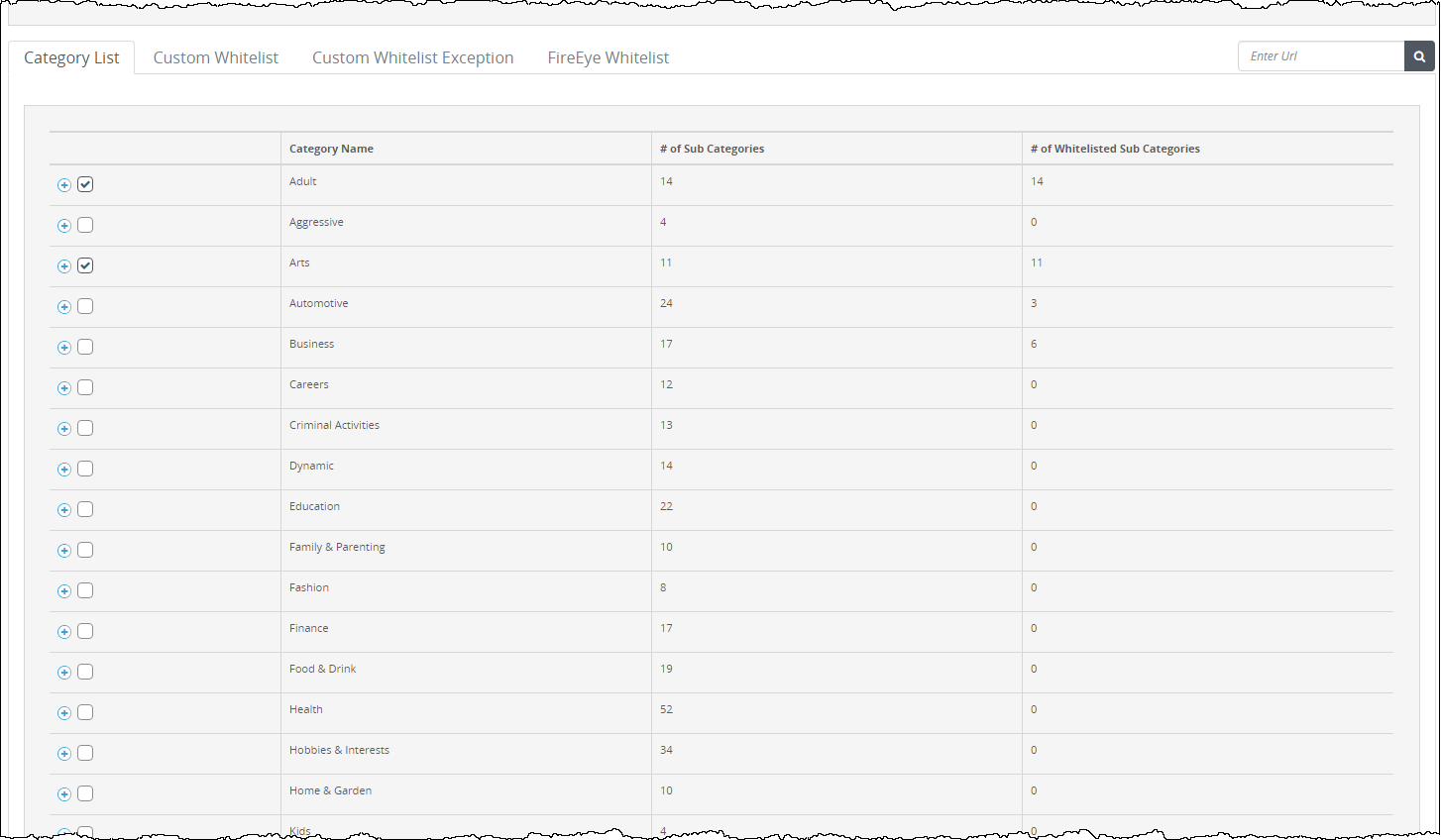
The following table describes the domain whitelist fields.
Field | Description |
|---|---|
Category Name | Name of the domain whitelist category. |
Number of Sub Categories | Total number of subcategories in the domain whitelist. |
Number of Whitelisted Sub Categories | Total number of subcategories that were whitelisted in the parent category. |
In the Web UI, choose Settings > SSL Intercept.
Click Whitelist Categories (optional).
Click Category List.
Enter the domain or the URL search criteria of the category that you want to filter in the search box. Press Enter.
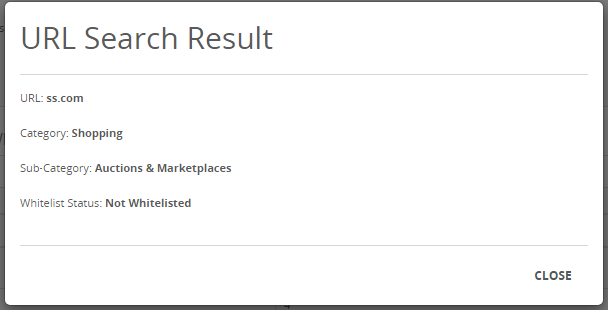
If the specific URL is not whitelisted, the following status appears in the URL Search Result window.
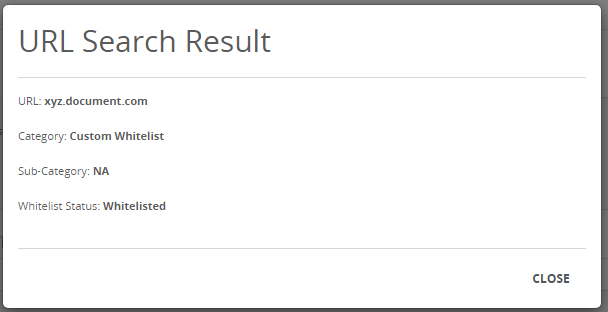
If the specific URL is whitelisted, the following status appears in the URL Search Result window.
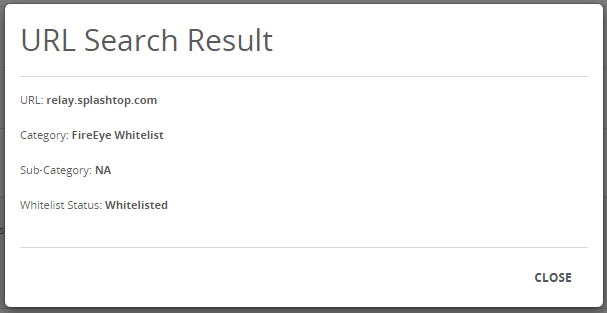
If the specific URL is included in the predefined Trellix whitelist, the following status appears in the URL Search Result window.
To see the subcategories within a whitelist category, click the entry's expand icon in the first column.
Select the checkbox next to the category entry you want to whitelist. You can select multiple entries or all entries at one time.
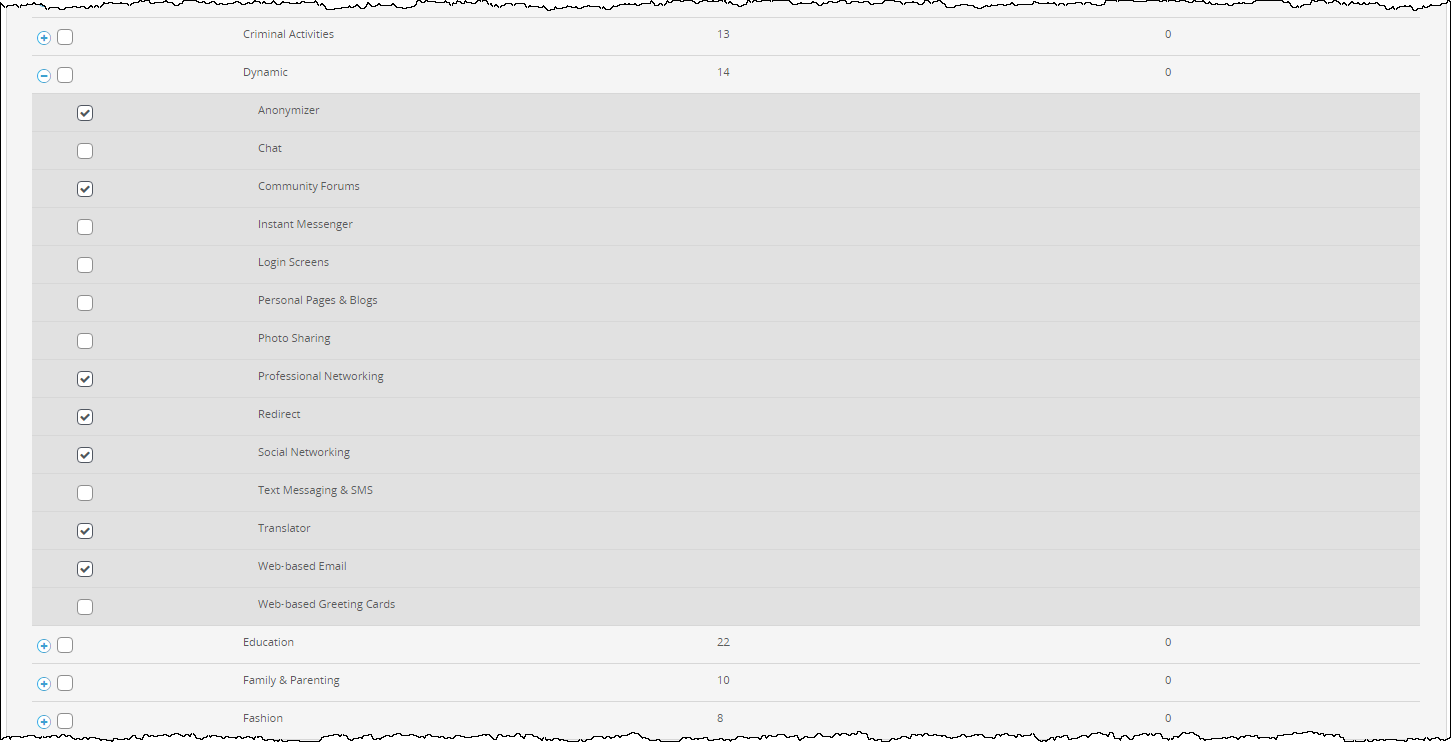
(Optional) Clear the checkbox in the subcategory list next to an entry you do not want to include in the domain whitelist category.
Click Save.
The specified category entry is whitelisted. The following message appears:
