Points for considerations:
Consider the following points before you upgrade the capacity license:
This section is not applicable to Sensors running on subscription based licenses. It is applicable only for Sensors running with perpetual licenses.
For HA pair, the Sensors in the HA will have to run with the same capacity for the deployment of updates to be successful.
If you are upgrading your capacity license, you must reboot your Sensor for the change to take effect.
If you select an existing license (from a zip file containing one license) and if the Sensor assignment is not done, the existing license is removed and replaced with the new capacity license.
If you select an existing license (from a zip file containing two or more licenses) and if the Sensor assignment is not done, then only one of the existing license which is selected from the list of licenses available is removed and replaced with the new capacity license. For example, if there are two licenses with license keys L001-1 and L001-2 in a zip file, only one of it will be replaced with the new license with a change to the license key.
If you select an existing license (from a zip file containing one license) and if the Sensor assignment is done, the existing license is removed and replaced with the new capacity license. This upgraded license is automatically assigned to the Sensor.
Note
If the Sensor also has an existing SSL proxy decryption license assigned and its capacity is same as the old system license, then you must purchase an SSL proxy decryption license with the same capacity as the upgraded system license, to enable signature file push to the Sensor.
If you do not have an existing license with x capacity, you cannot add an upgrade license with (x + y) capacity. For example, if you do not have a 10G license available in the Manager, you cannot add an upgrade license from 10G to 20G......100G in the Manager.
After the existing license (x) is replaced with a new license (x+y), you cannot re-import the old license (x) from which you upgraded.
Demo licenses cannot be upgraded.
An upgraded capacity license can be further upgraded.
You can upgrade the existing capacity license as long as the license is not expired.
You can upgrade the existing NS9500 standalone to new NS9500 stack, but you must reassign the license manually to the stack.
If the bundled zip file contains upgrade license files and new license files, you are prevented from adding it to the Manager.
Note
In such a case, unzip the file and add the licenses to the Manager individually.
To upgrade an existing capacity license, perform the following steps:
Go to Manager → <Admin Domain Name> → Setup → Licenses.
Click the System tab.
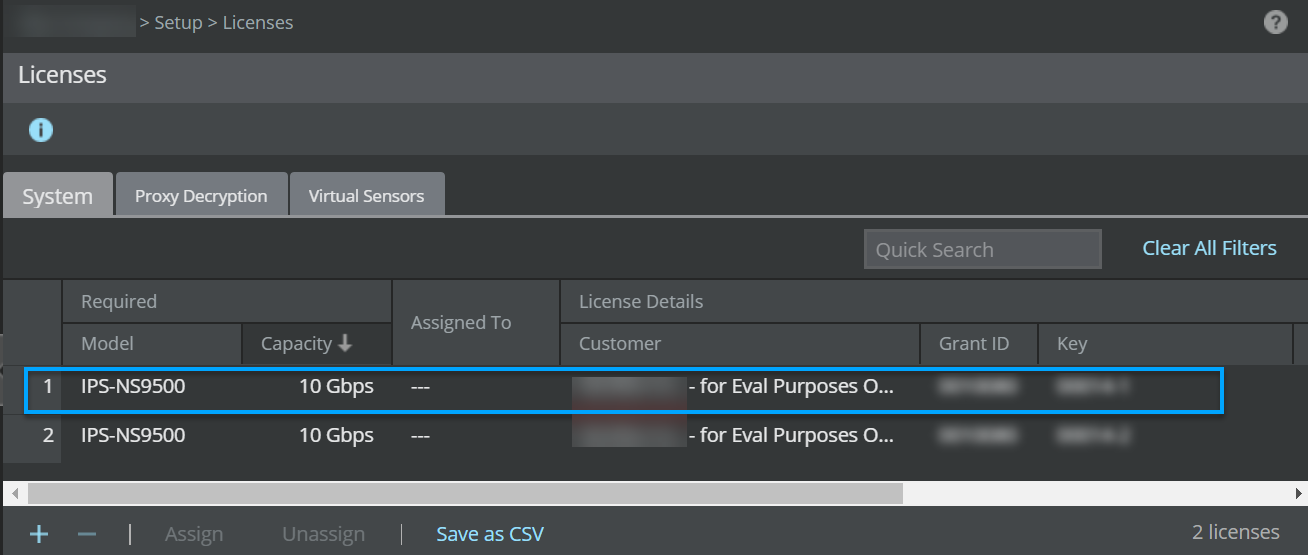
The system tab with existing licenses:
Click
.png) .
.The Add License pop-up window opens.
Click Browse.
Navigate to the location where the upgrade license is saved. Select the license and click Open.
Note
The supported license formats are zip and jar.
Upload license to the Manager.png "GUID-236A0E66-68BF-4783-975F-C3EF9C92624A-low.png")
Click Add.
An informational message window appears. Click OK.
.png)
<Sensor name> System license upgrade (from x Gbps to x+y Gbps) window appears which displays all the licenses present in the Manager for that particular capacity. Double click on the license you wish to upgrade the capacity license for.
.png)
A warning message that the existing system license will be removed and replaced with a new license appears. Click OK.
.png)
if you are upgrading from a standalone Sensor to a stack Sensor, the following warning message is displayed. Click OK.
.jpg)
The existing system capacity license is replaced with the new capacity license.
.png)
(Optional) Click Save as CSV to export the license usage details as .csv file.